79
Enjoying Net Audio—Continued
Music Server Sub-menu
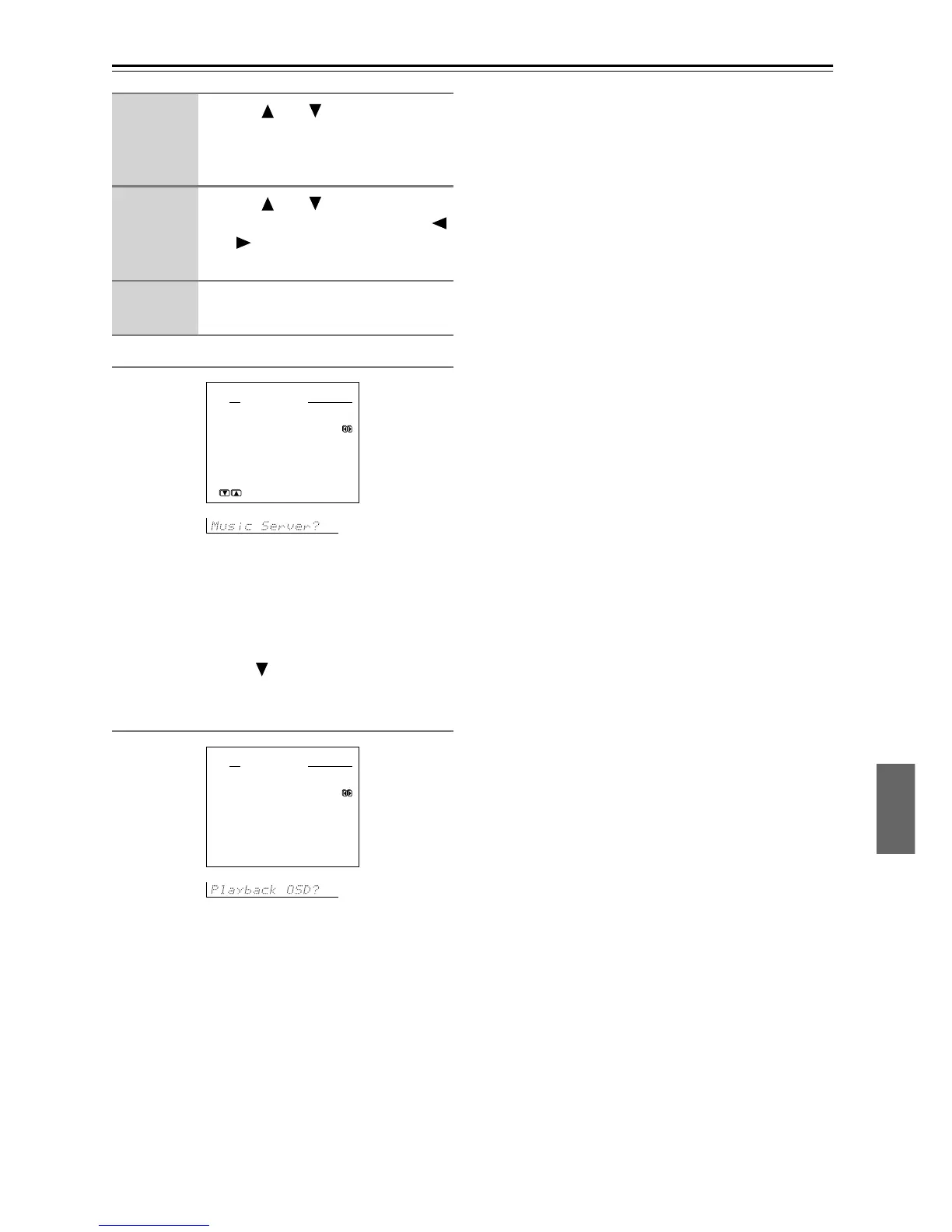
a. Select Server
Select a Network Audio Server that exists on the net-
work.
* mark appears to the servers detected on the network.
If there is a server which does not have * mark, make
sure that the server is operating.
After selection, use the button to select “→ OK,” and
press the Enter button to confirm your selection.
Playback OSD Display Sub-menu
The Playback OSD Display sub-menu allows you to
select the way the information on the currently played
track appears on the OSD.
a. Playback OSD Display
Full: Select this when you want to have the OSD dis-
play the information on the currently played track.
Simple: Displays the current track information sum-
mary in two lines.
Off: Select this when you do not want to have the infor-
mation displayed on the OSD.
Hint:
Procedures for the other setup menus are same as other
input sources. For details, see the following pages.
Video Setup Sub-menu → page 38
IntelliVolume Sub-menu → page 53
Listening Mode Preset Sub-menu → page 56
4
Use the and cursor buttons to
select the sub-menu that you want
to enter and then press the Enter
button.
5
Use the and cursor buttons to
select an item and then use the
and cursor buttons to set the
desired value.
6
Press the Setup button to return to
the main menu.
2-1.Music Server
a.Select Server
:My PC-ABCDE
→OK
Quit:[SETUP]
Input:NET A
2-2.Playback OSD Display
a.Playback OSD Display
:Full
Quit:[SETUP]
Input:NET A
Making Full Use of Your DTR-7.4



 To Next Page