VF405 Video Frenzel Instructions for Use - English
Date: 2012-08-24 Page 21/33
3.5.1 Adjusting Eye Camera Brightness
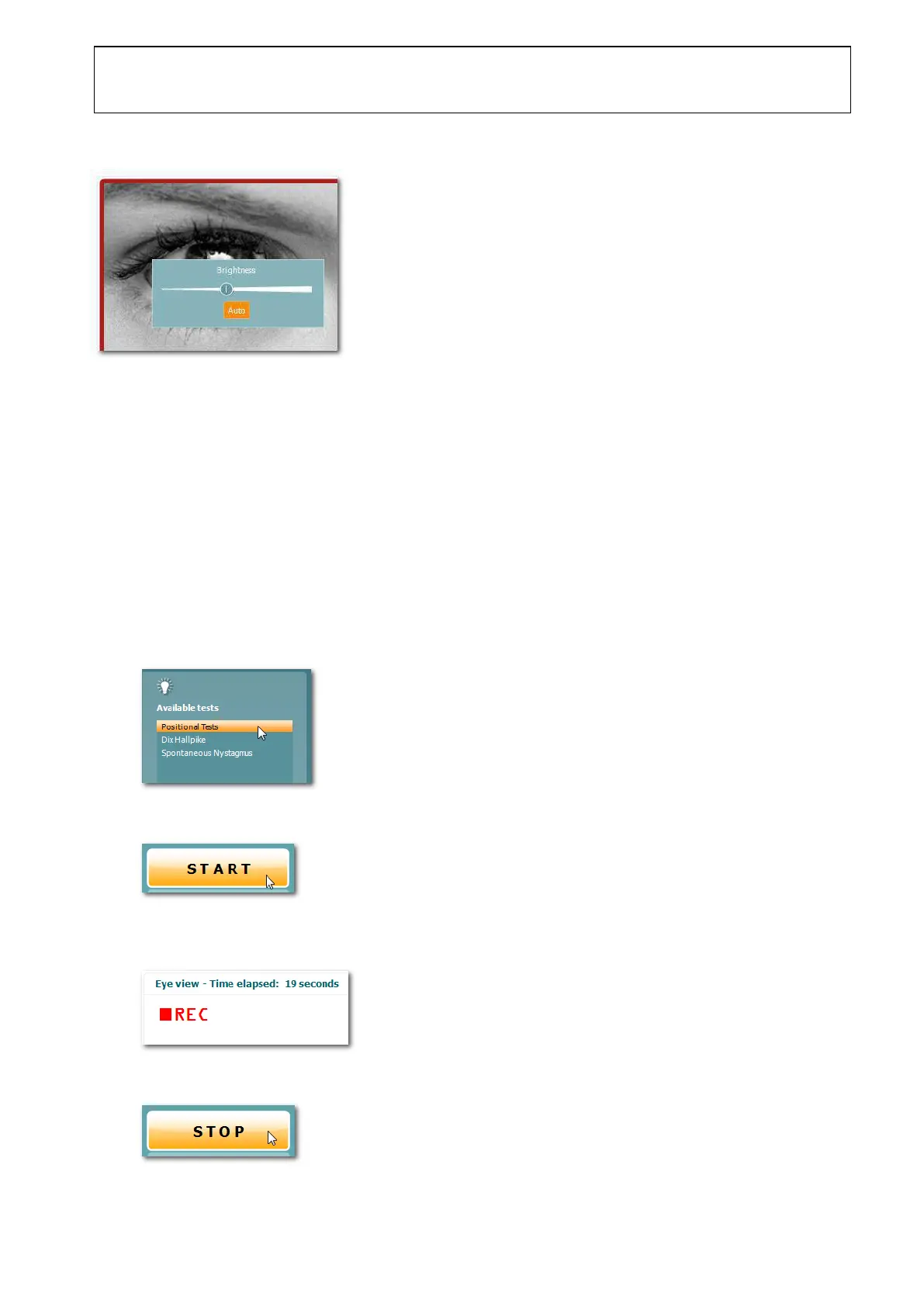
To adjust the brightness of an eye camera, right-click anywhere within the live view frame.
By default the brightness is automatically adjusted, but by clicking on the Auto button, the brightness can
be manually adjusted using the slider.
3.5.2 Full Screen Mode
The live images of the cameras can be expanded to cover the full screen area by double-clicking
anywhere within an image frame.
Double-click anywhere within the full screen image frames to return to normal view.
3.6 Starting and Stopping Video Recording
The procedure for recording video is detailed in the steps below.
1. Select the type of test in the Available Tests list as shown below.
2. Click the Start button in the bottom-left side of the screen.
3. The video recording is now in progress, indicated by the elapsed time counter and the flashing
REC symbol.
4. To stop the video recording, click the Stop button in the bottom-left side of the screen.















 To Next Page