input connection on the TV set.
3. Connect the white connector to the Left (L) audio input connection on the TV set.
4. Connect the red connector to the Right (R) audio input connection on the TV set.
| top of page |
Optical Audio Connection
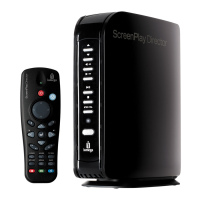
The ScreenPlay TV Link DX includes an optical audio connector for high quality digital audio
output. You will need to obtain an optical audio cable to connect the ScreenPlay TV Link DX to an
AV amplifier (receiver) with a digital audio decoder.
NOTE: You will get multi-channel sound effect only if the audio source file carries it.
| top of page |





 To Next Page