Sharing Media Files
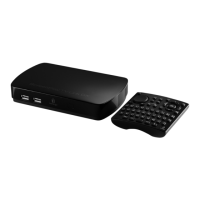
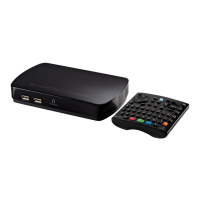
The ScreenPlay TV Link DX is UPnP/DLNA compliant to make it easy to connect and share media
content in the digital home. You can share media files across your home network or access media
content from a media server or external USB devices.
Using External USB Devices
The ScreenPlay TV Link DX will automatically recognize supported media content on external USB
devices that are formatted NTFS, FAT32, Mac OS Extended (HFS+), Ext2, or Ext3. Simply connect
the USB device to one of the USB host ports on the ScreenPlay TV Link DX, then use the TV
interface to select the type of media you want to view or play from the USB device. Select "USB"
from the list of available locations to browse media content and select files you want to play. The
ScreenPlay TV Link DX will assign a number to the USB device depending on which port it's
connected to.
NOTE: The USB host ports on the ScreenPlay TV Link DX can support only one host-powered
external hard drive at a time. You can connect additional USB devices at the same time if they
draw very little power from the USB bus. For example, you could connect one 2.5" portable hard
drive, plus a flash or pen USB drive and an Iomega WiFi adapter.
| top of page |
Accessing Network Files
You can use the ScreenPlay TV Link DX to play media files from your network on your TV. Connect
the ScreenPlay TV Link DX to your network and set up the network configuration. See Connecting
to a Network for more information.
Once the network connection is established, you will be able to select network volumes from the
list of available locations on the ScreenPlay TV interface, then browse folders and files to select
and play media content.
NOTE: If you need to enter a username and password to login to a network volume, you can use
either the virtual keyboard on the ScreenPlay TV interface or the QWERTY keyboard on the
remote control. The password can use any combination of numbers, letters (lower case or caps),
or extended characters, including punctuation characters. To display and select extended
characters on the virtual keyboard, select the Option button at the bottom of the virtual





 To Next Page