z Using the Remote Control
z Navigating Menus
z Options Menus
Navigating Menus
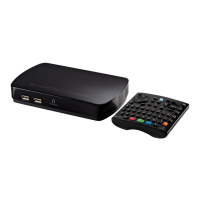
When the ScreenPlay TV Link DX is connected to a TV and powered up, the ScreenPlay TV Link DX
home screen will display on the TV screen. From the home screen, you can select from the
following media functions to browse and play media files, access online media, or access settings
and general information for your ScreenPlay TV Link DX.
Use the right/left navigation buttons on the remote control to scroll through the ScreenPlay TV
Link DX functions. When the function you want is highlighted, use the up/down navigation buttons
to scroll through available locations or options. Press the Enter button to select an option or
location. When browsing content, you can select and play media fles by pressing either the play
button or Enter on the remote control.
Each media function automatically filters files so you will see only the selected media type. For
Music
Listen to music tracks, albums, and playlists.
Create playlists.
Movies Access and play your digital movies and videos
Photos
Browse and view your photo images. Create
photo slideshows.
Online media
Access popular internet media to view on your
TV
Settings View or change player settings





 To Next Page