Playing Digital Movies
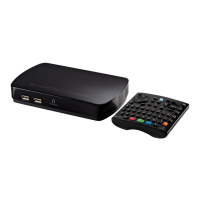
With ScreenPlay TV Link DX connected to your TV and your home network, you can easily play
digital movies and video files from any of the following locations:
z Network volumes
z Connected USB storage devices (such as flash or external hard drives)
z A computer or NAS with Digital Media Server
z A local computer equipped with Windows Media 11 and UPnP activated
To access your video files, select Movies from the ScreenPlay TV Link DX home screen:
Use the up/down navigation buttons on the remote control to highlight a source location and
press Enter to select it. The video navigator will automatically filter the selected location to
display video content. After choosing a location, you can select an additonal browser filter to
make it easier to find the movie or video you want to watch. The filter options for Movies include
Folders, All movies, or Recent. Press Enter when the filter option you want is highlighted, then
browse to the video file you want to play. See Navigation Tips for details on how to use the
remote control to browse and select files.
NOTE: If the movie or video file you want does not appear or does not play, make sure it is in a
supported format. See Supported Media Formats for a complete list of supported video types and
file formats.
Click here to view step-by-step instructions for playing video files.
Playback Options
While viewing a movie, you can press the Option button to access video playback options where
you can select or change the following:
Audio channel
Subtitles
Pan
Zoom
Info





 To Next Page