use playlist files from other software players, such as Windows Media Player or Winamp. Playlist
files usually have an .m3u file extension.
1. Press the Music button on the remote control to display the music navigator.
2. Use the up/down navigation buttons to highlight the source location where the playlist is
stored. The music navigator will list all available sources, including network volumes,
connected USB devices, and UPnP/DLNA compliant Digital Media Servers.
3. Select the Playlist filter to make it easy to find the m3u files.
NOTE: The playlist filter will not appear if the Media libray option is turned off.
4. Browse to the playlist you want and press the Play button to start playback.
5. Press Play/pause again to pause playback or press the Stop button to end playback.
During playback, you can press the Option button to set options to repeat all tracks on the playlist
or shuffle the play order.
Folder Playlists
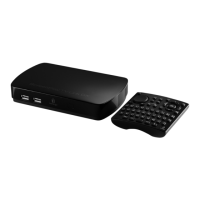
The ScreenPlay TV Link DX will automatically play all of the music tracks in a folder as a playlist,
so you can also create playlists by organizing your music files in folders as desired. To launch a
folder playlist, just navigate to the folder, select the first music track in the folder and press the
Play button to start playback. The ScreenPlay TV Link DX will then play all of the music tracks in
the folder in order of their filenames (alphanumeric order). If you want to play the music tracks in
random order, press the Option button, then press Enter until the shuffle icon displays on the info
bar.
| top of page |





 To Next Page