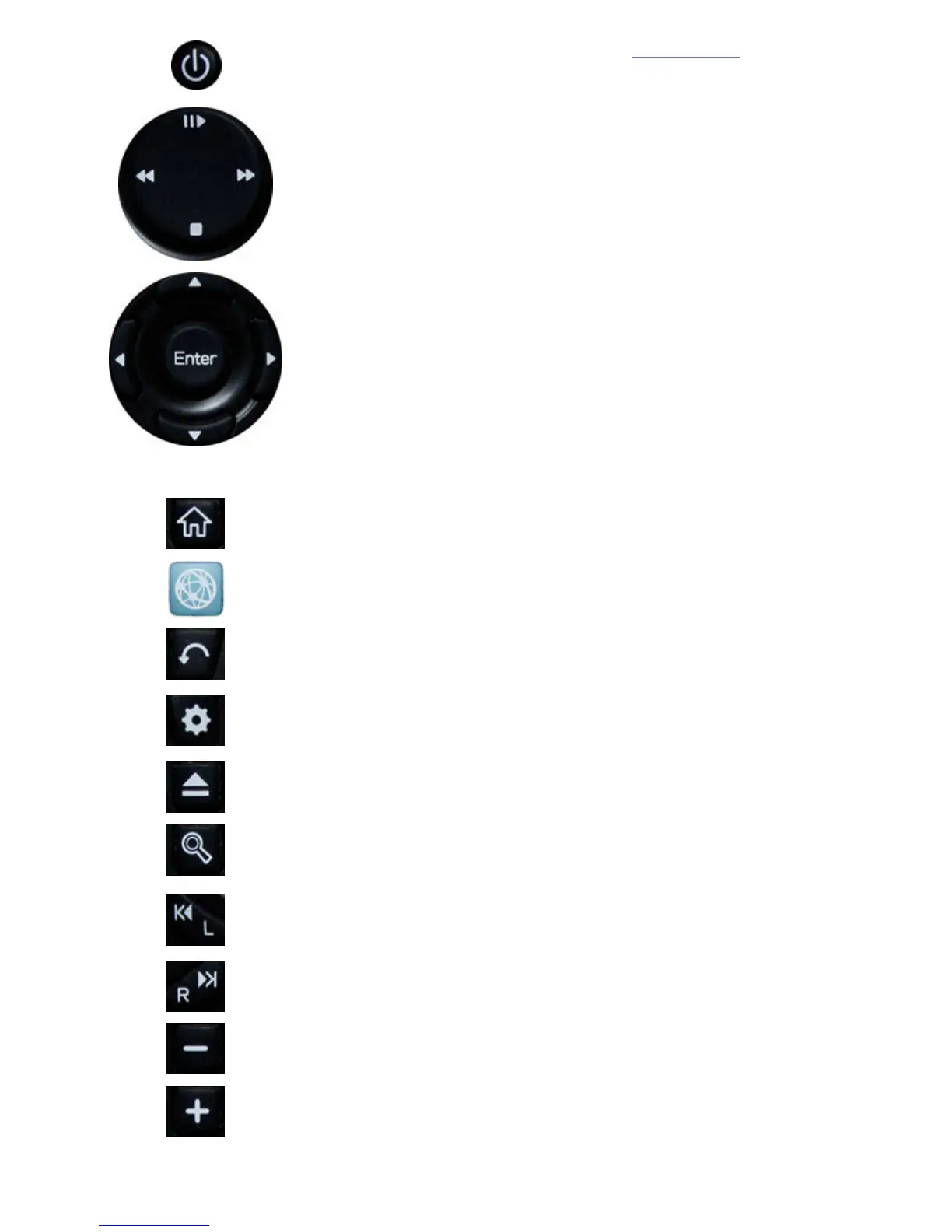
off. When Quick Start Mode is set to ON in the system settings,
the power button puts the ScreenPlay TV Link DX into standby
mode rather than turning power off.
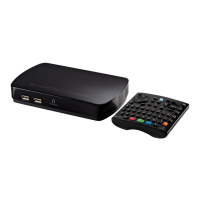
Player control pad — Standard controls for Play, Pause, Stop, Fast
forward, and Rewind. Use to move the cursor in the web browser.
Navigation Controls — Use the arrow buttons to move the
highlight through lists or options. Use the up/down arrow buttons
to scroll web pages.
Use Enter to select a highlighted item or open a folder when
navigating through lists of files. You can also use Enter to start
playing a media file.
In the web browser, use Enter to select a web link or insert the
cursor in a text field indicated by highlight or the pointer.
Home — Press to display the ScreenPlay TV Link DX home screen.
Use to exit the web browser.
Online media — Press to display the Online Media menu with the
Browser option highlighted.
Back / Return — Press to return to previous option or menu.
Return to the previous web page in the browser; go back through
browser history.
Option — Display context sensitive menus and options.
Click to display the web browser URL bar and browser options
including bookmarks and browser history.
Eject — Use to safely remove a USB device before disconnecting it
from the ScreenPlay TV Link DX.
Search — Search for a specific media file.
1
You can use the QWERTY keyboard on the remote control or the
onscreen virtual keyboard to enter your search terms.
Previous — Jump to previous music/photo file or video chapter
during playback.
Left mouse click in the web browser (same function as Enter).
Next — Jump to next music/photo file or video chapter during
playback.
Decrease volume — Press to decrease the playback volume level
for movies or music tracks.
Increase volume — Press to increase the playback volume level
for movies or music tracks.





 To Next Page