107YLS-K
8.9.1 LaserNet program editor editing window
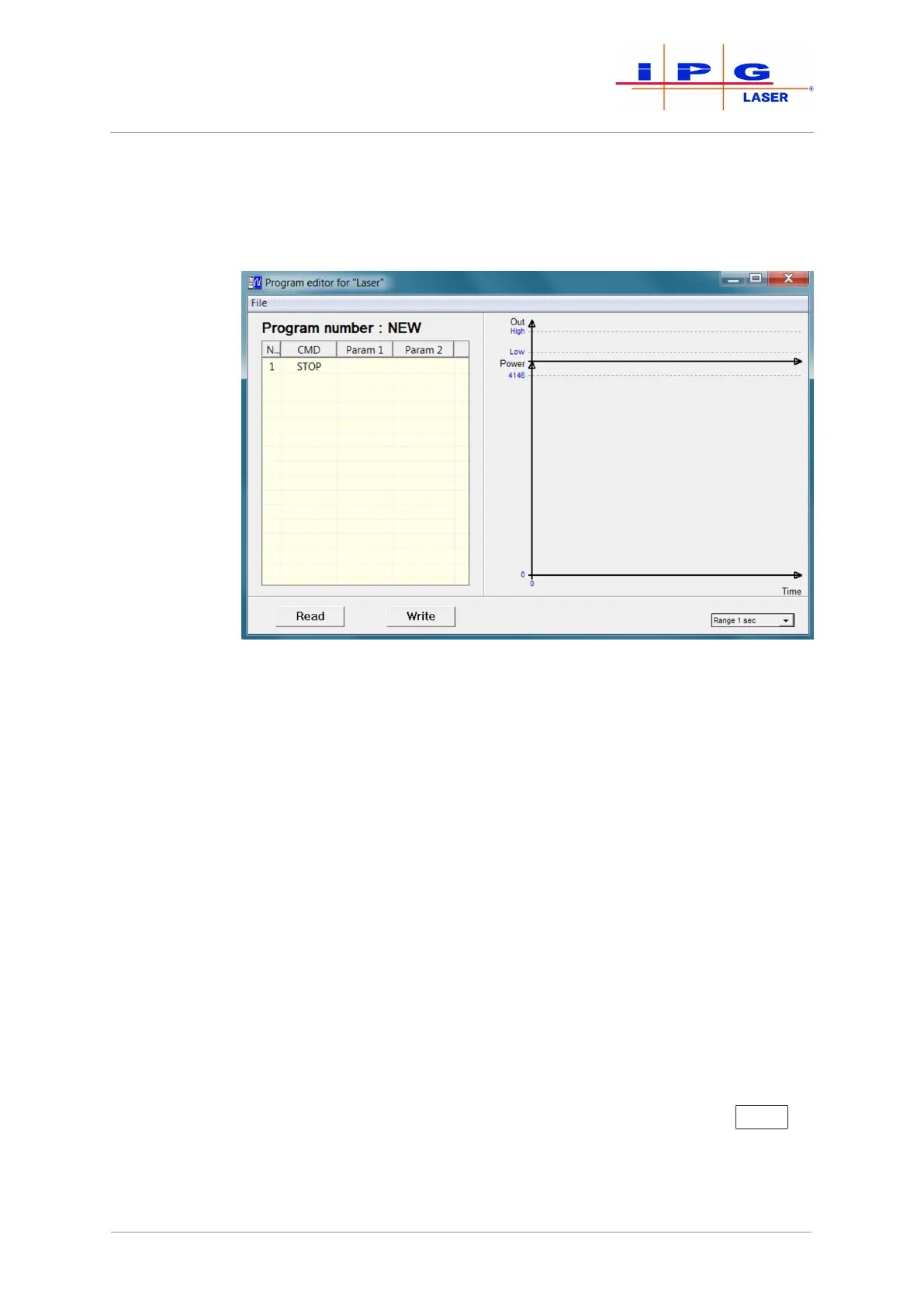
The figure below shows the editing window of the program editor. With
this window, you can open and edit or create a new laser program (LP).
Figure67: LaserNet program editor editing window
Commands are entered in the input field on the left side of the user in-
terface; on the right side, the program is displayed in the form of a dia-
gram (laser output power / time).
Column 1 (No) of the input field shows the command number, column 2
(Command) the command itself. Upon opening the program editor, the
command STOP is listed in line 1 by default. In the columns 3 (Param1)
and 4 (Param2), you can enter the parameters for each command. You
can enter the commands and parameters either via the key board or via
a drop down menu. The drop down menus for the columns 2, 3 and 4
appear as soon as you click on the field.
ð A new line can be inserted either by left-clicking on any open line
or right-clicking on an existing line (the option "Insert line" ap-
pears).
The default command "STOP" automatically appears in the new line, but this can
be changed to any command.
ð To delete an existing command line, right-click on the corre-
sponding line and select the option Delete line.If the laser pro-
gram consists of only a single line, this cannot be deleted.
ð To save a laser program in the laser, click on the button Write
.
A dialog window appears. Here you can assign the laser program a number be-
tween 1 and 50 and save the program under this number. Assigned program num-
bers have a red background, available program numbers are green.
| LaserNet software



 To Next Page