87YLS-K
Laser\ Configura-
tion Update
Via the submenu Configuration Update, you can perform an update of
the laser configuration as well as the firmware. Clicking on the submenu
opens a file browsing window. In this browsing window, you can select
the update file (*.hplp) to be loaded. The update file can be obtained
from IPG Laser GmbH upon request.
Laser\ Configura-
tion Overview
In the submenu Configuration Overview, you will find information about
the laser (e.g. serial number, ID, firmware) as well as about the laser
configuration (e.g. parameters, options).
Enable Control
Activate this option to apply password protection to all operating func-
tions in LaserNet in order to prevent unauthorized access.
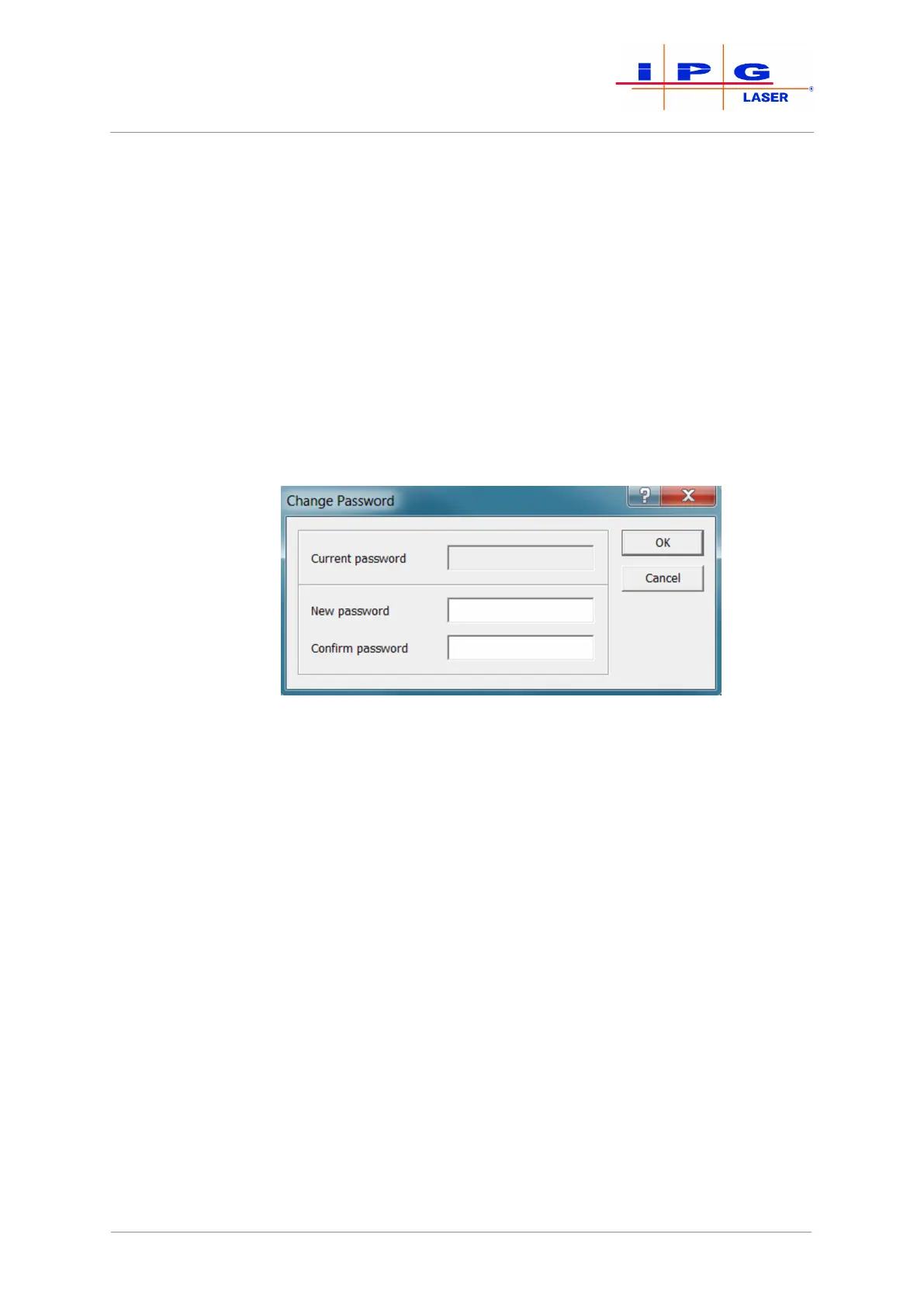
Change Password
Figure45: Change Password
In this dialog window, you can set a computer-specific password for
LaserNet, independent of access rights. Activating the password will
lock out the LaserNet operating elements on the Control tab. This lock
can be removed by entering the password via Configuration\ Enable
Control.
If you lose this password, it is possible to delete it. To do this, proceed
as follows:
1) Open the "Registry Editor". The value "user" is stored under the
following path: HKEY_Current_User\Software\IPG
Laser GmbH \LaserNet Settings
2) Delete the value "user".
3) Restart LaserNet.
You can now create a new password or work with LaserNet without password pro-
tection.
| LaserNet software



 To Next Page