45
Once you are satisfied with the FOV click on the “Auto Focus” button. This will command the camera
moduletoadjustitsimageforthesharpestsetting.Failuretoperformthisstepmaycausethesystemto
notperformatitsoptimallevelbymissingvehicledetectionsorby
placingfalsecalls.
Finally click on the “Set” button. This will command the camera module to store the FOV and Focus
settings.IfapowercycleweretooccurthecameramodulewillautomaticallyreturntothestoredFOV
andfocus.Failuretoperformthisstepmaycausethesystemto
losetheabilitytodetectvehiclesinthe
eventofapowercycleduetolossofzone/approachalignment.
Havingcompletedthesetupforonecamerarepeattheprocessforothercamerasinthenetwork.
Onceallthecamerashave been setupclick onthe“Exit” button to closethe
applicationandreturn to
theconsole.
4.5 System Setup and Operation (VRAS)
System setup and configuration, zone placement, zone types, output assignments, etc. are achieved
usingVRAS.
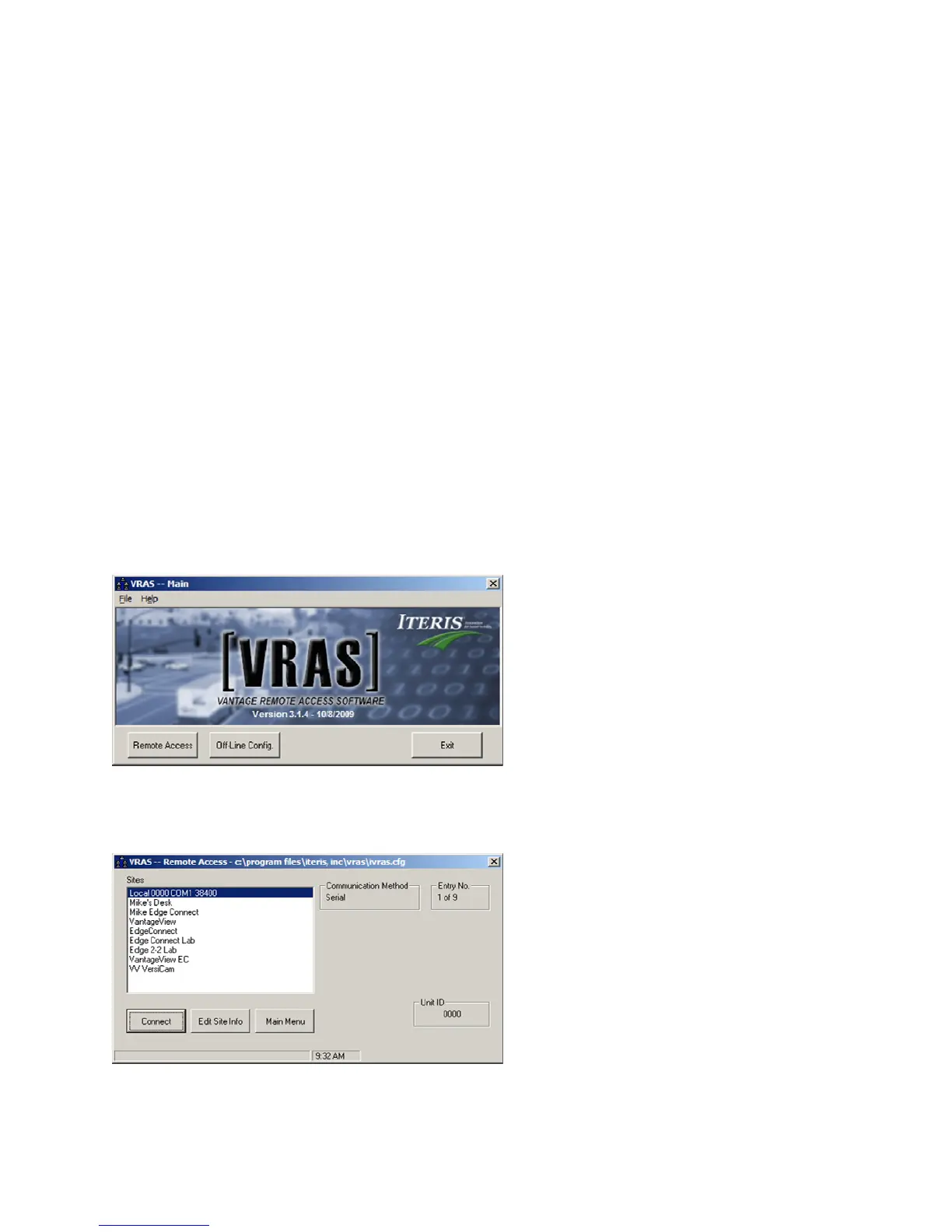
Click on the icon for VRAS (Vantage Remote Access System). The “VRAS – Main” screen, see Figure
4.5(a),willbedisplayed.
Figure4.5(a)–VRASMainScreen
Itisnecessaryonfirstusetoset
uptheVersiCamWirelessCamerasinthesystem.Clickonthe“Remote
Access”button,the“VRAS‐RemoteAccess”screen,seeFigure4.5(b),willbedisplayed.
Figure4.5(b)–VRAS–RemoteAccessScreen


 To Next Page