Micro-JLT GNSS™ User Manual
58 © 2019 Jackson Labs Technologies, Inc.
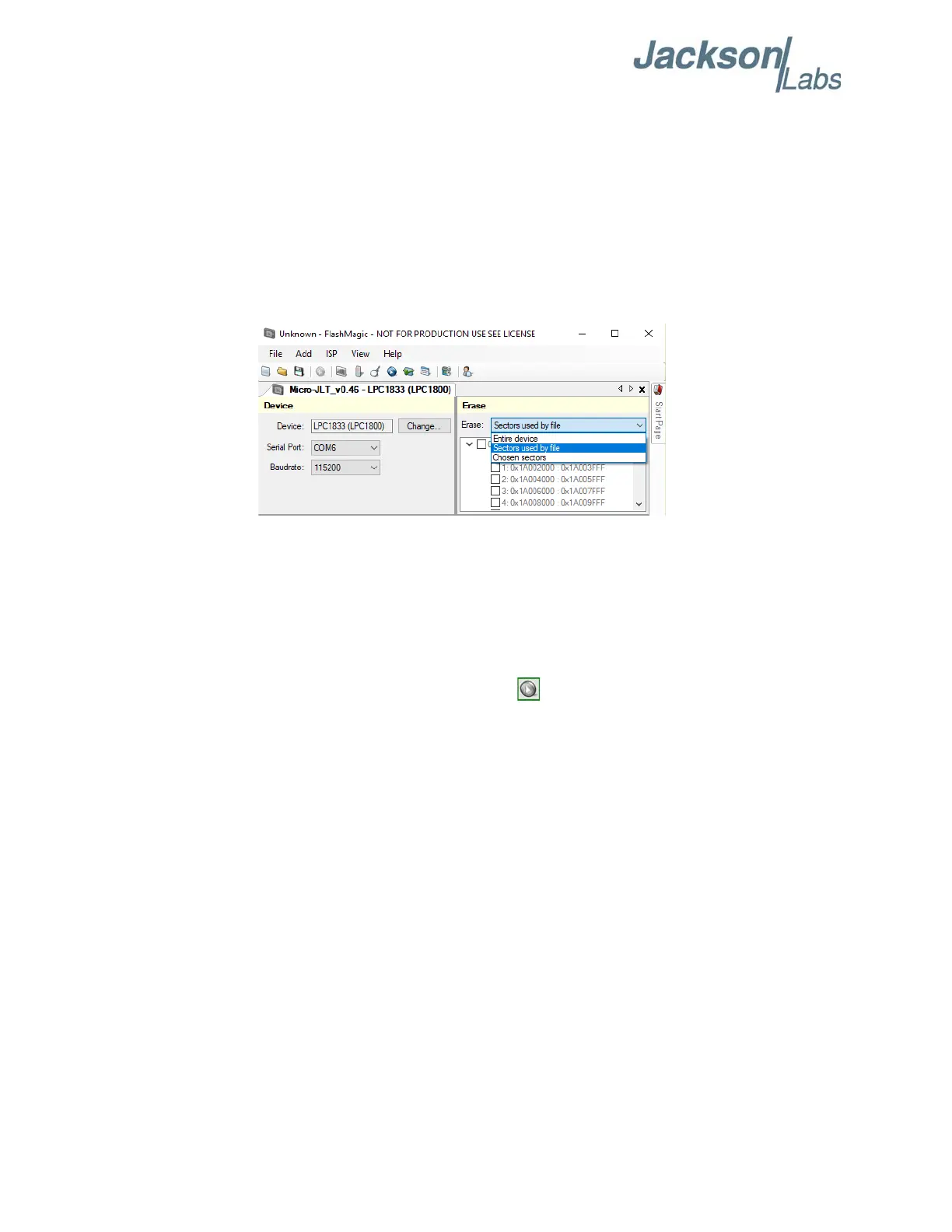
B) Select Erase “Sectors used by file” option as shown in Figure 4.7. This step is very important as
the default Erase option is “Entire device”. It may be helpful to select “Save Project” to save the
Flash Magic settings for Micro-JLT GNSS™ for future firmware update.
Warning: Make sure the Erase option is selected as “Sectors used by file” at all time,
leaving the Erase option as “Entire device” will erase factory calibration
data, and the unit will not operate and will have to be returned to the
factory. Programming Micro-JLT GNSS™ with Erase “Entire device”
option on the ISP utility will thus void the warranty.
Figure 4.7 Erase Sectors used by file
C) Change the COM port in the Flash Magic application as needed and select baud rate 115200 as
shown in Figure 4.6. Slower baud rates will also work, but will take longer to finish the programming
cycle.
D) Under “Firmware” section, click “Browse...” to browse for the hex file that you downloaded in
Section 4.4 .
E) Check again for the Erase option “Sectors used by file” in Figure 4.7.
F) Go to “Start” section and press the gray start button . You will observe the firmware being
downloaded to the processor.
G) Verify the firmware update in Section 4.5 .
4.4.3 Using the Flash Magic Classic Version
A) Set the COM port in the Flash Magic application as needed on your PC. Set “Interface” to “None
(ISP)” as shown in Figure 4.8. If the check box “Erase blocks used by Firmware” is not present,
check the Flash Magic version in Help->About. If the version is 12.01 or newer, refer to
Section 4.4.2 for programming instructions.
Please Note that the versions 10.xx of Flash Magic contain a communications option that is likely set
incorrectly by default. If this setting is incorrectly selected, Flash Magic may not be able to
communicate properly to the processor.
Open the “Options” and “Advanced Options” tabs on the application. Please ensure that the “Use My
Line Feed Settings”, “Send Line Feeds”, and “Expect Line Feeds” options are all highlighted and
selected as show in Figure 4.9 below. Press “OK” to get back to the main menu.


 To Next Page