Micro-JLT GNSS™ User Manual
54 © 2019 Jackson Labs Technologies, Inc.
recommended, the second method will be useful when the Micro-JLT GNSS™ stopped
communicating.
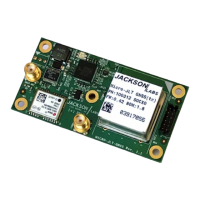
The board can also be put into ISP mode by shorting-out the ISP# pin 1of header J4 to pin 2 (Ground)
of header J4 of the Micro-JLT GNSS™ board shown in Figure 2.1 during power-on. Pin 1 of
connector J1 is also wired in parallel to this ISP# signal trace and may be alternatively used.
It may be useful to connect a push-button to pin 1 and pin 2 of J4 to allow in-field firmware upgrades
on the Micro-JLT GNSS™ PCB. Both LEDs should dim after power-cycling the board, indicating
the unit is properly placed into ISP mode. If the red or green LED lights up after power-on, the unit
is not in ISP mode.
4.4 Downloading the firmware
Download the latest version of Micro-JLT GNSS™ firmware from the Jackson Labs Technologies,
Inc. support website and store it in a place that will be remembered. The firmware file should be in
.hex format.
The unit needs to be connected to the computer’s RS-422/TTL serial port prior to firmware
download. The Micro-JLT GNSS™ is RS-422-level/TTL compatible. An RS-422/TTL to RS-232
converter must be used when connecting to the computer’s RS-232 serial port or to industry-standard
RS-232 to USB adaptors.
4.4.1 Using the JLTerm Programming Terminal
A) Download the JLTerm application for free from the support page link in Section 4.2 . Install and
open the JLTerm application.
Select the COM port in JLTerm as needed on your PC. Once a successful connection is established,
the connection icon will become green. A successful connection with green indicator is shown in
Figure 4.1. The Micro-JLT GNSS™ must be in normal operation with working SCPI communication
prior to JLTerm connection.
If there is no valid response from the COM port, check for valid driver and port number for the COM
port in Device Manager application on your computer. The COM port number may be conflicting
with another COM port device and each device should have different port number.
If necessary, change the COM port number, install or update driver, unplug and reconnect the serial
cable, then try to establish a connection again. In the case of an unsuccessful connection to JLTerm
after several attempts, follow instructions in Section 4.3 and Section 4.4.2 for an alternative
firmware upgrade method.


 To Next Page