Micro-JLT GNSS™ User Manual
64 © 2019 Jackson Labs Technologies, Inc.
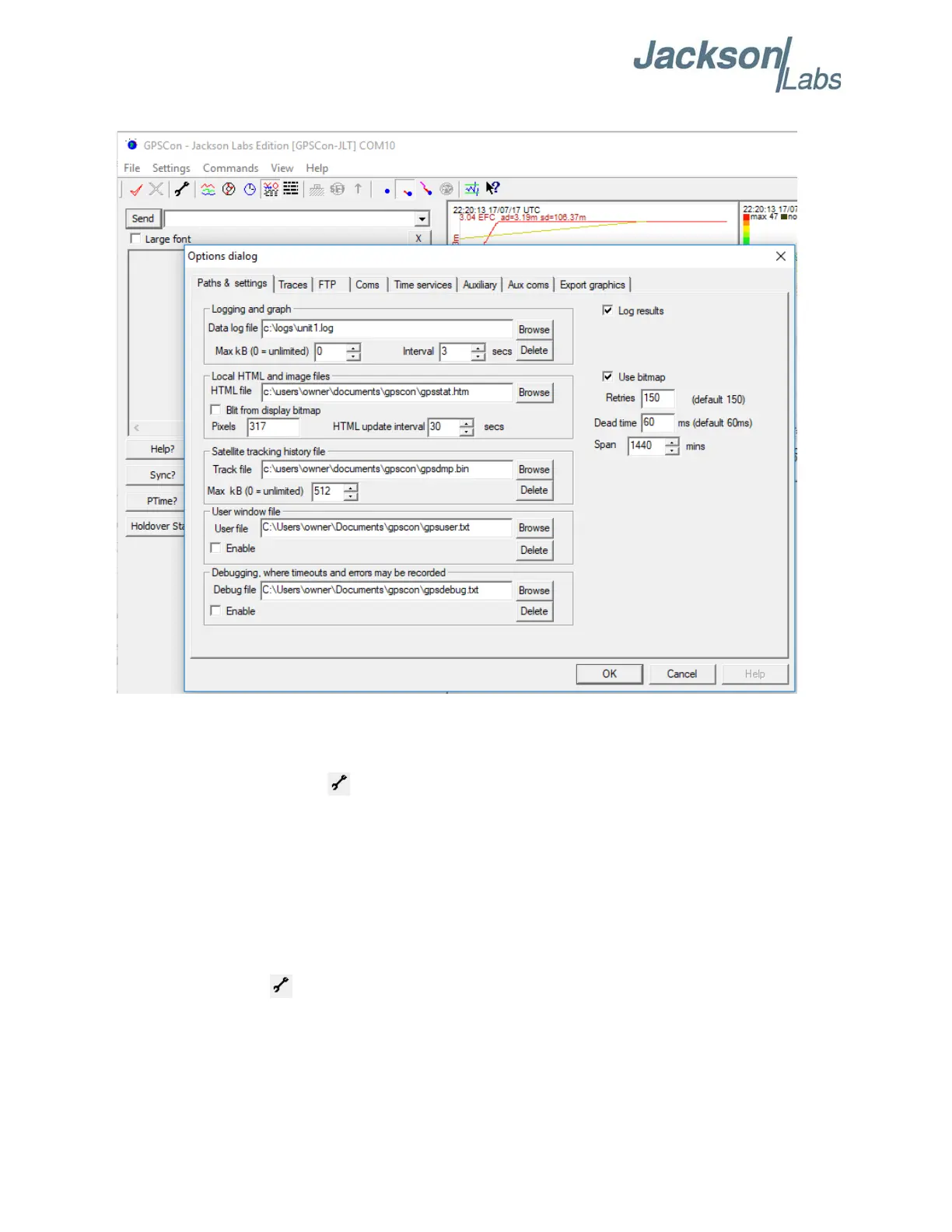
Figure 5.1 Options window
5.3.1.1 Communication Parameters
Before you can use GPSCon you must set the communication parameters for your system. Open the
dialog box by pressing the wrench icon. Then select the “Coms” tab. You will see the window
shown in Figure 5.2. Available COM ports for your particular computer are indicated with a “*”
symbol next to the COM port number in the drop-down menu. You can only select COM ports with
this adjacent symbol. Select the correct COM port for your computer’s serial port connection and set
the baud rate to 115200, parity to None, Data Bits to 8 and Stop Bits to 1. Set Flow Control to
“None”. Once you have configured the communication parameters, press the “OK” button to close
the window.
5.3.1.2 Auxiliary Parameters
After pressing the wrench icon, you can select the “Auxiliary” tab to configure auxiliary
measurements. See Figure 5.3 for an example of an auxiliary measurement. You will notice that the
“Aux1” request string has been set to meas:current?<CR> and the “Trace to go to” is set to trace
position 6. See “Trace position” diagram for the arrangement of the trace positions in the trace
window. In this example the data obtained from the meas:current? query will be plotted in trace


 To Next Page