95
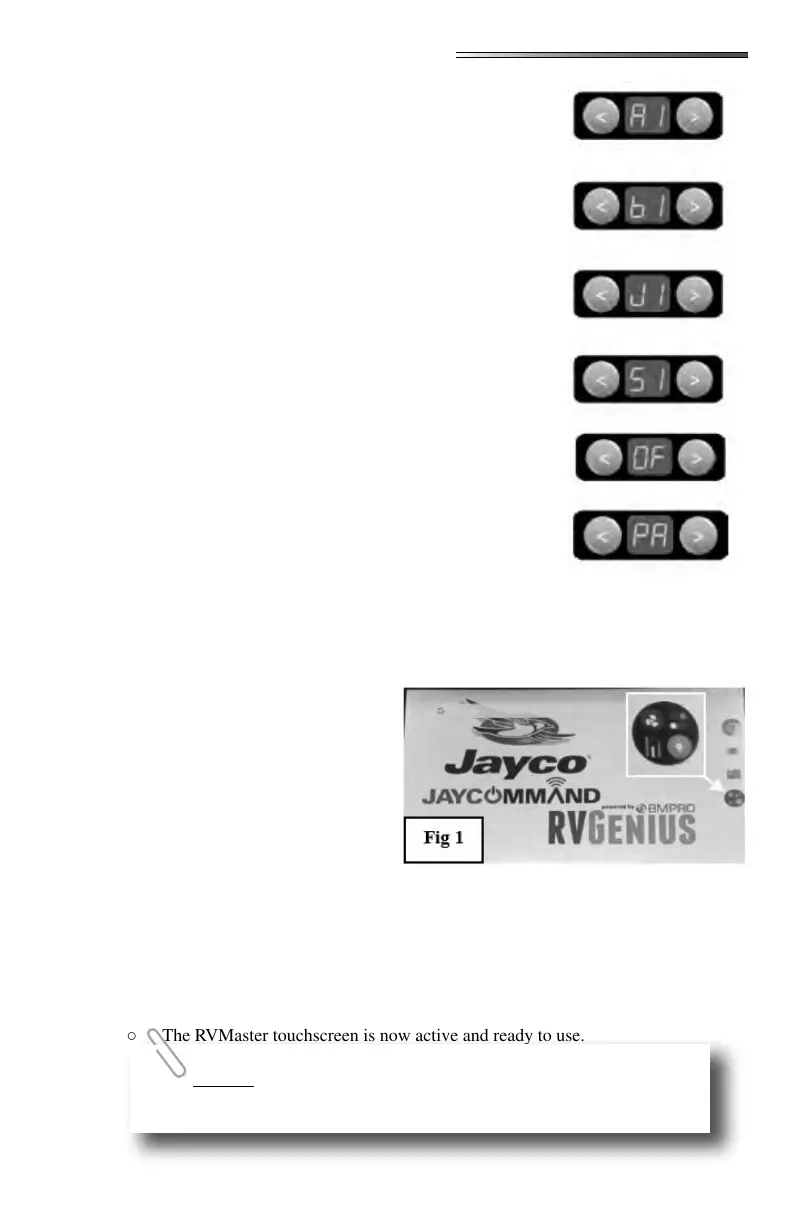
Menu Display shows or (awnings) Cycle between aw-
nings with the arrows.
○ Press and hold or to extend or retract the
selected awning.
○ Menu Display shows (bunk lifts) Cycle
between bunk lifts with the arrows press or
to operate.
○ Menu Display shows or(Jacks)
Cycle between jacks then press or to oper-
ate.
○ Menu Display shows or (slideouts)
Cycle between slides using the arrow buttons.
○ Press and hold or to extend or retact the
selected slideout.
○ Menu Display shows (must then press the
button) to turn o all loads (lights & fans plus touch-
screen) Does not shut down the generator. Press any
of the numbered light buttons to turn the touchscreen
back on.
○ Menu Display shows (pair):
○ Press to pair your phone or tablet
○ Or press to pair one of the wall mounted remote
controls
○ The on the small display will begin ashing on and
o indicating the system is in pairing mode and you
can connect your Bluetooth smart device. When the device is paired, display
will go out.
Normally when power is turned ON to
the RV, the touchscreen system automat-
ically boots up.
If the touchscreen system requires a re-
set for some reason, or if the touchscreen
has been turned o:
○ Pressing either of the arrow
keys, or a numbered key will
turn the system ON. (or
keys will not turn on the
system)
○ Two splash screens with the BMPro logo will appear rst during boot up.
○ The screen shown here () appears after the two splash screens.
○ To go directly to the RVMaster touchscreen, press the icon for the touchscreen.
(shown enlarged in the yellow box) or if you just let the boot up process nish, it
should go directly to the touchscreen.
○ The RVMaster touchscreen is now active and ready to use.
pressing the RESET button on the touchscreen (See Touchscreen
Control Panel) will also reboot the touchscreen.




 To Next Page