79
6 Annex
6.4 Barcode
Initialize the barcode scanner
The barcode scanner must be initialized once before use. Example:
Information and bar codes can be found in the manual of the barcode scanner used.
6.4.1 Batch control
Display the batch report
This function requires the appropriate display configuration (Configuration > Display >
Generally: Barcode -> Batch image = Yes).
The batch report is displayed.
Enter the batch texts
All batch lines which were configured for barcode input are successively filled with the scanned
text (max. 160 characters). The last line will be overwritten at the next entry.
A dollar sign within a scanned text causes the text following the dollar sign to be entered into
the next line. In this way, several lines can be filled with one scan.
Step Activity
1 Scan the „Factory Default Settings“ barcode.
2 Scan the „RS-232 Standard“ barcode („Select RS-232 Standard“).
NOTE!
The batch control via barcode scanner requires the appropriate configuration of the paperless
recorder. The right „Enter batch texts“ is required.
Step Activity
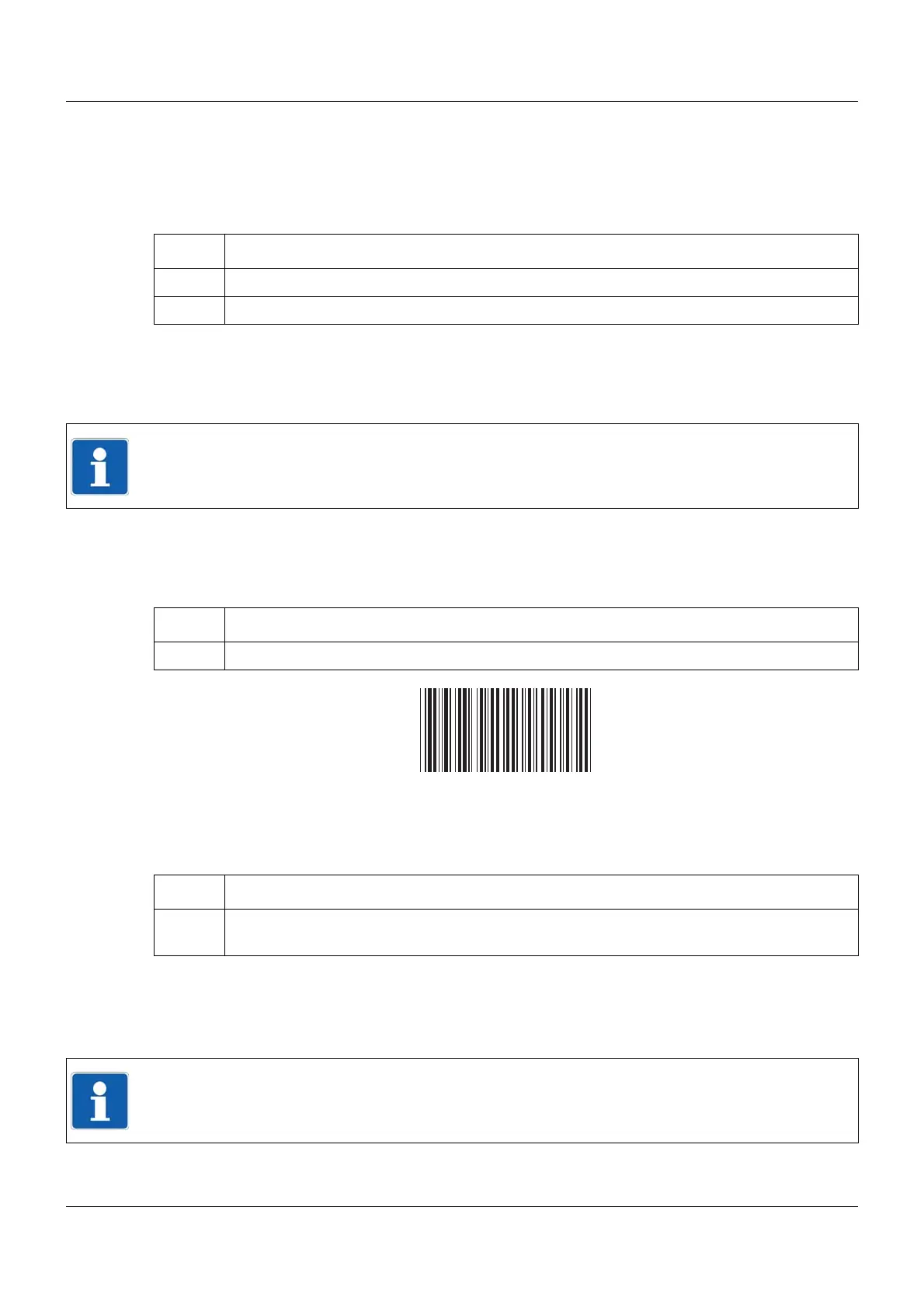
1 Scan the BATCH1 barcode.
Step Activity
1 Scan the barcodes for the batch text of each line one after the other (starting from the first
line).
NOTE!
The codes for batch control (BATCH1, START, STOP, RESET) can not be read as a batch
text.


 To Next Page