DN112-06v02
JYE Tech - 13 - www.jyetech.com
Select the port that is corresponding to DSO112A (you can
identify it by going to Windows hardware manager and
connecting/disconnecting the USB cable). Set parameters
as shown in the figure above.
5) Prepare data to be transferred. Capture the waveform you
need and put DSO112A in HOLD state so that the
captured data will not change. If waveform has been
pre-saved to EEPROM use recall function to bring it to
screen. Please note that only the waveform that is
displayed before entering Menu is transferred.
6) Start transfer. To start transfer enter Menu and touch the
“Send Data” button. DSO112A will enter sending state
waiting for request from PC. This waiting period is about
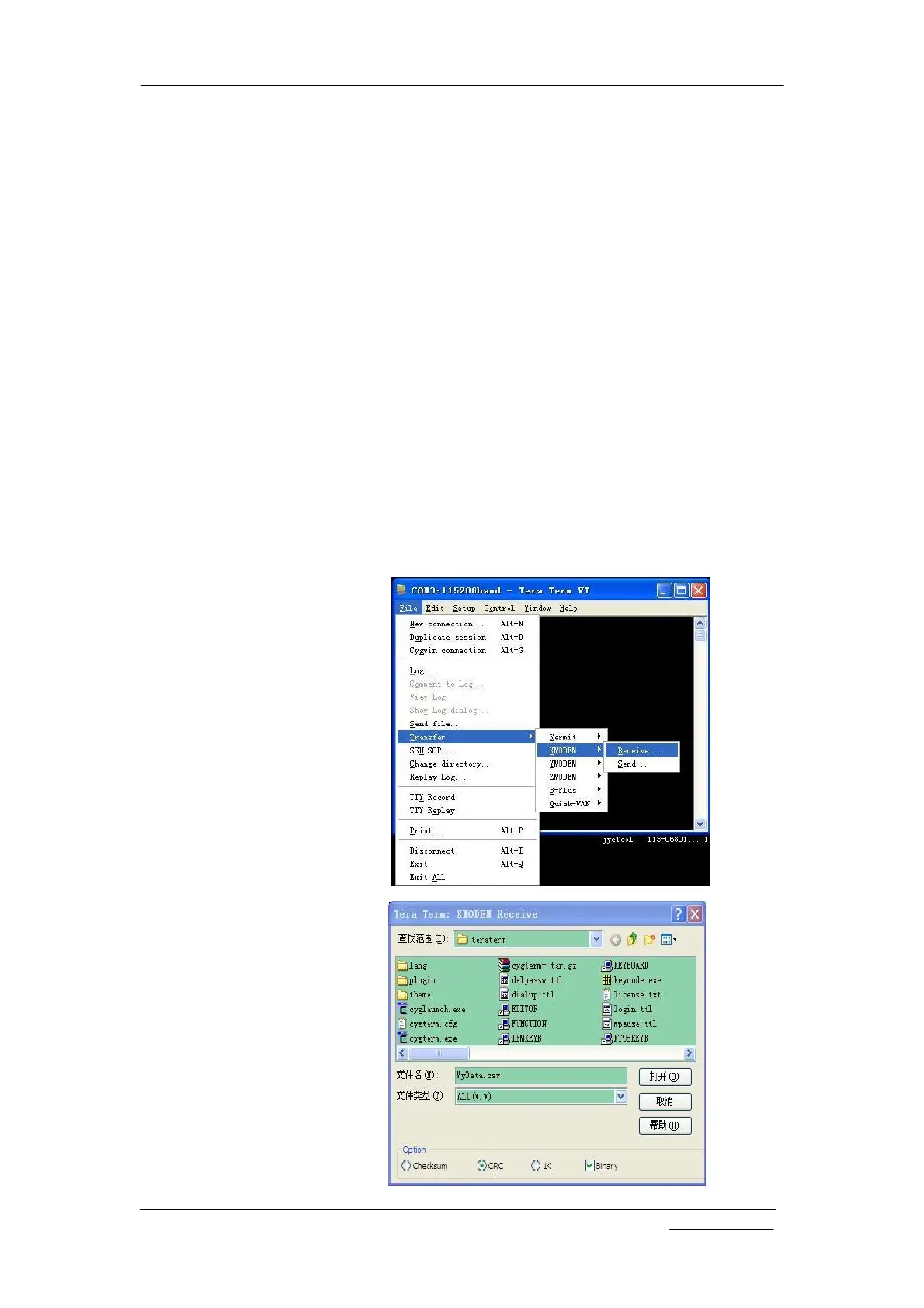
45 seconds. At Tera Term select “File -> Transfer ->
XMODEM -> Receiver” (see figure below). This will
open a dialog that allows you to select filename and folder
for the coming in data. Remember to name the file with
“CSV” extension. If you forget to do so at this moment
you can rename it after transfer is finished. Select the
option “Checksum” or “CRC” at bottom and keep
“Binary” checked. Click the “Open” button. If connection
is good you should see transfer finishes in seconds.


 To Next Page