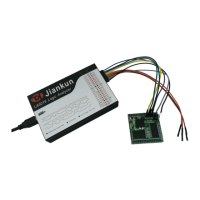
experience the device that you selected.
After the “Simulate” button on the toolbar is pressed, the software would simulate the work
process as the actual device exists. And the software would eventually display some square wave or
pulse signals.
One of the key functions of the logic
analyzer is that, it could analyze the signal that
complies with some standard protocol. Here we
take SPI as an example, to give a brief
introduction. Find the “Analyzers” on the right
side of GUI, press the “+” button, and select “SPI” from the popped menu. We will get a analyzer
settings dialog, the settings on which are default. Next we can press the “Simulate” menu on the
toolbar, and we will get the SPI signal waveform on the channels 0-3, with the analyzer result. And
other channels still show random square wave or pulse signal(as the figure below shows).
One of the key functions of the logic analyzer is that, it could analyze the signal that complies
with some standard protocol. Here we take SPI as an example, to give a brief introduction. Find the
“Analyzers” on the right side of GUI, press the “+” button, and select “SPI” from the popped menu.
We will get a analyzer settings dialog, the settings on which are default. Next we can press the
“Simulate” menu on the toolbar, and we will get the SPI signal waveform on the channels 0-3, with
the analyzer result. And other channels still show random square wave or pulse signal(as the figure
below shows).
If you click the left button without releasing, you could drag the waveform. More details are
covered in following chapters.



 To Next Page