Connectivity difficulties
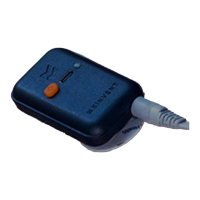
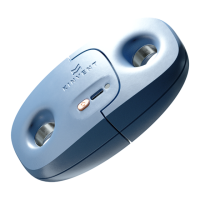
The sensor is
turned on but isn't
connecting.
1. Make sure your smartphone or tablet is compatible with K
Physio.
2. Check if Bluetooth and location services are enabled, on
your tablet or smartphone
3. Check if the sensors are properly charged - pressing the
button should light up the LED indicator and pressing a
second time will bring a steady light indicating the battery
charge level, make sure that it is green or orange.
4. Restart the app. On Android hold the "Home" button or
press the "Recently Used Apps" button to view the list
of running apps. To close the app, swipe it to the left or to
the right
5. Restart your tablet or smartphone.
6. Make sure your sensor is close to your tablet or
smartphone ideally no more than 5 meters/ 5.5 yd .
7. Don’t pair manually the K-sensor in the Bluetooth settings
of the tablet, otherwise please unpair immediately
The sensor lost
connection during
training
1. Do not plug the USB C from the sensor to a computer or
smartphone for charging during training. Only use the
supplied or equivalent USB charger.
While connecting
the app is showing
a gray or red circle
on the sensor
1. Please turn off the sensor and try again.
2. Make sure that you are within range while using of the
sensors
3. The official Bluetooth specifications state seven is the
maximum number of Bluetooth sensors that can be
connected at once. However, three to four sensors is a
practical limit, depending on the sensor. Make sure that no
other Bluetooth sensors (headphones/speakers etc. ) are
connected.
After connection ,
Green led is still
flashing.
1. Use the sensor registration menu in the application to
identify using the serial number of the sensor the correct
sensor. Another sensor is possibly nearby.
2. Check if other sensors are in the near area and either allow
them to turn off or manually power them off.
3. In case of K Plates/ K- Deltas please verify that both a left
and right sensor is present and powered on.
29 © 2022 KINVENT Biomecanique E2022C_EN


 To Next Page