Payload Meter III - Section 60 OM6009 8/11
Page 60-14
PDM SOFTWARE OVERVIEW
The Payload Data Management (PDM) software has
several basic functions:
• Configure the PLMIII system on the truck.
• Troubleshoot and check the PLMIII system.
• Download data from the PLMIII system.
• Analyze data from the payload systems.
Configuration, troubleshooting and downloading
require a serial connection to the payload meter on
the truck. Analysis can be done at any time without a
connection to the payload meter.
Payload data is downloaded from several trucks into
one database on the computer. The database can be
queried to look at the entire fleet, one truck or one
truck model. The data can be graphed, reported,
imported or exported. The export feature can ave
payload data in a format that spreadsheet programs
(like Excel) or word processing programs can easily
import.
System Configuration
PLMIII needs to be configured for operation when it
is first installed on the truck. This process requires a
laptop computer and can be broken down into
several steps:
• Connecting the laptop to the PLMIII system
• Starting communications
• Setting the time and date
• Setting the truck type
• Setting the truck ID
• Setting the speedometer/load display units
Installing the PDM Software
The CD-ROM containing the PDM software should
automatically begin installation when it is inserted
into the drive on the PC. If this does not happen, the
software can be installed by running the Setup.exe
program on the CD-ROM.
The minimum PC requirements for running the
software are a Pentium 133Mhz with 64 MB of RAM
and at least 300 MB of free hard drive space. For
improved performance, the recommended PC would
be a Celeron, AMD K6-2 or better processor with 128
MB of RAM running at 400 Mhz. The PDM software
uses a powerful database to manipulate the large
amounts of data gathered from the PLMIII system.
Using a more powerful computer and more memory
can result in a significant improvement in
performance. The software is written to use a
minimum 800x600 screen resolution.
DOWNLOADING DATA
PLMIII records many types of data. The PDM
software is designed to download the data from a
whole truck fleet. Instead of creating one data file for
each truck, the software combines all the data from
many trucks into a single Paradox database on the
computer’s hard drive. Users can then query the
database to create custom reports and graphs. Data
for individual trucks or groups of trucks can be easily
analyzed. This same data can be exported for use in
other software applications such as spreadsheet
applications and word processors.
As the database grows, performance of the software
for analysis will slow down. It may be helpful to
periodically export data. For example, query the
database to show the oldest quarter, month, or half
year and print out a summary report. Then export the
data to a compressed format and save the file in a
secure location. Once the data is exported, delete
the query results from the database. If necessary, the
data can easily be imported back into the main
database for analysis at a future date. Removing this
older data will improve performance.
To move the data to another computer, a query must
be run to isolate the particular data for export. Do not
press the operator switches on the dash panel while
downloading.
To download the payload meter data:
1. Connect the computer to the payload meter and
start the PM software.
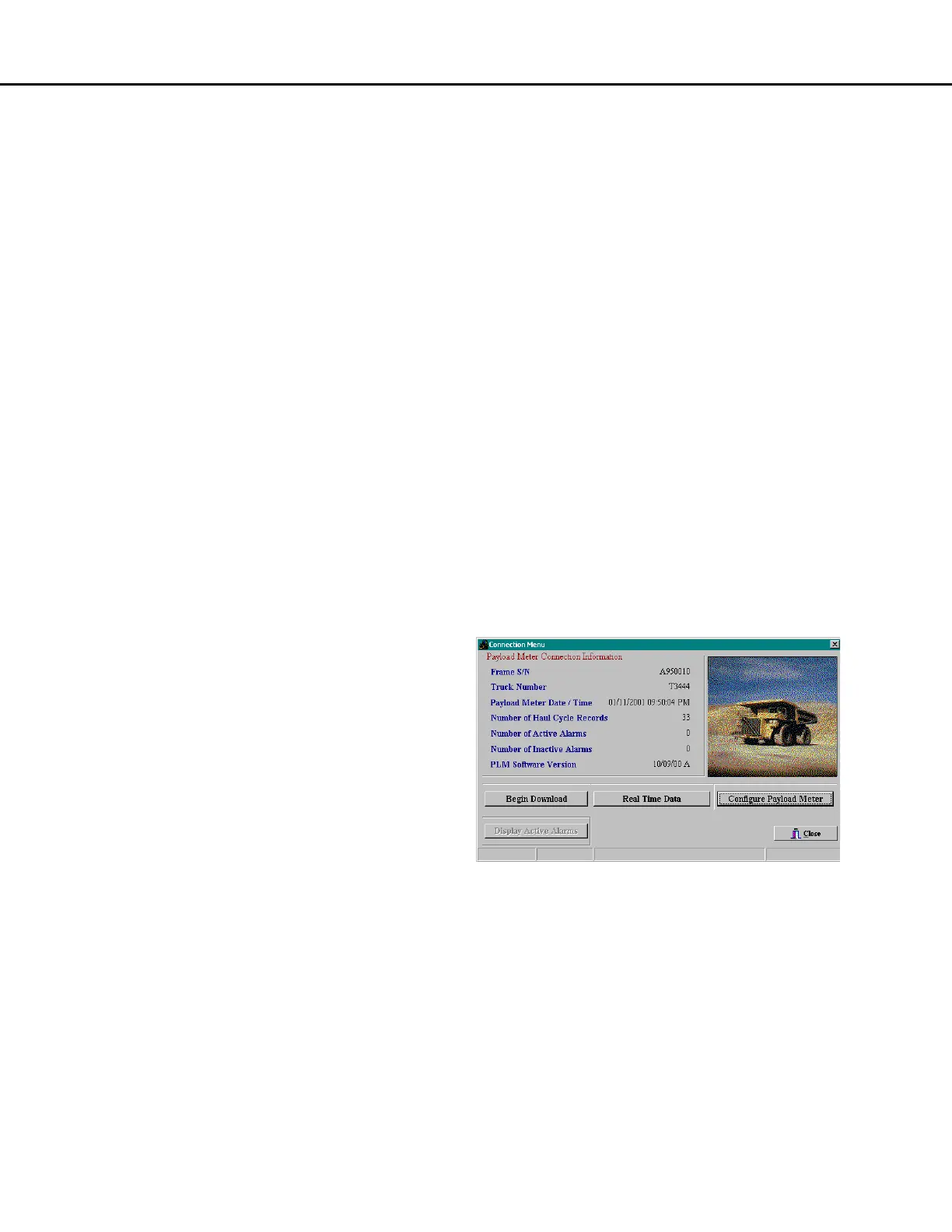
2. From the main menu, select "Connect to
Payload Meter". The software will request the
latest status information from the payload
meter. The number of haul cycles and alarms
will be displayed.
3. Select the "Begin Download" button. The
software will request the payload and alarm
data from the payload meter and save it into the
database. This may take several minutes. A
progress bar at the bottom of the screen will
show the approximate time left.



 To Next Page