OM6009 8/11 Payload Meter III - Section 60
Page 60-15
PLM III SYSTEM CONFIGURATION
Starting Communications
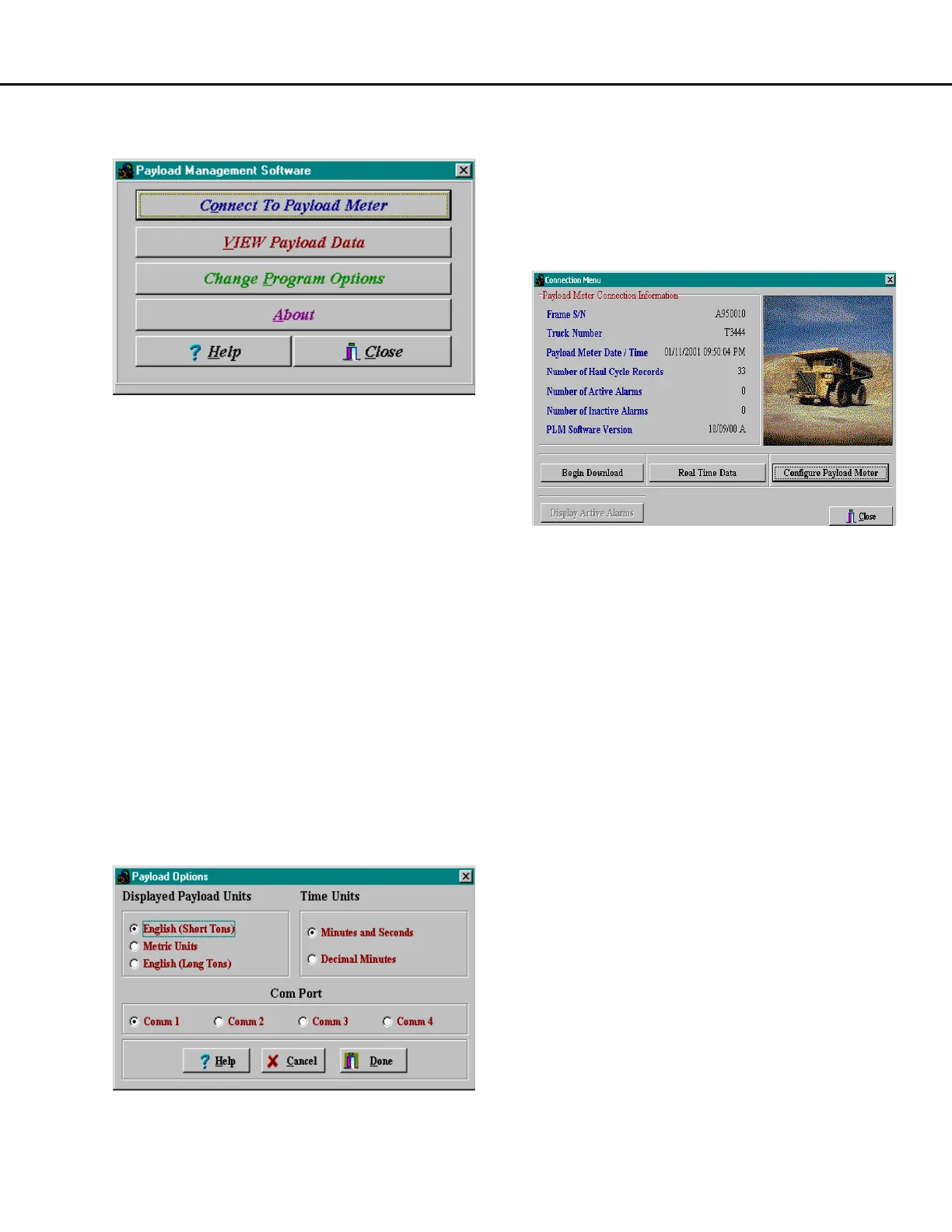
Before connecting to the payload meter, select
"Change Program Options".
• Confirm that the program has selected the
correct Com Port. Most laptop computers use
Comm 1 for serial communications.
• Three options are available for the displaying
payload units in the software, reports, and
graphs:
Short Tons: Payload is displayed in short tons,
distances and speeds will be displayed in miles.
Metric Tons: Payload is displayed in metric tons,
distances and speeds are displayed in
kilometers.
Long Tons: Payload is displayed in long tons,
distances and speeds are displayed in miles.
• Two options are available for displaying time
units in the software, reports, and graphs:
Minutes and Seconds:
Five minutes and thirty-two seconds = 5:32
Decimal Minutes:
Five minutes and thirty-two seconds = 5.53
Click “Done” to return to the main menu. From the
main menu, select "Connect to Payload Meter". The
computer will try to connect to the payload meter and
request basic information from the system. In the
event of communications trouble, the computer will
try three times to connect before "timing out". This
may take several seconds.
Connection Menu
The connection screen displays basic system
information to the user.
• Frame S/N should be the same as the truck
serial number from the serial plate located on the
truck frame.
• Truck Number is an ID number assigned to the
truck by the mine.
• Payload Meter Date / Time values come from
the payload meter at the moment of connection.
• Number of Haul Cycle Records is the number
of haul cycles records stored in memory and
available for download.
• Number of Active Alarms shows how many
alarms are currently active in the system at the
time of connection. If there are active alarms, the
"Display Active Alarms" button is available.
• Number of Inactive Alarms shows how many
alarms have been recorded in memory and are
available for download.
• PLM Software Version displays the current
version of software in the payload meter.
The information on the connection menu comes from
the configuration of the payload system on the truck.
There are also many configuration and download
options available from this screen. The Connection
Menu is updated only when the connection is first
made. It does not update automatically. To view
changes made while connected, the user must close
the window and reconnect to the payload meter.
The connection menu is displayed after a serial
connection has been established and the PDM
software has connected to the payload meter.



 To Next Page