Payload Meter III - Section 60 OM6009 8/11
Page 60-16
Connecting to the Payload Meter
Communications to the PLMIII requires a laptop
computer running the PDM software. The software
connects to the payload meter through the meter's
serial port #1. This is the same port used by the
speedometer/load display. When the laptop is using
the serial port, the lower display on the speedometer/
load display will be blank. This does not affect the
operation of the speedometer.
Connect the laptop to the system by using the
EF9160 communications harness. The download
connector is located in the back wall of the operator
cab.
Configuring the Payload Meter
Configuration of the payload meter requires a serial
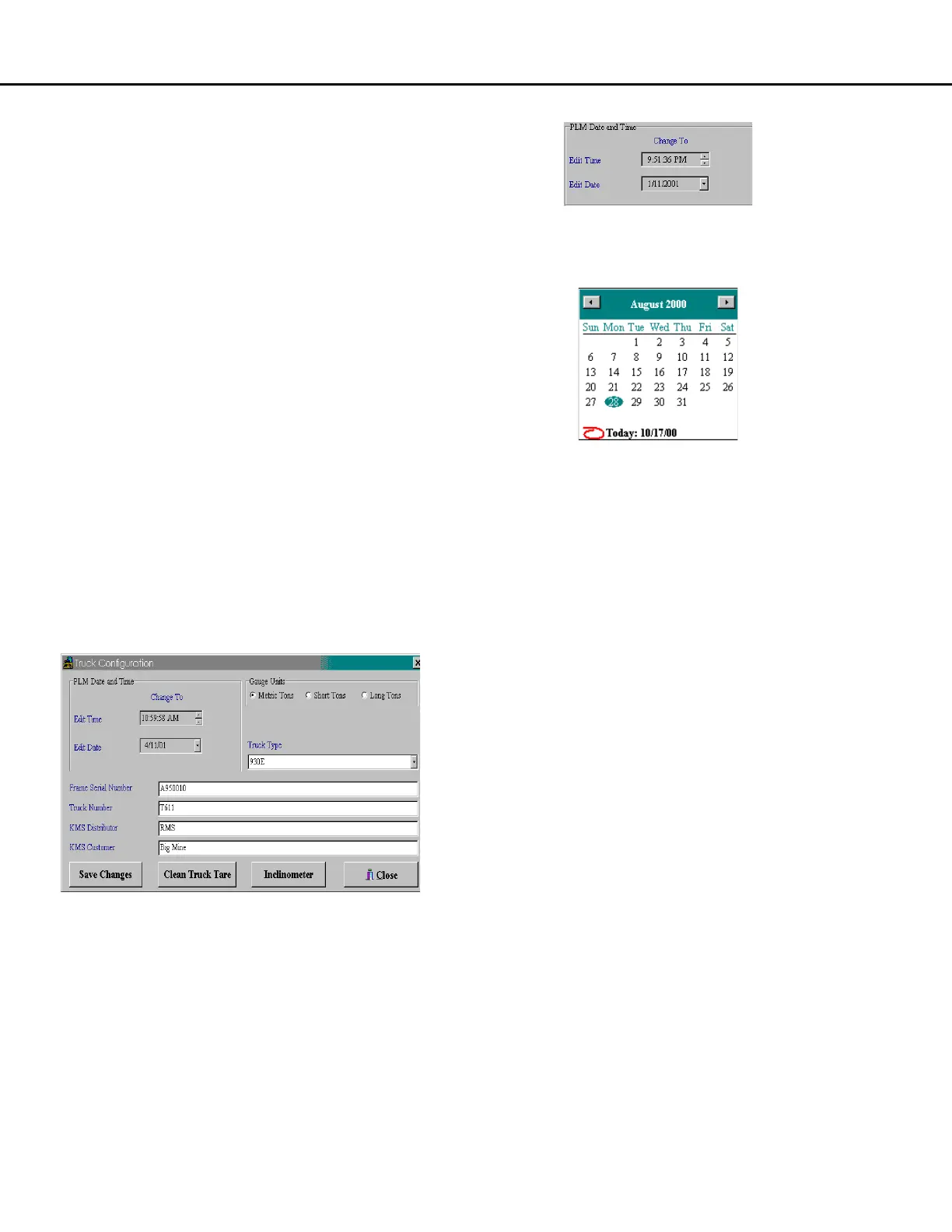
connection to the PLMIII system. Clicking the
"Configure Payload Meter" button will bring up the
Truck Configuration screen and menu. This screen
displays the latest configuration information stored
on the payload meter.
When changes are made to the configuration, the
"Save Changes" button must be pressed to save the
changes into the payload meter. To confirm the
changes, exit to the main menu and re-connect to the
payload meter.
Setting the Date and Time
The time shown on the form is the time transmitted
from the payload when the connection was first
established.
The date and time are maintained by a special chip
on the PLMIII circuit board. The memory for this chip
is maintained by a very large capacitor when the
power is removed from the payload meter. This will
maintain the date and time settings for approximately
30 days. After this time, it is possible for the payload
meter to lose the date and time setting. It is
recommended that the system be powered every 20
days to maintain the date and time. If the date and
time is lost, simply reset the information by using this
procedure. It takes approximately 90 minutes to
recharge the capacitor.
Changing the date and time will affect the haul cycle
in progress and may produce unexpected results in
the statistical information for that one haul cycle.
To change the time:
1. Click on the digit that needs to be changed.
2. Use the up/down arrows to change or type in
the correct value.
3. Press the "Save Changes" button to save the
new time in the payload meter.
To change the date:
1. Click on the digit that needs to be changed.
2. Type in the correct value or use the pull-down
calendar to select a date.
3. Press the "Save Changes" button to save the
new time in the payload meter.



 To Next Page