OM6009 8/11 Payload Meter III - Section 60
Page 60-23
Creating Graphs
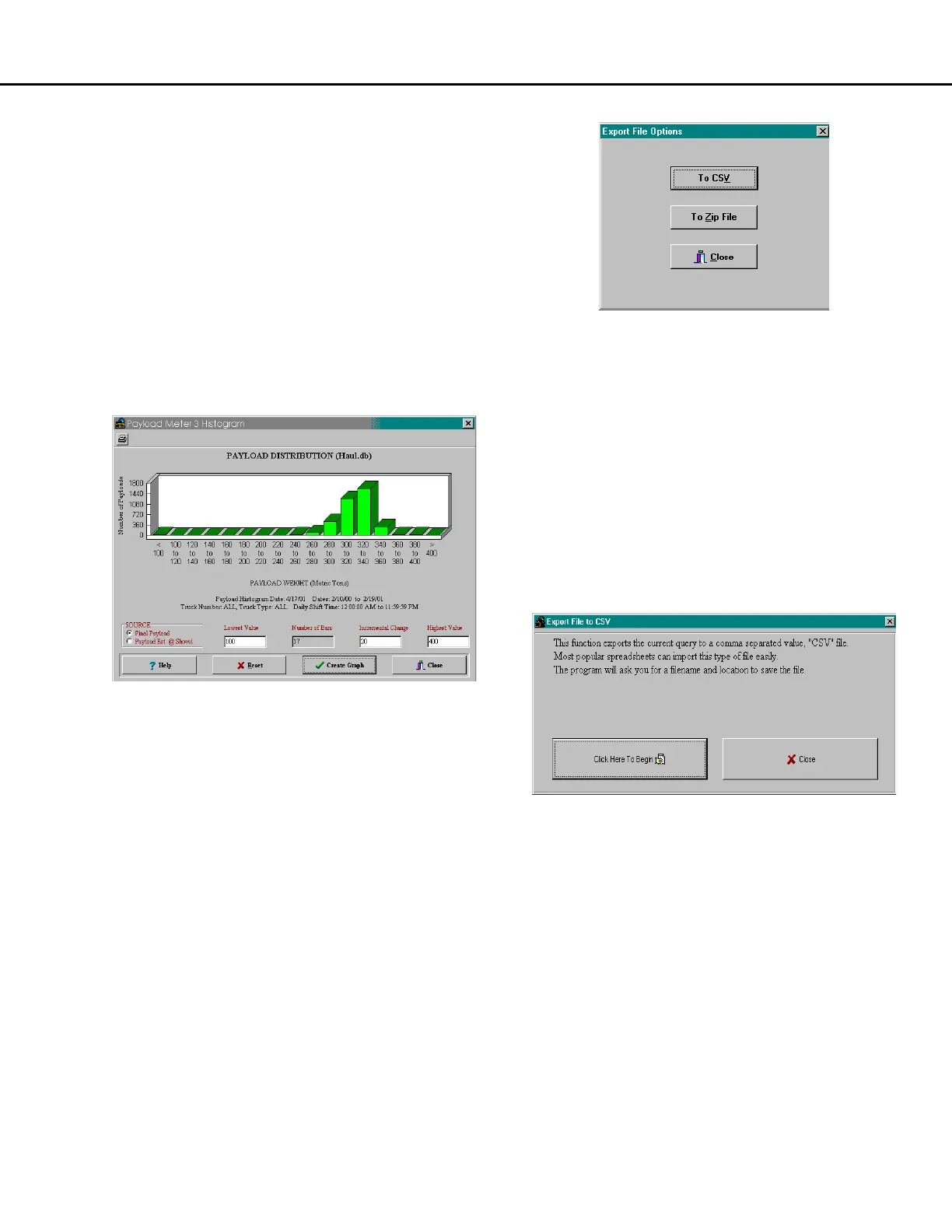
The PDM software can generate graphs that quickly
summarize payload data. These graphs can be
customized for printing. Just like the reports, the
graphs are generated from the query displayed on
the “Payload Summary” screen. From the example in
Sorting on Time Range, the graph that is printed
would only contain data from truck 374 during the
month of July 2000, from 8:00 AM to 5:00 PM.
It is important to carefully select the query data and
click on "Query Database & Display" before printing a
a graph.
1. Click on the “Graph” button at the bottom of the
Payload Summary Screen. The Histogram
Setup screen will appear.
2. Enter the "Lowest Value". This will be the lowest
payload on the graph. Any payloads less than
this value will be summed in the first bar.
3. Enter the "Highest Value". This will be the
highest value on the graph. Payloads over this
value will be summed in the last bar.
4. Enter the "Incremental Change". This will
determine the number of bars and the distance
between them. The program limits the number
of bars to 20. This allows graphs to fit on the
screen and print onto one page.
5. Click on the “Create Graph” button.
The graph will be displayed based on the query
settings from the Payload Summary screen. The
graph can be customized and printed.
Exporting Data
The data from the database can be exported for use
with other software applications. The data is selected
from the currently displayed query. The exported
data can be put into a .CSV file or compressed into a
.zip file.
•The .CSV format allows data to be easily
imported into spreadsheet applications and word
processing applications.
•The .zip format allows data to be transferred from
one computer to the PDM software database on
another computer. This offers a compact way to
transfer data from one computer to another.
CSV format: CSV stands for Comma Separated
Value. This is an ASCII text file format that allows
spreadsheet applications such as Excel and Lotus
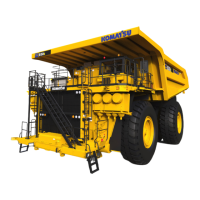
123 to import data easily. To export the data into a
.CSV file, click on the "Export" button at the bottom of
the Payload Summary screen and select "To CSV".
The program will request a filename and location for
the file.



 To Next Page