OM6009 8/11 Payload Meter III - Section 60
Page 60-25
Importing Data
This import function allows the data from one
computer to be transferred to another computer. This
can be useful when a service laptop is used to
download multiple machines and transfer the data to
a central computer for analysis. This can also be
used to copy haul data from a particular truck from a
disk into a database for analysis.
To import data, click on the "Import" button at the
bottom of the Payload Summary screen. The
program will ask for a .zip file to import. Locate the
file and click on "Open". The program will only import
.zip files created by another computer that is running
the PDM software.
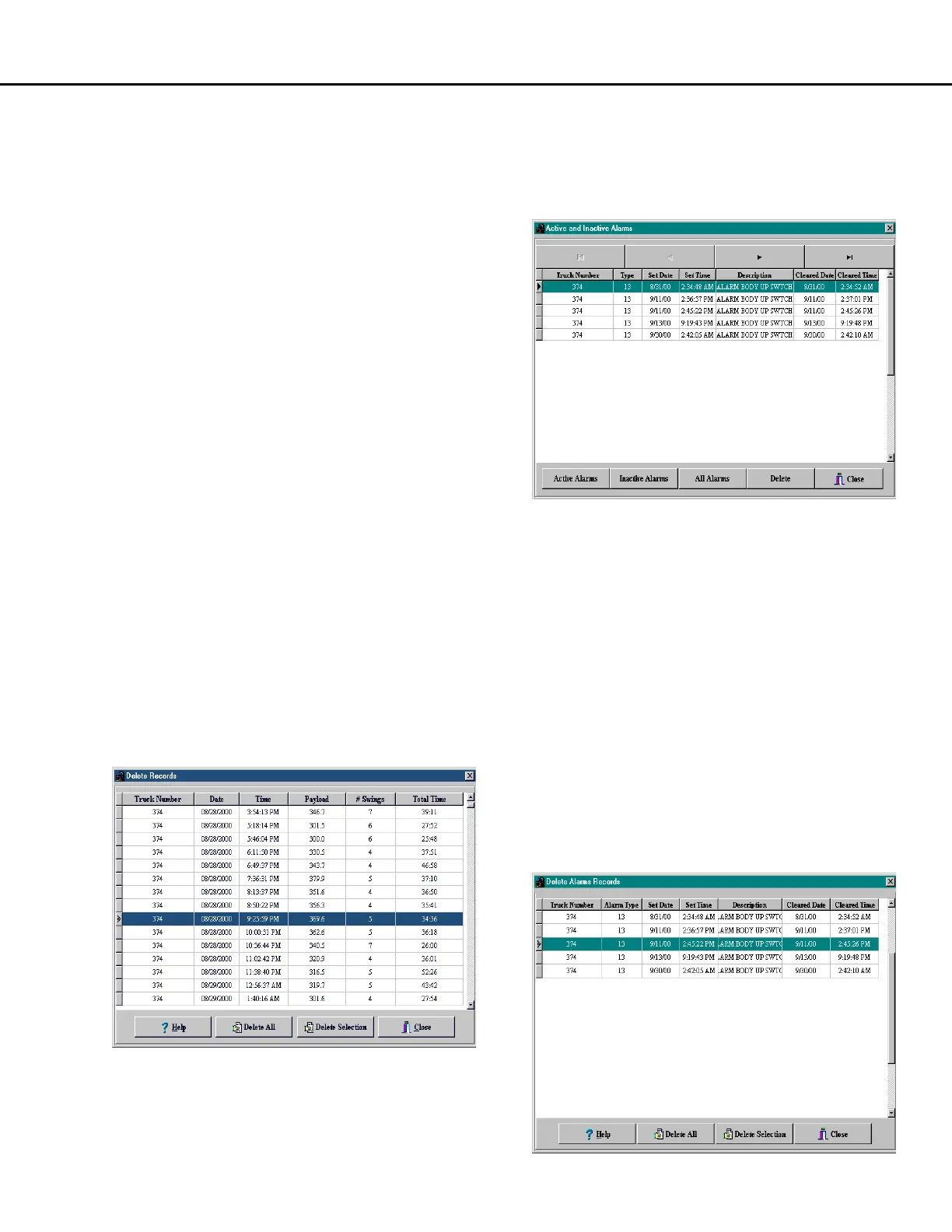
Deleting Haul Cycle Records
To delete haul cycle records from the main database,
click on the "Delete" button at the bottom of the
Payload Summary screen. The program will display
a summary of the records from the displayed query.
To delete a record, select one at a time and click on
the "Delete" button. It is recommended that records
be exported to a .zip file for archival purposes before
deletion. Multiple records may be selected by holding
down the Shift key. Clicking on the "Delete All" button
will select all the records from the current query and
delete them.
NOTE: There is no recovery for records that have
been deleted from the main database. It is highly
recommended that all records be exported and
archived in a compressed file format for future
reference before being deleted.
Viewing Alarms
From the Payload Summary screen, click on the
“Alarms” button to display the alarm screen. The
alarms are sorted by the query settings from the
Payload Summary screen. Alarms can be displayed
as Active or Inactive.
Deleting Alarm Records
To delete alarm records from the main database,
click on the "Delete" button at the bottom of the
Alarm Display screen. The program will display a
summary of the alarms from the query. To delete an
alarm, select one at a time and click on the "Delete"
button. It is recommended that the query data be
exported to a .zip file for archival purposes before
deletion. Multiple records may be selected by holding
down the Shift key. Clicking on the "Delete All" button
will select all the alarms from the current query and
delete them.
NOTE: There is no recovery for alarms that have
been deleted from the main database. It is highly
recommended that all records be exported and
archived in a compressed file format for future
reference before being deleted.



 To Next Page