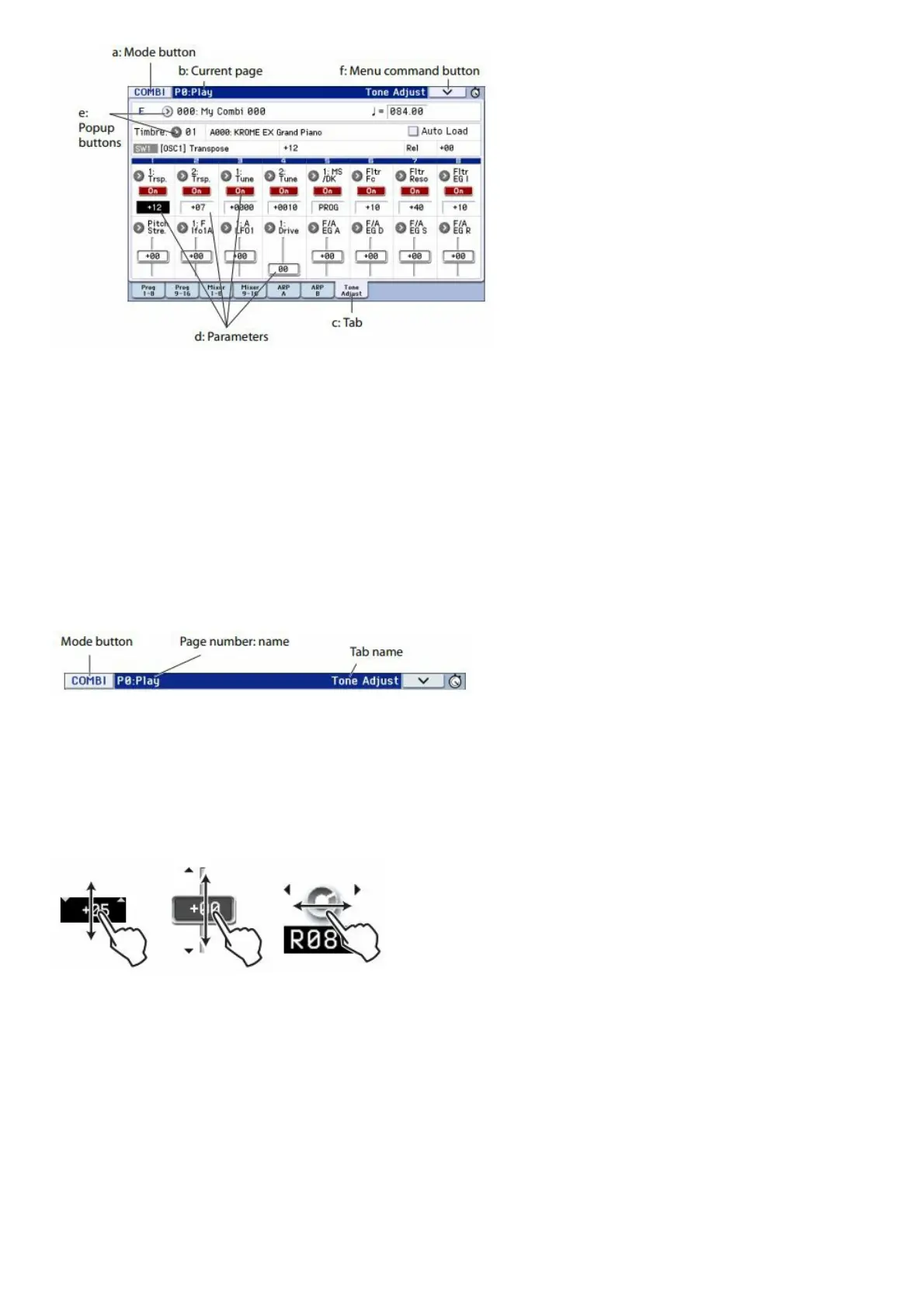
a: Mode button
This indicates the currently selected mode.
When you press this button, the Mode menu will appear. In the mode menu, press the name of the mode that you
want to move. If you select the currently selected mode, the Page Select menu for that mode will appear. Even in
another mode, pressing the right side of the name will display the Page Select menu for each mode.
To close the menu, press the Close button or the EXIT button.
You can also choose modes and pages by pressing the front panel buttons. Press a mode select button to select a
mode, and then press the PAGE button to access the page select screen.
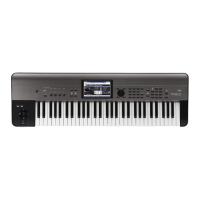
b: Current page
This indicates the current page within the selected mode.
Beginning at the left, this area shows the page number: name, and tab name.
c: Tab
Most pages are divided into two or more tabs.
d: Parameters
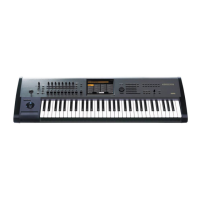
The parameters for various settings are shown in the display. Select a parameter in the display, and edit its value.
You can use the VALUE dial and other value controllers (see page 7) to edit a value by dragging your finger in the
display, or turn a setting on/off by pressing it in the display.
For some parameters, you can press the parameter twice in succession or long-press and then release it to access
an on-screen edit pad where you can edit the value. see “Edit pad” on page 6 of the Operation Guide.
e: Popup buttons
When you press a popup button, the available parameter values will appear as a popup menu or a tabbed menu.
f: Menu command button
* Menu
When this button is pressed, a list of menu commands will appear. The menu commands that appear will differ
depending on the page that’s currently selected. The menu will close when you press the display somewhere other
than the menu, or when you press the EXIT button.



 To Next Page