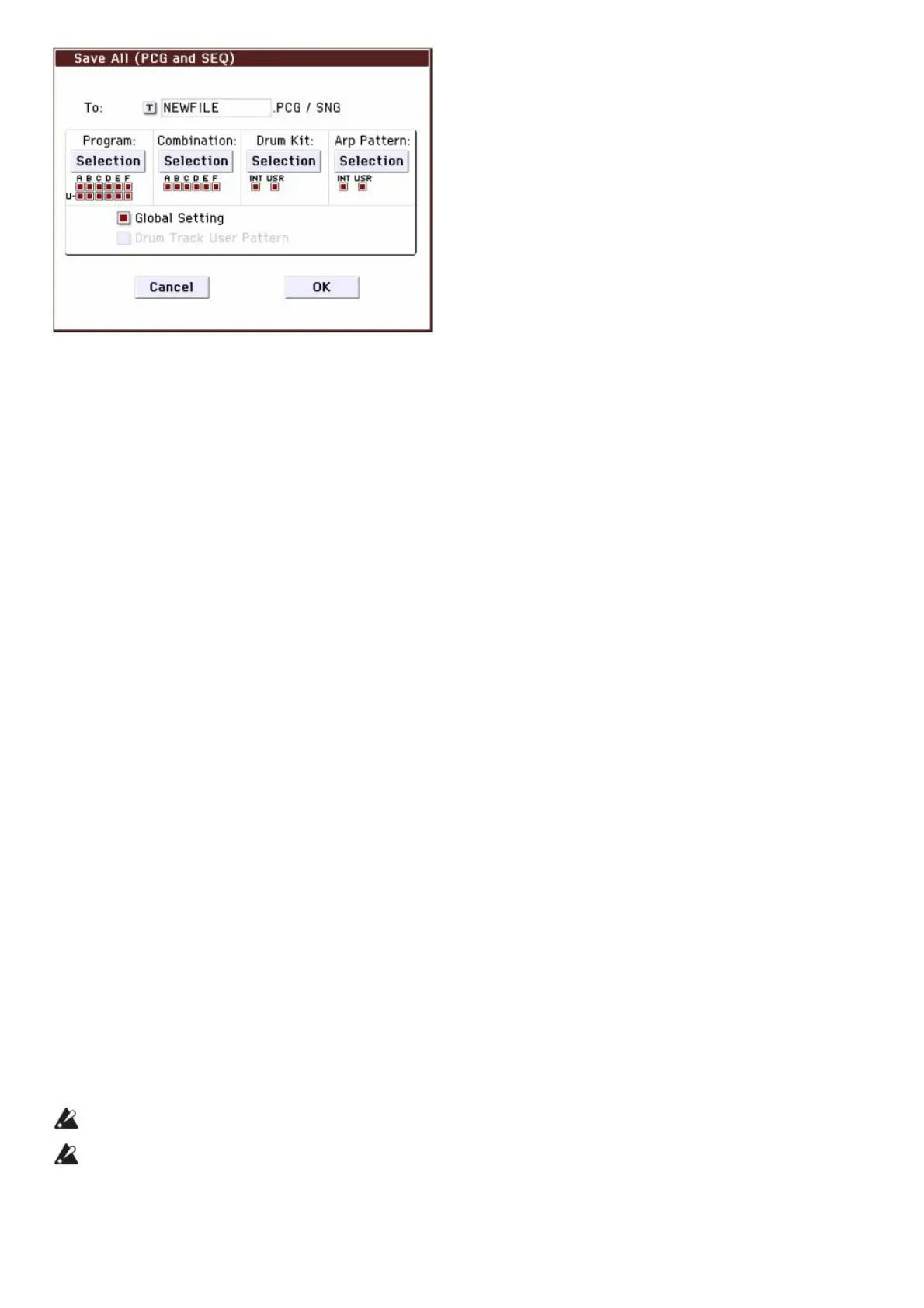
6. Press the text edit button (“T”) and enter a name for the files.
All of the files will share the same name, with different suffixes to show the data type (.PCG, .SNG).
7. Press the OK button to Save the data to the SD card.
When the save is complete, the system returns to the Save page, and the display will show the resulting file(s). The
amount of time required will depend on the amount of data being saved. Note: You can use the various “Selection”
buttons in the dialog box to specify the bank used for saving; however when saving a song, you should also save the
programs and drum kits used by the song together with it. Similarly when saving a combination, you should save the
programs and drum kits used by the combination together with it.
Saving a song
In Sequencer mode, you can press the WRITE button to save the .SNG file to your SD card. When the dialog box
appears, press the WRITE button once again to execute the Save operation.
Loading data
You can load the entire contents of the memory at once, including sound data (Programs, Combinations, etc.), and
Songs data. To do so:
1. Insert the SD card containing the file you want to load into the SD card slot.
With the label of the media facing upward, insert the connector end of the card into the SD card slot, and press
it in until it clicks into place.
2. Press the MEDIA button to enter Media mode (the LED will light up).
3. Press the Load tab to access the Media- Load page.
4. Navigate to the directory that contains the file you
want to load, and select the .SNG file. Select a directory (shown as a folder icon) and press the Open button to
move to a lower level, or press the Up button to move to a higher level. The selected .SNG file will be
highlighted.
5. Press the red Load button at the bottom of the page.
(You can also use the Load Selected menu command.) A dialog box will appear, containing a number of
options.
6. Select the “Load [filename].PCG too” check box.
When these boxes are checked, the system looks for .PCG file with the same name as the main .SNG file.
7. Use “Select .SNG Allocation” to specify how the Songs will be loaded, and whether or not existing
Songs will be erased.
Append loads the Songs into the first free Song numbers following the song(s) which are already in memory.
Clear will erase all songs from internal memory, and load the Songs into the exact numbers from which they
were saved.
8. Press the OK button to load the data.
Never turn off the power or remove the SD card while data is being loaded or saved.
When loading Programs, Combinations, Songs, Drum Kits, or user Arpeggio patterns, make sure that the Global
Basic Setup page’s Memory Protect settings are turned off (unchecked). If they are on, you won’t be able to load the
data.
Listening to the demo songs



 To Next Page