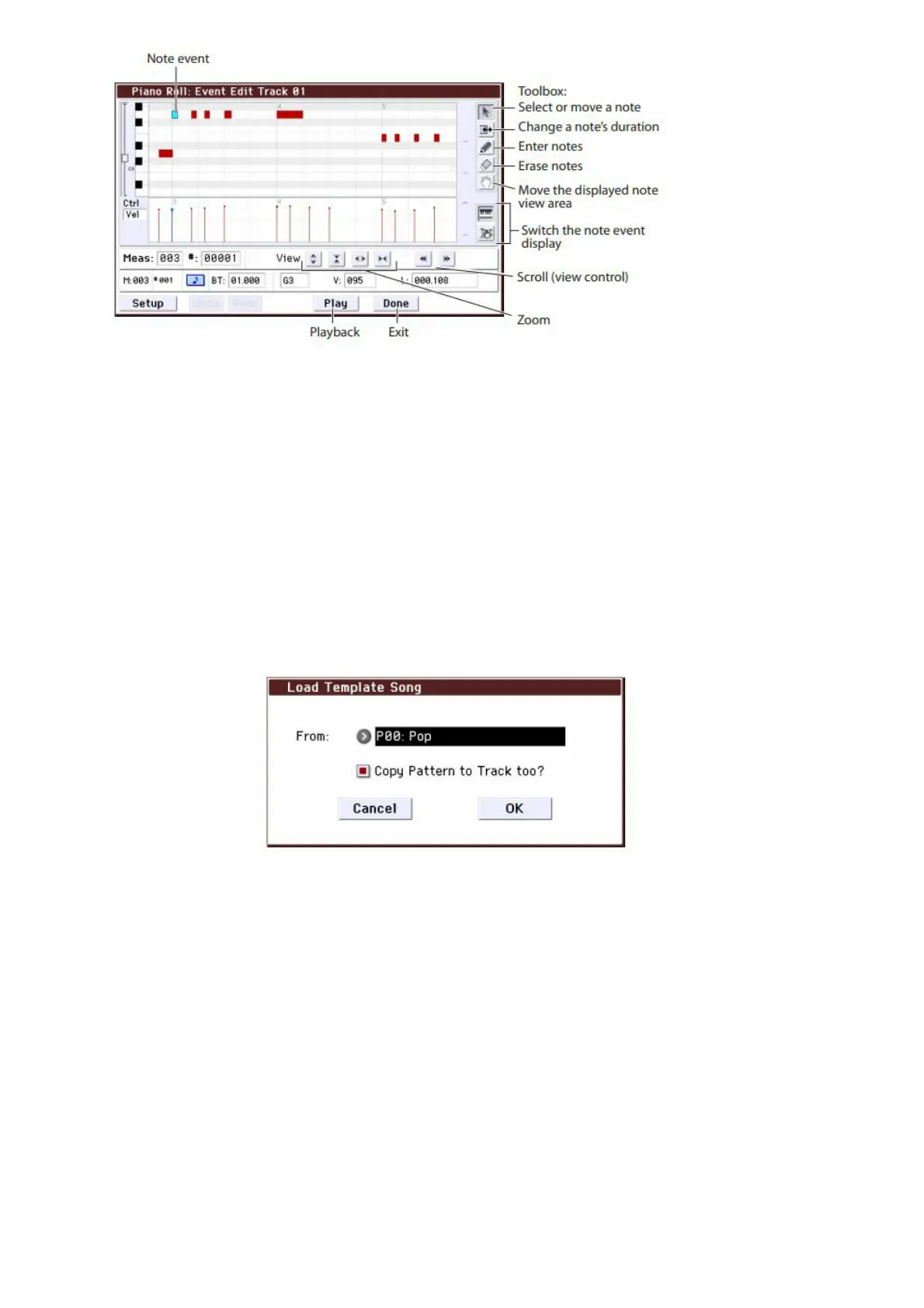
3. Use the zoom buttons to select a convenient zoom ratio.
4. Use the tools to edit the notes.
For details, see page 70 of the Operation Guide.
Template songs
Template songs contain sounds and effects that are suitable for a specific musical style, so you can immediately get
started creating a song simply by selecting an appropriate template. In addition to the preset templates, you can
create your own original template songs containing your frequently-used sounds.
The sixteen preset template songs (P00P15) contain track parameter settings such as program, volume, and pan, as
well as effect, arpeggiator, track parameter, and tempo settings.
Note that Template Songs do not include MIDI data for song tracks and patterns, and so on.
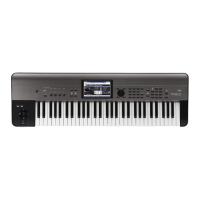
1. In the Sequencer P0: Play/REC page, press the menu command button and select the Load Template
Song command.
A dialog box will appear.
2. In the From field, choose the Template Song that you want to load.
3. Check the “Copy Pattern to Track too?” check-box.
When this box is checked, a dialog box for copying a pattern will automatically appear after Load Template
Song is complete.
If this is not checked, only the selected Template Song will be loaded.
4. Press the OK button to load the template song, or press the Cancel button to exit without making
changes.
When you press OK, the Template Song’s settings will be copied into the current Song.
If Copy Pattern to Track too? was checked in step 3, the Copy Pattern to Track dialog box will appear.
5. Use the Bank (User or Preset) and Pattern popups to select a pattern to copy .



 To Next Page