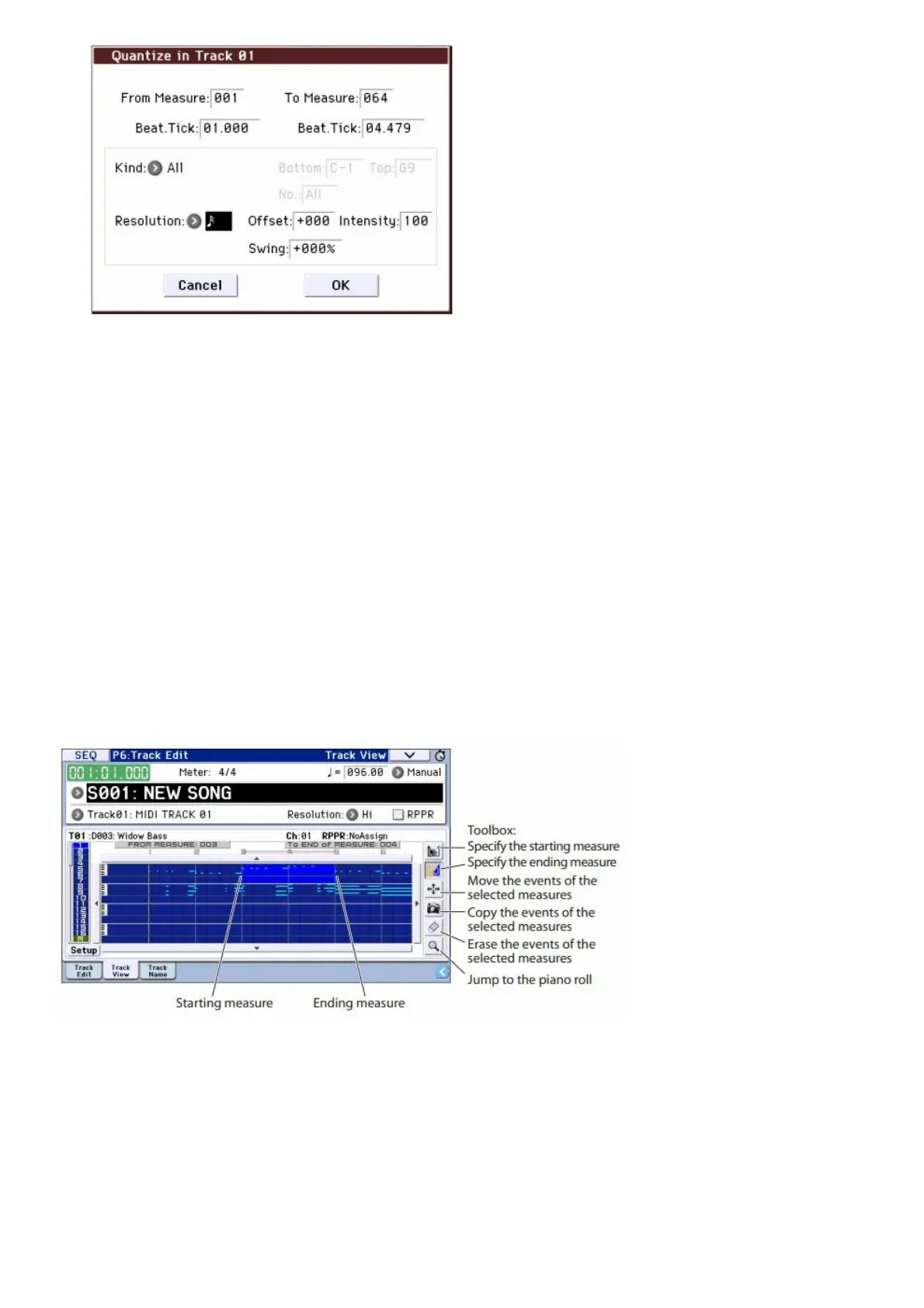
5. Set the Resolution to the desired rhythmic value.
As a general rule, choose the shortest note-value used in the recorded performance.
6. Press the OK button to quantize the selected data.
If the result was different from what you had expected, press the COMPARE button to restore the song to the
original state before the quantization was applied. Experiment with different Resolutions, set the Intensity to less
than 100% in order to preserve some of the natural feel, or raise the Swing value to create a shuffle or swing
feel. You can also apply quantization during recording, using the REC Resolution parameter at the top of the P0
page. Choose the desired resolution, and quantization will be applied as you record.
Correcting or adding notes
You can edit your performance data by moving or erasing notes, modifying a note’s duration or strength, or adding
notes.
It’s convenient to use Track View editing when you want to erase, move, or copy data in units of entire tracks or
measures.
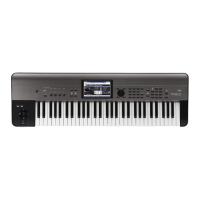
1. (Press the PAGE button; then in Page Select, press P6: Track Edit.) Then press the Track View tab to access
the P6: Track Edit Track View page.
2. Using the tools, specify the start and end measures to select the edit region.
3. Use the tools to move, copy, or erase data.
For details, see page 68 of the Operation Guide.
It’s convenient to use piano roll editing when you want to edit individual notes in detail.
1. Using the tools, specify the start and end measures to select the edit region.
2. Press the menu command button, and choose “Piano Roll.”
Alternatively, press the bottom tool box in the P6: Track Edit Track View page.
The piano roll dialog box will appear.



 To Next Page