Using Optional Equipment
103
Left-Edge and
Right-Edge
Binding
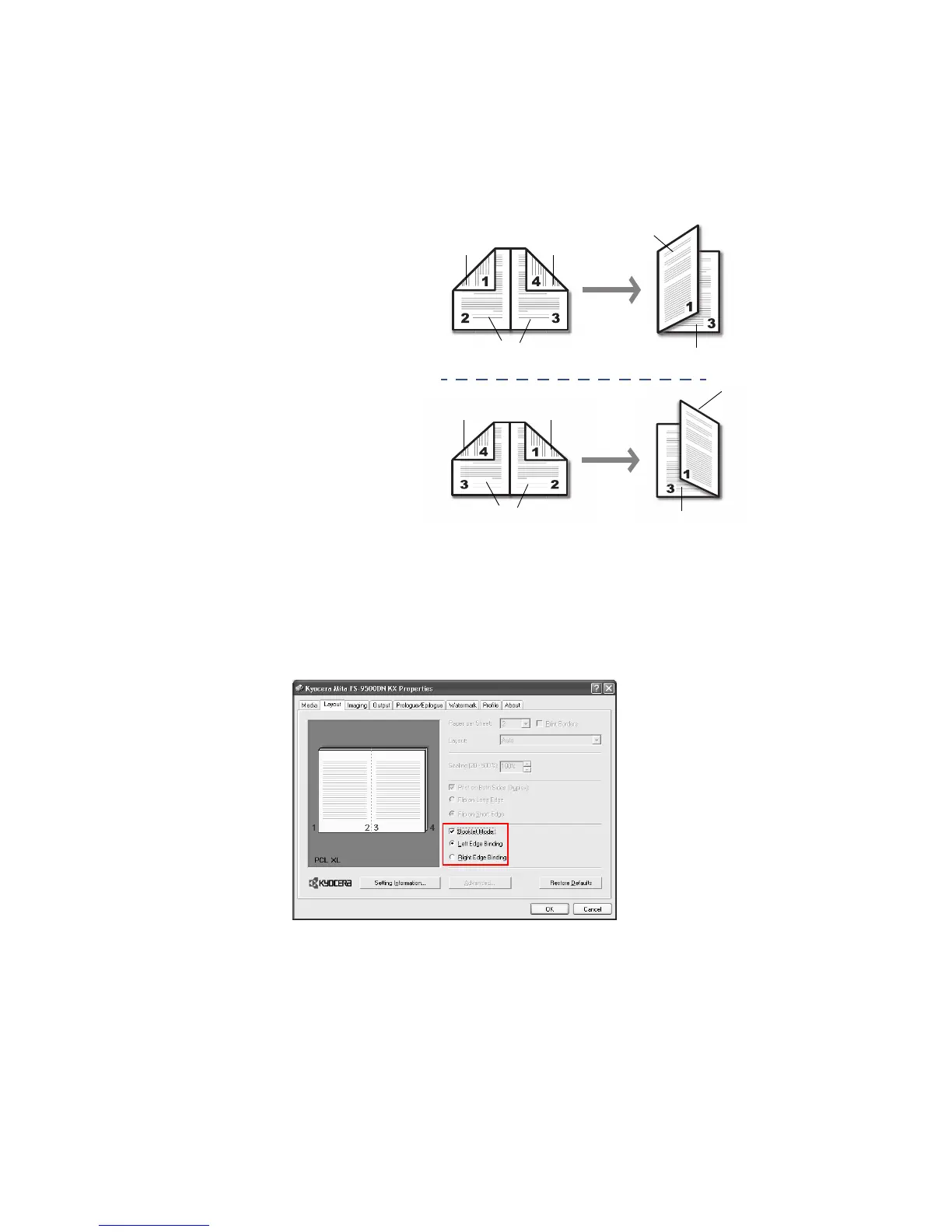
Printing a four-page document as a booklet, for example, will result in automatic duplex
printing shown below. You can choose between left-edge binding and right-edge binding.
Using Booklet Printing
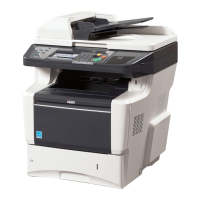
1 From the application’s Print dialog box, access the printer Properties. (Select Print from
the
File menu and select Properties.)
2 Access the printer
Properties and click the Layout tab.
3 Select the
Booklet Mode check box. Choose either Left Edge Binding or Right Edge
Binding
.
4 Complete the following steps to utilize the stapling feature.
Left Edge Binding
Outside
Inside
Outside
Outside
Inside
Outside
Inside
Outside
Outside
Inside
Right Edge Binding







 To Next Page