TM00358 Rev. A Chapter 2 - Hand Controller Controls
L-3 WESCAM October 2007
All Rights Reserved 15
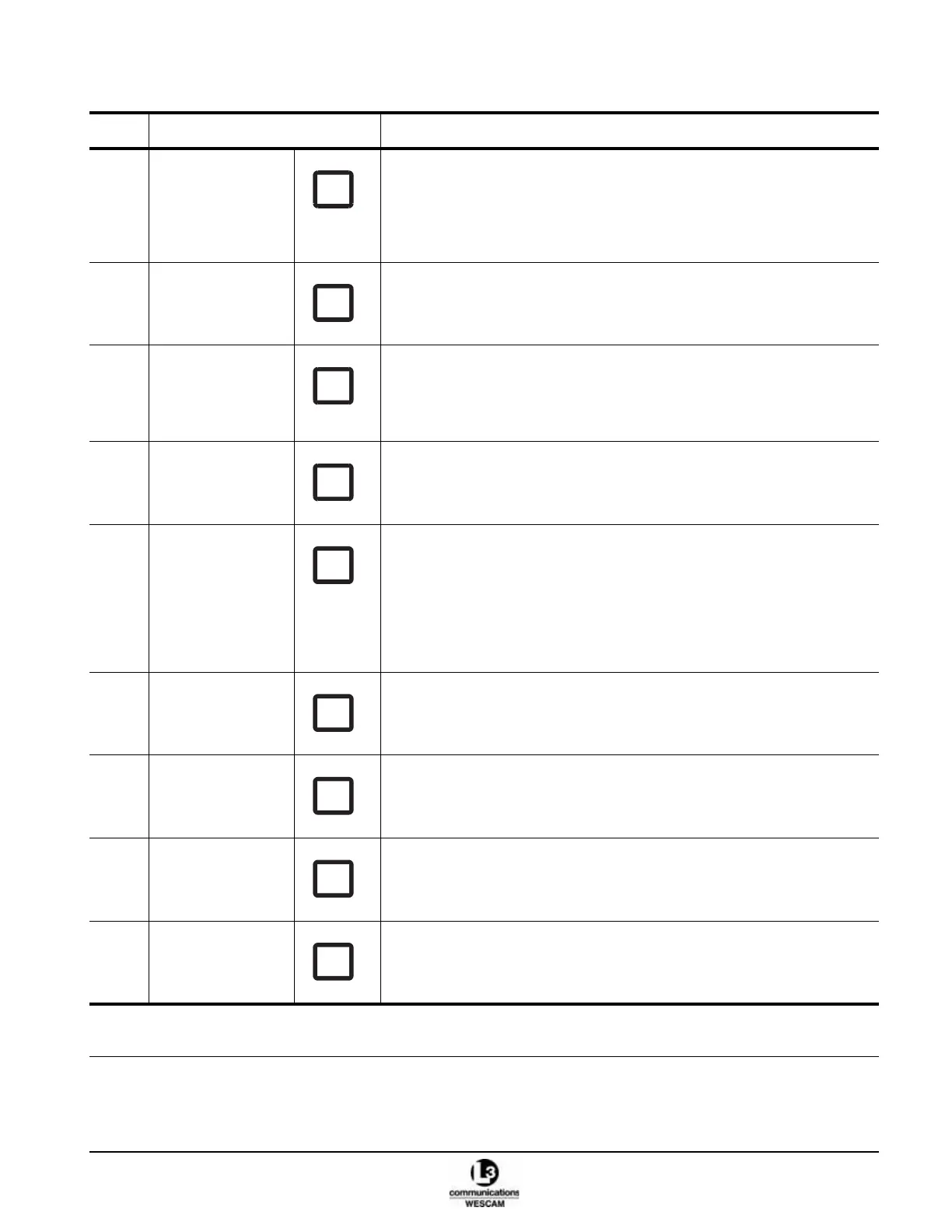
(4) *MAP button • Press to enable Hand Controller steering control of a moving map cursor
position.
Note: Functionality depends on system integration. If you press the button
and cannot steer the turret, press button once more to regain steering
control.
(5) 2X button • Press once to enable 2x E-Zoom for the IR sensor.
• Press twice to enable 4x E-Zoom for the IR sensor.
• Press a third time to disable E-Zoom for the IR sensor.
(6) IR GATE button • Press to toggle through gate size options.
Note: Gate size samples an area of contrast level in an IR image. The
system software then applies the sampled level to balance the entire
IR image.
(7) STOW button • Press to enable automated steering control of the turret to the Stow
position.
(8) SCENE button EOW & EON Sensors:
• Press to change scene type to compensate for high or low image contrast.
IR Sensor:
• Press to change scene type to compensate for high or low image contrast.
Note: Scene will provide new parameters for video correction after a 1-Point
calibration is initiated. Press the IR CAL button after pressing the
SCENE button.
(9) IR CAL button • For the IR sensor, press to initiate a 1-Point calibration.
(10) POL button • For the IR sensor, press to change polarity of the video image from white
hot to black hot.
(11) *CNTRL AUTH
button
• Press to transfer steering control authority in a multi Hand Controller
configuration.
(12) *TX button • Press to enable or disable MX-POD microwave transmission.
Note: On some Hand Controllers, this button may have no label.
Table 2-2 Hand Controller Secondary Button Control Functions (Continued)
Item Control Description
* Optional functions. These controls will have no effect if the hardware or software features have not been integrated as part
of the turret system.



 To Next Page