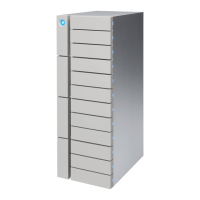
LaCie 12big Rack Storage Server
User Manual page 67
Upgrading the Firmware
tar zxvf ipmitool-1.8.11.tar.gz
3. Get the latest development version of IPMITool from the CVS
sourceforge server:
cvs -d:pserver:anonymous@ipmitool.cvs.
sourceforge.net:/cvsroot/ipmitool
login
cvs -z3 -d:pserver:anonymous@ipmitool.cvs.
sourceforge.net:/cvsroot/ipmitool
export -r HEAD ipmitool
4. Create patch file:
di -Nur ipmitool-1.8.11 ipmitool > ipmi-
tool.patch
5. Apply the patch:
patch -Np1 -d ipmitool-1.8.11 < ipmitool.
patch
6. If the Bootstrap file is not executable, make it executable:
chmod u+x Bootstrap
7. Build the patched IPMITool:
Bootstrap
Congure
Make
(make install)
8. If LAN encryption is required, the OpenSSL development pack-
age may need to be installed and the OpenSSL include directory
(e.g. /usr/include/openssl) added to the include path.
10.3. 12big Rack Storage Server
Upgrade Procedure
10.3.1. Upgrade Steps
The GEM subsystem refers to the following enclosure components:
✦ GEM Main Firmware.
✦ GEM Bootloader.
✦ GEM Main CPLD.
✦ GEM VPD.
✦ GEM Config.
✦ PDB VPD.
✦ PDB Firmware1.
✦ Fan Controller Firmware and Configuration.
SES Page 0x0E is the firmware download mechanism used to up-
grade the GEM subsystem. The details for this are covered in the
GEM 2.0 ANSI SES Specification and the T-10 ANSI SCSI Enclosure
Services – 2 (SES-2) documentation.
If upgrading GEM from GEM USM v1.0 a reduced firmware update
procedure can be performed using combined Enclosure Manage-
ment Card update images. This is detailed in section 10.3.1.1.
If upgrading from an older version of GEM (bypassing the levels
stipulated in GEM USM v2.2) the full update procedure should be
followed.
NOTE: 1 PDB Firmware download is only supported if the level of
firmware on the PDB is 3.05 or later. To ‘activate’ a PDB firmware
download it is necessary to power the system down, remove AC
power from the unit, wait 30 seconds and re-apply AC. This can be
done by either by removing the power cords from the unit or switch-
ing the AC supply outlet off and on.
10.3.2. Updates from GEM USM v1.0
1. Ensure the EM Card and enclosure components are running at
GEM USM v2.1 levels:
ver
In order to ensure a successful combined image download it is
advisable to download the GEM single image v2.2.0 first.
2. Download the single GEM image GFF to the EM card. This will
be a file of the form:
0955684-XX_Butser2_Firmware_XX.g
where the ‘XX’ symbols represent version numbers.
The package contents can be downloaded individually if de-
sired. If mode 0x07 is used, a reboot will occur automatically.
If mode 0x0E is used, the EM Card will need to be rebooted
manually.
3. Download the combined package GFF to the EM Card. This will
be a file of the form:
0958784-XX_Combined_Butser2_XX.g
where the ‘XX’ symbols represent version numbers.
The package contents can be downloaded individually if de-
sired. If mode 0x07 is used, a reboot will occur automatically.
If mode 0x0e is used, the EM Card will need to be rebooted


 To Next Page