Sentinel Plus Press Brake Guarding System Operation Manual LS-CS-M-073
Page 51
Original Language Version: 1.04 Released: 19/07/2017
Once a menu has been selected the parameters can be navigated, selected and edited.
The parameters are stored in non-volatile memory that is maintained even when the
Sentinel Plus system is powered down.
Warning:
The System menu does not contain any user configurable parameters.
System menu parameters must only be configured by trained and
qualified Sentinel Plus installers. Setting incorrect parameter values in
the System menu may render your machine inoperable.
8.1.1 Selecting Menu Parameters
This section explains how to select and change the parameters in the Parameter List. For
all of the menus (User, Supervisor and System) the parameters are navigated using the
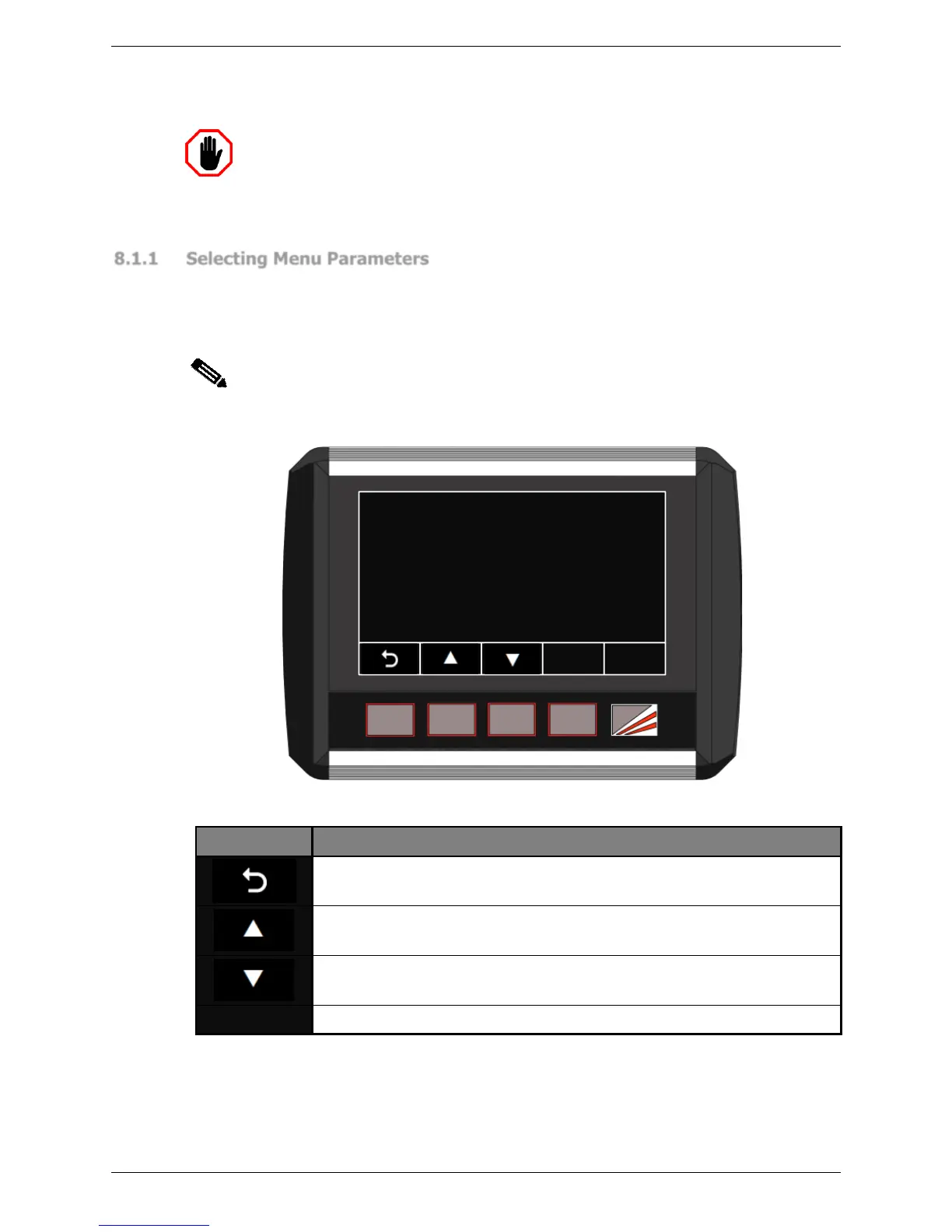
Sentinel Plus buttons, as shown in Figure 8-2 and Table 8-2. The arrow buttons step
through the parameter list; the parameter is selected by pressing the ENTER button.
Note:
Lists and values that are navigated using arrow keys always appear as loops.
When the end of the list is reached, the next button press will return the screen to
the start of the list.
a
ENTER
Press U P and DOWN to browse menu then press ENTER to select
USER PARAMETER 0
Buzzer on/off
Figure 8-2: Menu Parameter Screen
This leaves the Parameter List and returns to the Menu screen. See
Figure 5-2 for an overview of the menu system.
This changes the displayed parameter to the next parameter in the list
(Parameter 0 Parameter 1 Parameter 2 etc.)
This changes the displayed parameter to the previous parameter in the
list. (Parameter 2 Parameter 1 Parameter 0 etc.)
This selects the displayed item.
Table 8-2: User/Supervisor/System Menu Buttons
There are two types of parameters:
• Options. The value for the parameter can be selected from a list of options.
• Numbers. The parameter takes a numerical value between 0 and 9999.



 To Next Page