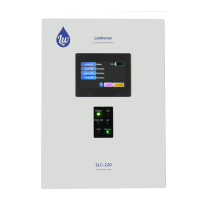
Unit Type:
Currently it is SLC-220. In the future SLR-220 central controller will be available for selection.
About/Info button:
Optional access to documentation.
Offline Mode (Not Connected) check box:
For version 2.0.0.1 and later. If the Check Box is marked, the program enables loading a
parameters file from PC, editing the parameters and then saving them to PC. No communication
with the SLC-220 controller can be done.
Communication Settings button:
Selecting and setting of the PC serial port. Default setting is 115,200 baud, 8 data bits, no parity,
one stop bit. If the SLC-Manager doesn’t connect to the SLC-220, press the Advanced button
and then Save.
Optionally, MODBUS registers access is possible for the integration phase with a SCADA.
Change User Authorization Level button:
There are three available system access levels:
View Level:
Default entry level when the program is launched. It enables only viewing the settings
without the ability to change them.
Technician Level:
Allowed to view all parameters and can also change most practical parameters.
Initial password is 1234. It can be changed in the SLC-220 Settings screen.
Administrator Level:
Allowed to view all parameters and can also change all parameters (including advanced).
Initial password is 5678. It can be changed in the SLC-220 Settings - advanced screen.
If the correct Password is not accepted by the SLC-220, reset both SLC-220 and SLC-Manager.
The current active User Level is displayed at the bottom of the screen, below the Date/Time.
Connected / Disconnected indication:
Indicates if the SLC-220 is communicating with SLC-Manager. A Green dot indicated Connected;
a Red dot indicates Disconnected.
SLC-220 Main board serial number: Displayed below the Connected/Disconnected indication.
SLC-220 Main board firmware version: Displayed below the serial number and above
Date/Time.
Date and Time: Taken from the controller. It will be updated to PC time during the next “Save to
SLC” operation – see section 4.5.
Enter button: Enter to the Main Sensors View screen.
Exit button: Exit SLC-Manager.



 To Next Page