36
Using Notifications Window
Flick Status Bar down to open Notifications Window. Open
Notification Indicators to check details.
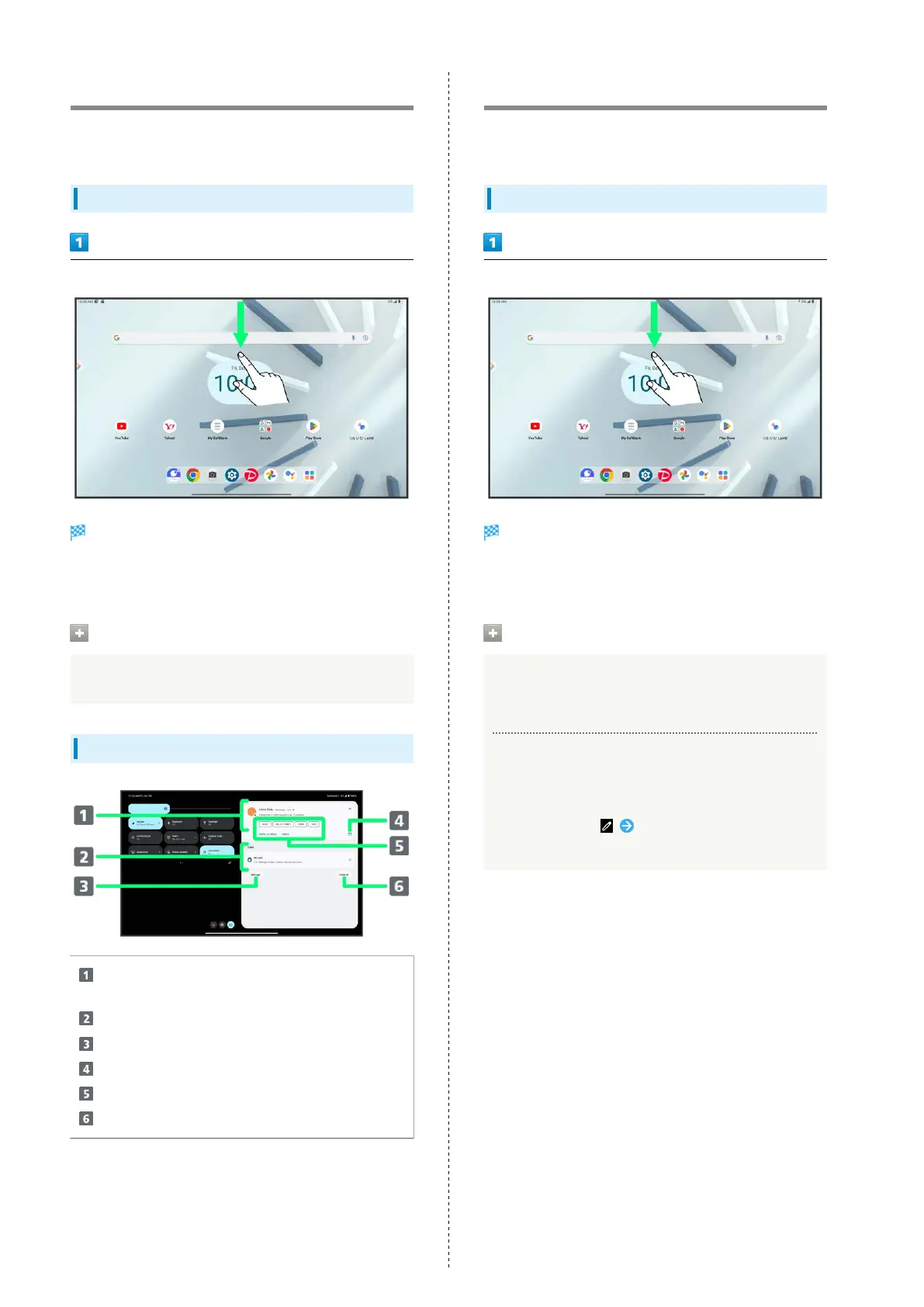
Opening Notifications Window
Flick Status Bar down
Notifications Window opens.
・Notifications Window appears at right, and Quick Settings
at left.
Closing Notifications Window
Flick Notifications Window up
Notifications Window Layout
Show notifications (incoming messages, etc.) and active
functions
Show silent notifications
Manage notifications
Show application as bubble (floating icon)
1
Use notification details
2
Delete all notifications and close Notifications Window
3
1 Icon may not appear depending on application or
notification.
2 Usable functions depend on the notification.
3 Some notifications may not be deleted.
Using Quick Settings
Flick Status Bar down to access Quick Setting. Tap icons to
toggle functions on/off, etc.
Opening Quick Settings
Flick Status Bar down
Quick Settings open.
・Notifications Window appears at right, and Quick Settings
at left.
Quick Settings Operations
Closing Quick Settings
Flick Quick Settings up
Arranging Quick Settings
Add, delete, and change order of functions in Quick
Settings.
In Quick Settings, Follow onscreen instructions
and Drag icon


 To Next Page