59
Bluetooth
Lenovo TAB7
Wi-Fi Operations
Sharing Connected Access Points
In Internet menu, Tap access point with "Connected"
appearing in Wi-Fi options SHARE Scan QR code
on Display with other device
Setting Whether to Automatically Enable Wi-Fi
Set whether to automatically use Wi-Fi when a high-quality
network is already saved (home network, etc.).
In Internet menu, Network preferences Turn on Wi-
Fi automatically
・
Tap Turn on Wi-Fi automatically to toggle on ( )/
off ( ).
Setting Whether to Show Notifications for
Available Public Networks
In Internet menu, Network preferences Notify for
public networks
・
Tap Notify for public networks to toggle on ( )/
off ( ).
Installing Certificates
In Internet menu, Network preferences Install
certificates Follow onscreen prompts
Checking MAC Address
In Internet menu, Tap access point with "Connected"
appearing in Wi-Fi options
MAC address is shown in "Randomized MAC address"
field.
Checking IP Address
In Internet menu, Tap access point with "Connected"
appearing in Wi-Fi options
IP address is shown in "IP address" field.
Checking Access Point Activity while Connected
In Internet menu, Tap access point with "Connected"
appearing in Wi-Fi options
Connection activity, signal strength, frequency,
security, etc. appear.
Using Bluetooth
®
Function
Connect to a Bluetooth
®
-capable wireless phone, etc. for calls
or to a hands-free device such as a headset.
Hints
Q. Cannot use Bluetooth
®
A. Is tablet in Airplane mode? If in Airplane mode,
Bluetooth
®
function is disabled. Bluetooth
®
function
can be enabled again after placing tablet in Airplane
mode.
Bluetooth
®
Function Cautions
Connection
Bluetooth
®
connection may not be possible with some
Bluetooth
®
devices.
File Transfer
Information may not appear correctly on both devices
depending on the transferred data.
Enabling Bluetooth
®
Function
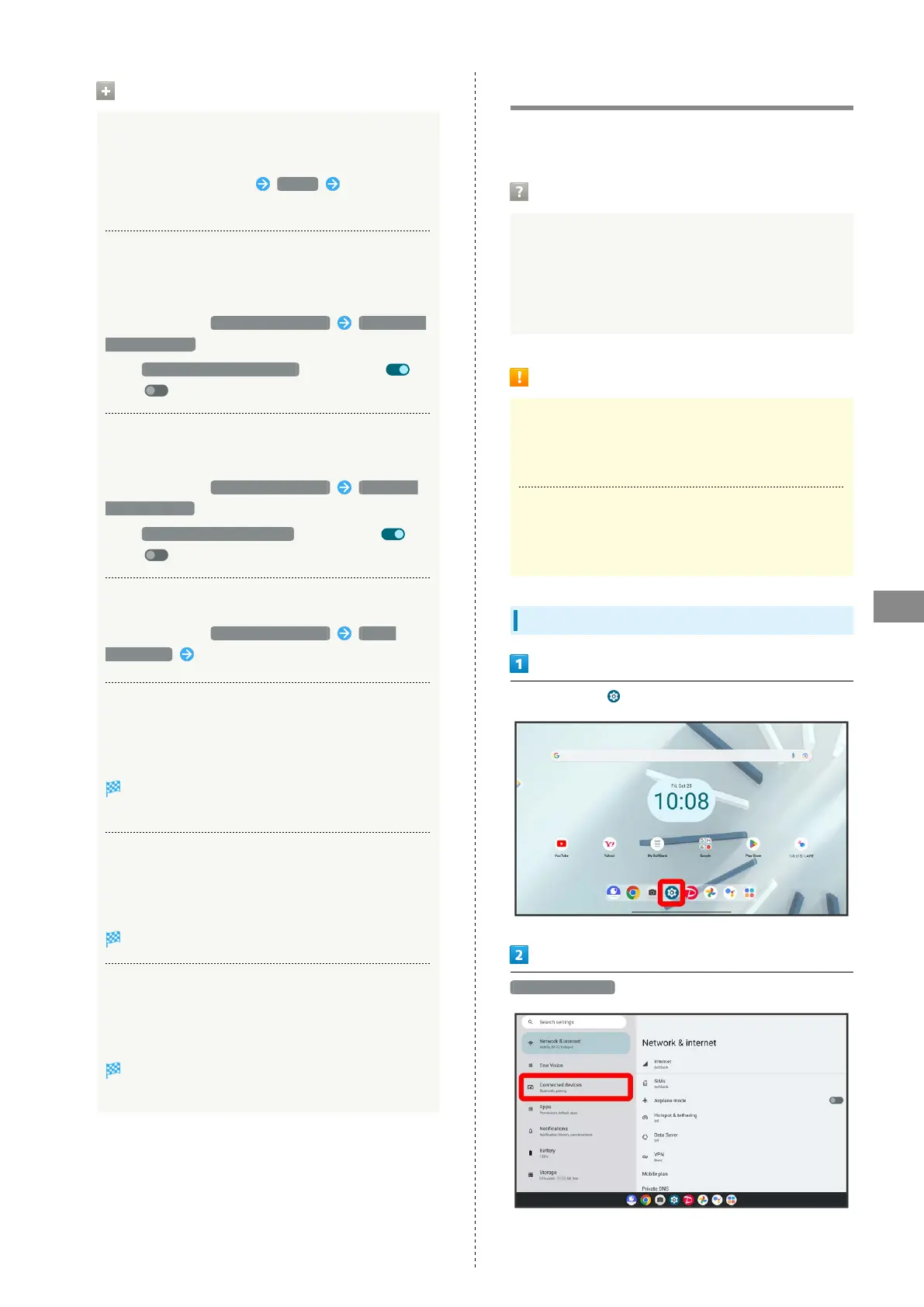
In Home Screen, (Settings)
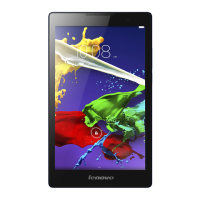
Connected devices


 To Next Page