The first time that you click on an entry from the left-hand menu, a login box is
displayed. You must enter your username and password to access the pages.
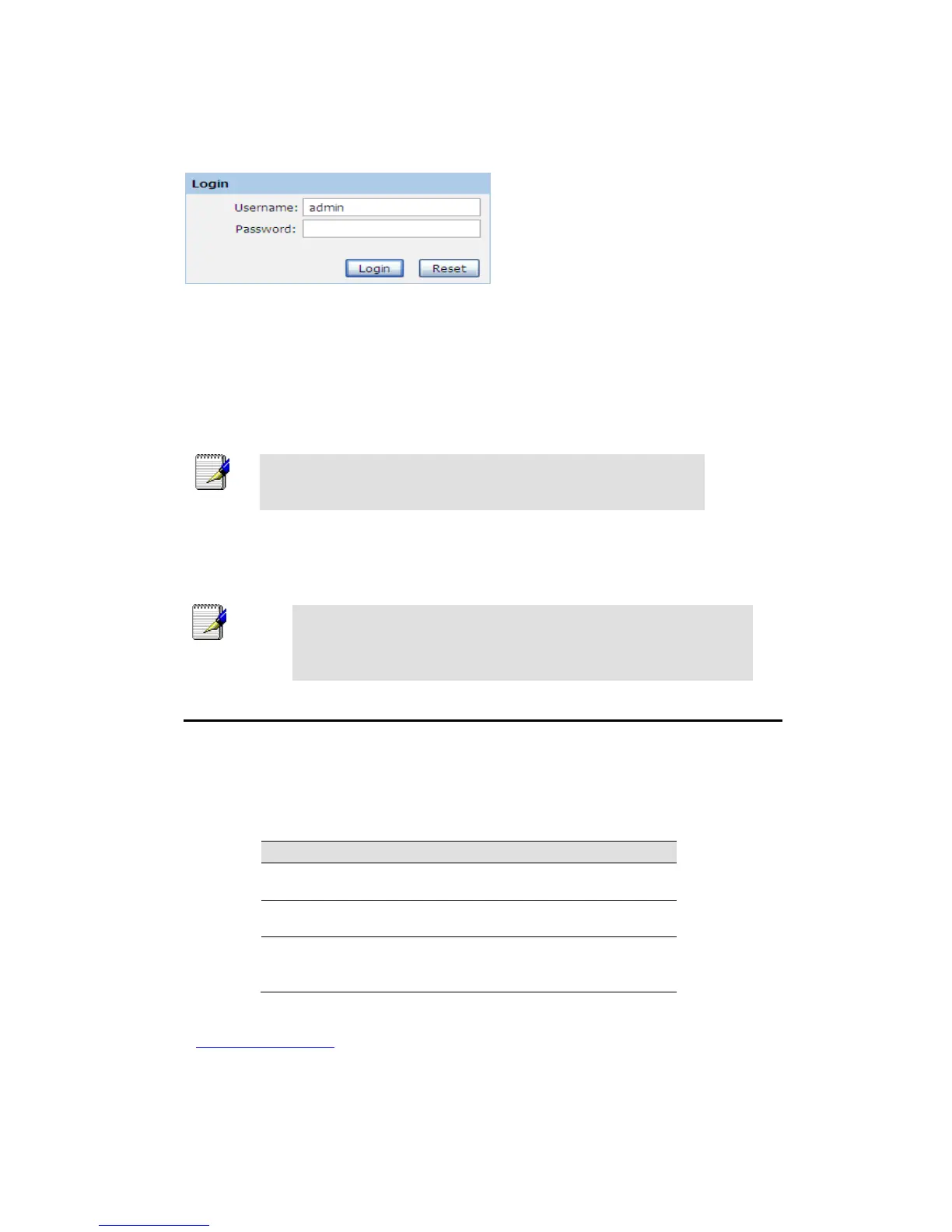
A login screen is displayed:
Figure 2: Login screen
1. Enter your user name and password. The first time you log into the program, use these
defaults:
You can change the password at any time or you can configure your
device so that you do not need to enter a password. See Password.
2. Click on OK. You are now ready to configure your device.
This is the first page displayed each time you log in to the Web pages.
If you receive an error message or the Welcome page is not displayed,
see Troubleshooting Suggestions.
Testing your Setup
Once you have connected your hardware and configured your PCs, any computer on your
LAN should be able to use the DSL /Cable connection to access the Internet.
To test the connection, turn on the device, wait for 30 seconds and then verify that the LEDs
are illuminated as follows:
Table 1. LED Indicators
On: device is powered on
Off: device is powered off
On: WLAN link established and active
Blink: Valid Wireless packet being transferred
On: LAN link established and active
Off: No LAN link
Blink: Valid Ethernet packet being transferred
If the LEDs illuminate as expected, test your Internet connection from a LAN computer. To
do this, open your web browser, and type the URL of any external website (such as
http://www.yahoo.com). The LED labeled WAN should blink rapidly and then appear solid as
the device connects to the site.


 To Next Page