Operating
45
Operating
4
General Playback
Playing Discs
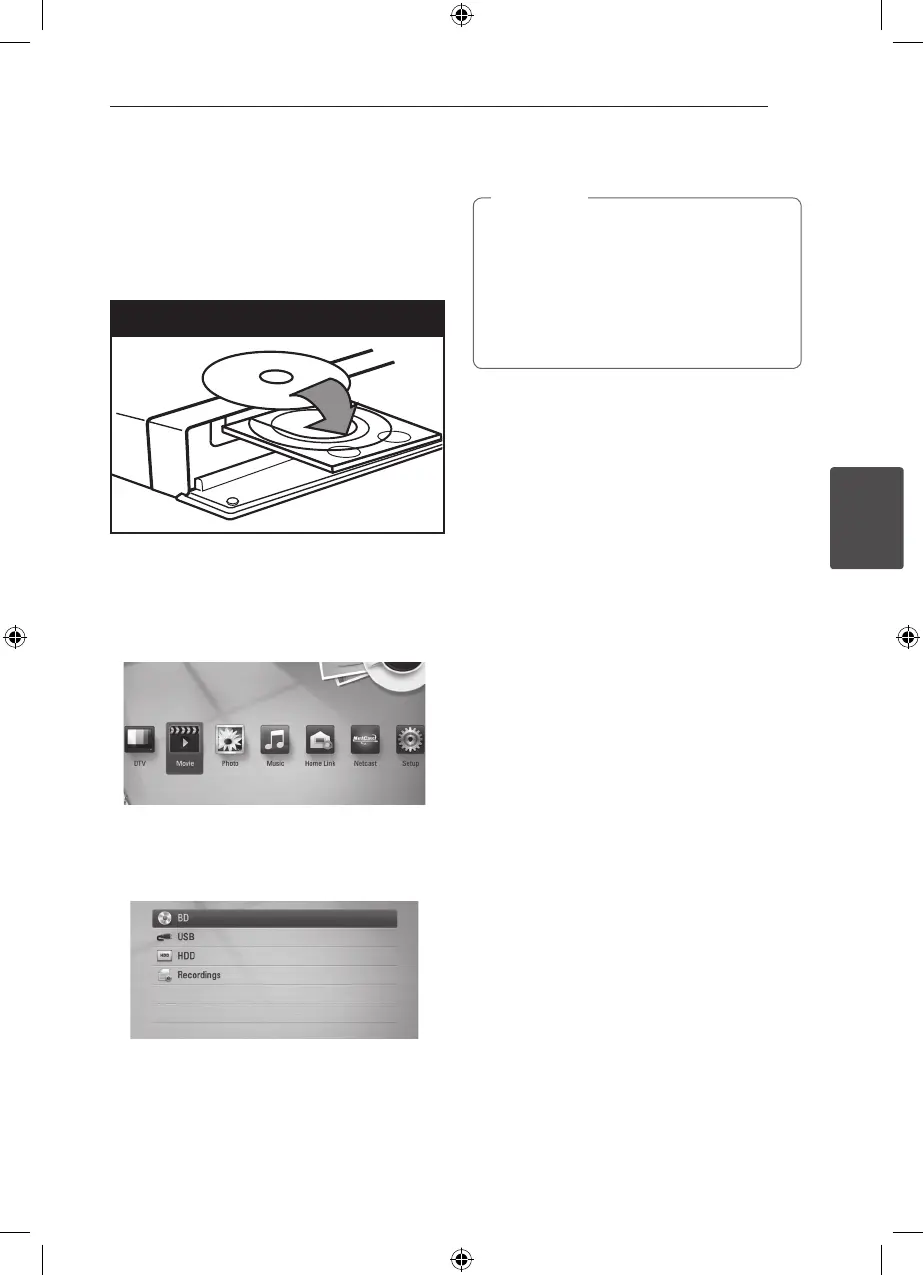
1. Press
B
(OPEN/CLOSE), and place a disc on the
disc tray.
Insert a disc
2. Press
B
(OPEN/CLOSE) to close the disc tray.
For most Audio CD, BD-ROM and
DVD-ROM discs, playback starts automatically.
3. Press HOME (
n
).
4. Select [Movie], [Photo] or [Music] using
A/D
,
and press ENTER (
b
).
5. Select the [Disc] using
W/S
, and press ENTER
(
b
).
While navigating [Movie], [Photo] or [Music]
menu, press green(G) colored button to change
the device. (DISC, USB or HDD
6. Select a le using
W/S/A/D
, and press
d
(PLAY) or ENTER (
b
) to play the le.
y
Playback functions described in this manual
are not always available in every les and
media. Some functions can be restricted
depending on many factors.
y
Depending on the BD-ROM titles, a USB
device connection may be needed for
proper playback.
,
Note
To stop playback
Press
Z
(STOP) during playback.
To pause playback
Press
M
(PAUSE) during playback.
Press
d
(PLAY) to resume playback.
To play frame-by-frame
Press
M
(PAUSE) while movie playback.
Press
M
(PAUSE) repeatedly to playback Frame-by-
Frame.
To scan forward or backward
Press
c
or
v
to play fast forward or fast reverse
during playback.
You can change the various playback speeds by
pressing
c
or
v
repeatedly.
To slow down the playing speed
While the playback is paused, press
v
repeatedly
to play various speeds of slow motion.
To skip to the next/previous
chapter/track/file
During playback, press
C
or
V
to go to the
next chapter/track/le or to return to the beginning
of the current chapter/track/le.
Press
C
twice briey to step back to the previous
chapter/track/le.
In the [Home Link] menu, there may be many types
of media les in the current folder together. In this
case, press
C
or
V
to go to the previous or
next media les of the same type.



 To Next Page