Operating
48
Operating
4
Searching content in the hard
disk drive by entering file
name
If you are having diculties nding content in the
hard disk drive, you can search for the content by
entering keyword with the virtual keyboard
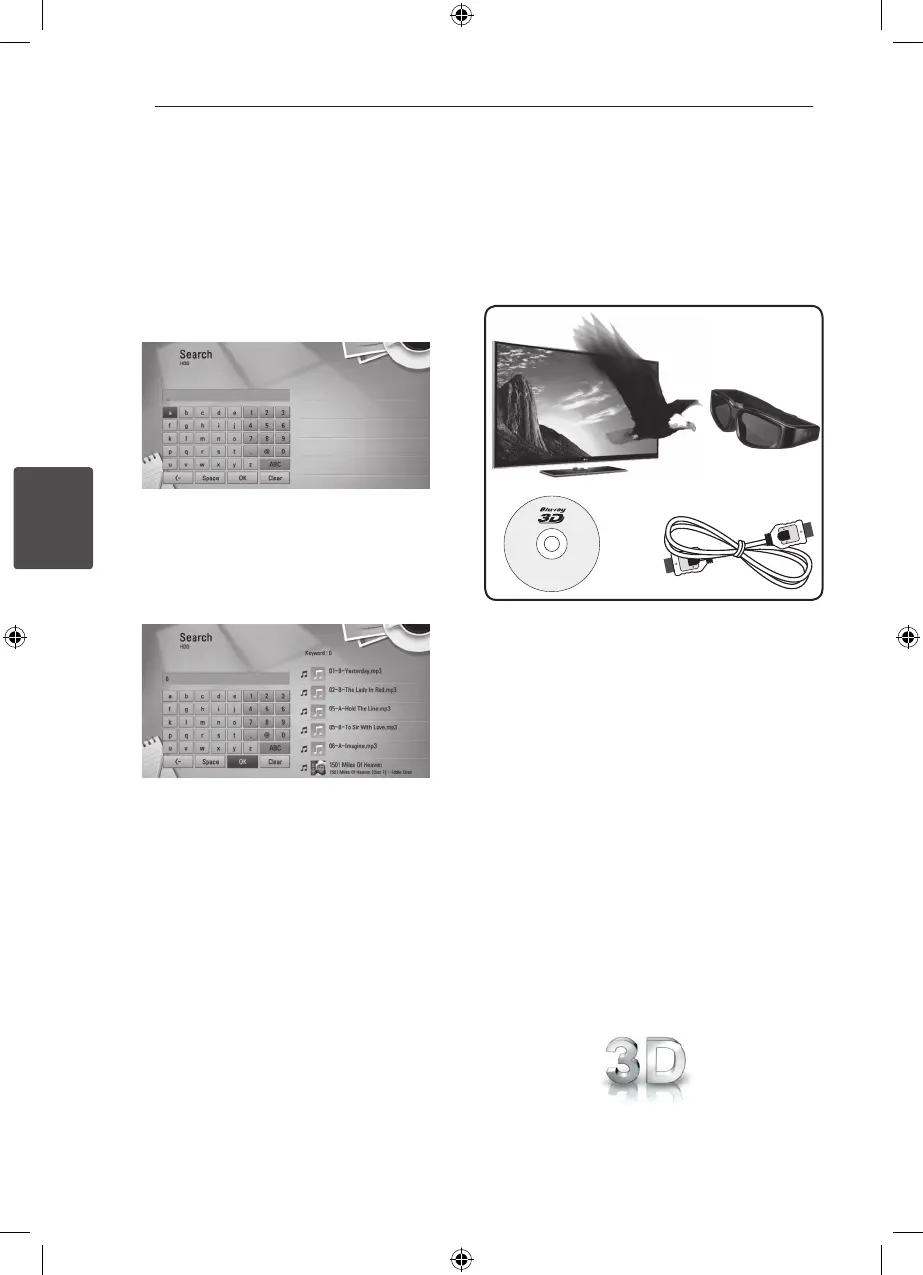
1. On the [Movie], [Photo], [Music] or Home menu,
press SEARCH to display the virtual keyboard.
2. Use
A/DW/S
to select letters then press
ENTER (
b
) to conrm your selection on the
virtual keyboard.
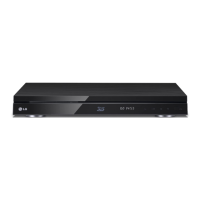
3. When you nish entering the keyword, select
[OK] and press ENTER (
b
) to display search
result.
4. Press
A/D
repeatedly until the search result
is selected, and use
W/S
to select a desired
content.
5. Press ENTER (
b
) to play the content.
Playing Blu-ray 3D disc
This player can play the Blu-ray 3D discs which
contains separate views for the left and right eyes.
Preparation
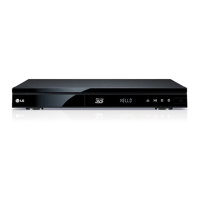
In order to playback Blu-ray 3D title in stereoscopic
3D mode, you need to:
c
a b
d
a
Check if your TV is 3D capable and has HDMI
1.4 input(s).
b
Wear 3D glasses to enjoy the 3D experience if
it is necessary.
If you want to purchase additional 3D-ready
glasses, contact the dealer that you purchased
the 3D-ready TV from.
c
check whether the BD-ROM title is the
Blu-ray 3D disc or not (page 49).
d
connect an HDMI cable (version 1.3 or higher)
between the player’s HDMI output and TV’s
HDMI input.
1. Press HOME (
n
), and set the [3D Mode] option
on the [Setup] menu to [On]
(page 32).
2. Press
B
(OPEN/CLOSE), and place a disc on the
disc tray.
3. Press
B
(OPEN/CLOSE) to close the disc tray.
The playback starts automatically.
The 3D icon appears on the screen when 3D
content is in playback.



 To Next Page