Operating
55
Operating
4
Watching from a different
angle
BD
DVD
If the disc contains scenes recorded at dierent
camera angles, you can change to a dierent
camera angle during playback.
1. During playback, press INFO/DISPLAY (
m
) to
display the On-Screen display.
2. Use
W/S
to select the [Angle] option.
3. Use
A/D
to select the desired angle.
4. Press RETURN (
x
) to exit the On-Screen
display.
Changing the TV Aspect Ratio
BD
DVD
AVCHD
MOVIE
MOVIE-N
REC
You can change the TV aspect ratio setting during
playback.
1. During playback, press INFO/DISPLAY (
m
) to
display the On-Screen display.
2. Use
W/S
to select the [TV Aspect Ratio]
option.
3. Use
A/D
to select desired option.
4. Press RETURN (
x
) to exit the On-Screen
display.
Even if you change the value of the [TV Aspect
Ratio] option in On-Screen display, the [TV
Aspect Ratio] option in the [Setup] menu is
not changed.
,
Note
Changing the Picture Mode
BD
DVD
AVCHD
MOVIE
MOVIE-N
REC
You can change the [Picture mode] option during
playback.
1. During playback, press INFO/DISPLAY (
m
) to
display the On-Screen display.
2. Use
W/S
to select the [Picture Mode] option.
3. Use
A/D
to select desired option.
4. Press RETURN (
x
) to exit the On-Screen
display.
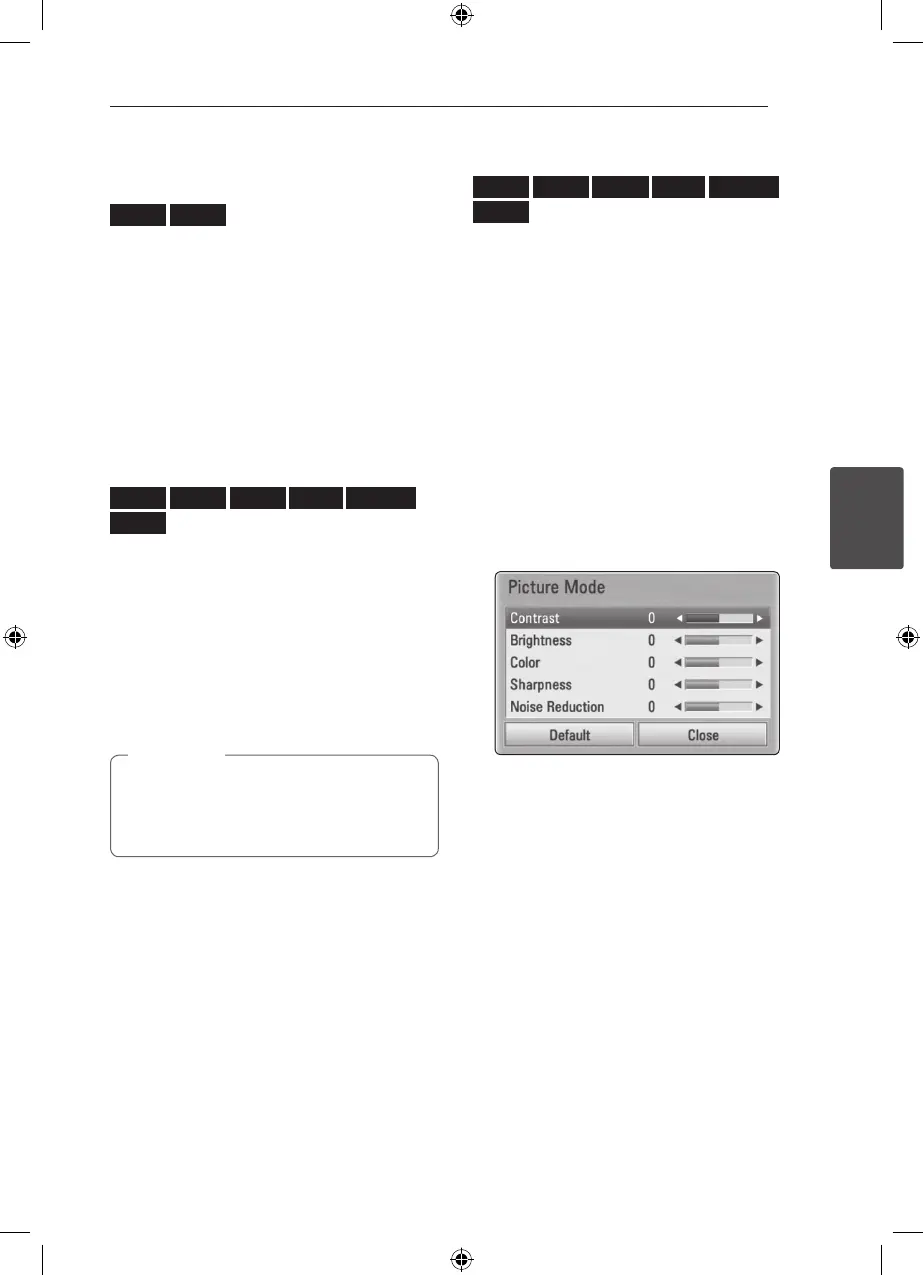
Setting the [User setting] option
1. During playback, press INFO/DISPLAY (
m
) to
display the On-Screen display.
2. Use
W/S
to select the [Picture Mode] option.
3. Use
A/D
to select the [User setting] option,
and press ENTER (
b
).
4. Use
W/S/A/D
to adjust the [Picture Mode]
options.
Select [Default] option then press ENTER
(
b
) to reset the all video adjustments.
5. Use
W/S/A/D
to select the [Close] option,
and press ENTER (
b
) to nish setting.



 To Next Page