Operating
70
Operating
4
Accessing a DLNA media
server
1. Check the network connection and settings
(pages 20-24).
2. Press HOME (
n
).
3. Select [Home Link] using
A/D
, and press
ENTER (
b
).
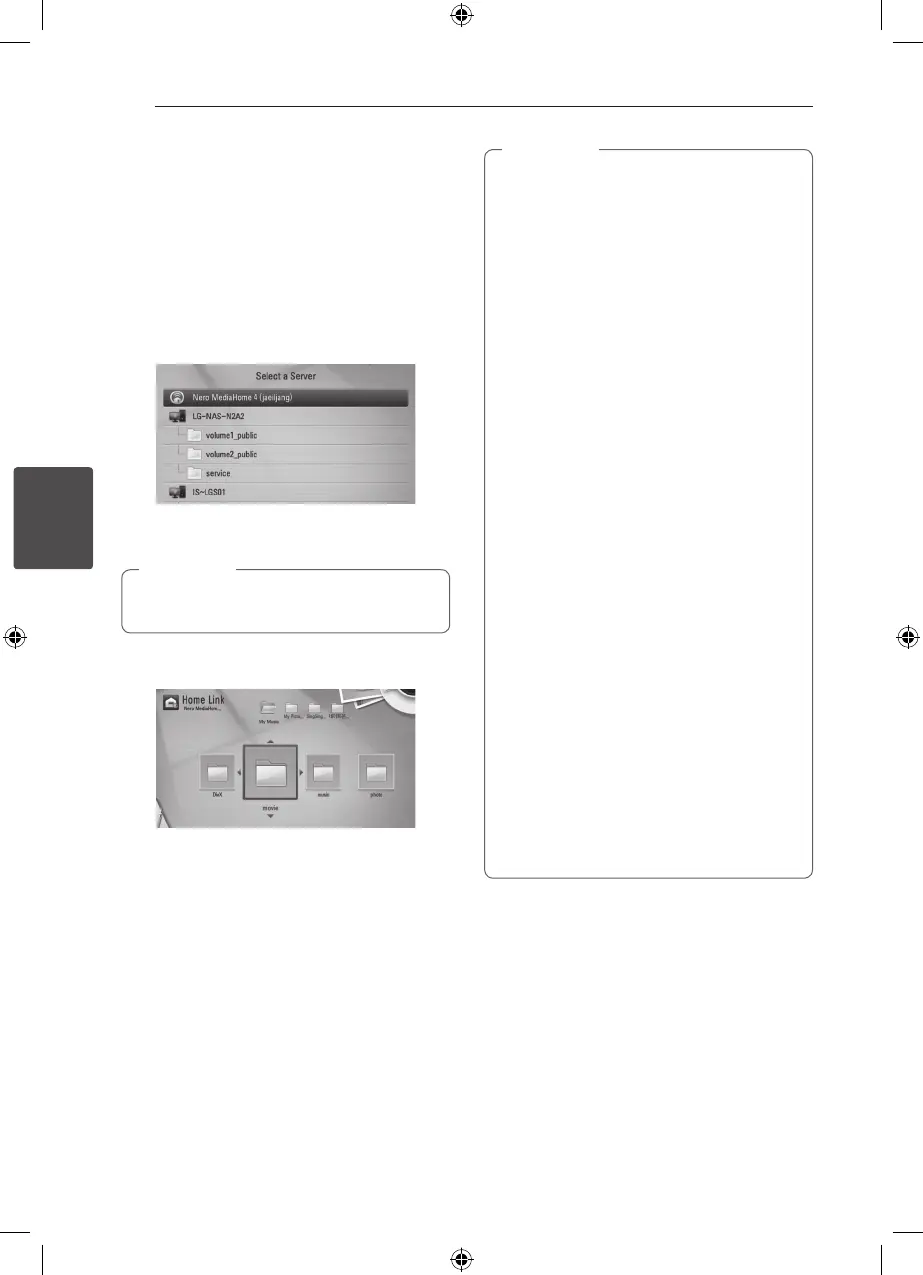
4. Select a DLNA media server from the list using
W/S
, and press ENTER (
b
).
If you want to rescan available media server, press
the green (G) coloured button.
Depending on the media server, this player
may need to get permission from the server.
,
Note
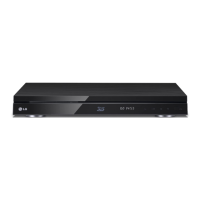
5. Select a le using
W/S/A/D
, and press
ENTER (
b
) to play the le.
y
The le requirements are described on page
10.
y
You can use various playback functions.
Refer to pages 45-55.
y
Because the compatibility and available
playback functions on the [Home Link]
menu are tested on the bundle DLNA
server (Nero MediaHome 4 Essentials)
environment, le requirements and playback
functions on the [Home Link] menu may
dier depending on media servers.
y
The le requirements on page 10 are not
always compatible. There may have some
restrictions by le features and media
server’s ability.
y
The thumbnail of the unplayable les can
be displayed in the [Home Link] menu, but
those cannot be played on this player.
y
If there is an unplayable music le in the
[Home Link] menu, the player will skip the
le and play the next le.
y
Playing movie subtitle les is only possible
on DLNA media server created by supplied
Nero MediaHome 4 Essentials software on
this player package.
y
The subtitle le name and movie le name
have to be the same and located in the
same folder.
y
The playback and operating quality of the
[Home Link] function may be aected by
your home network condition.
y
The les from removable media such as USB
drive, DVD-drive etc. on your media server
may not be shared properly.
,
Note



 To Next Page