Operating
61
Operating
4
Playing movie file and
VR discs
You can play DVD-RW discs that are recorded
in Video Recording (VR) format and movie les
contained on a disc/HDD/USB device.
1. Press HOME (
n
).
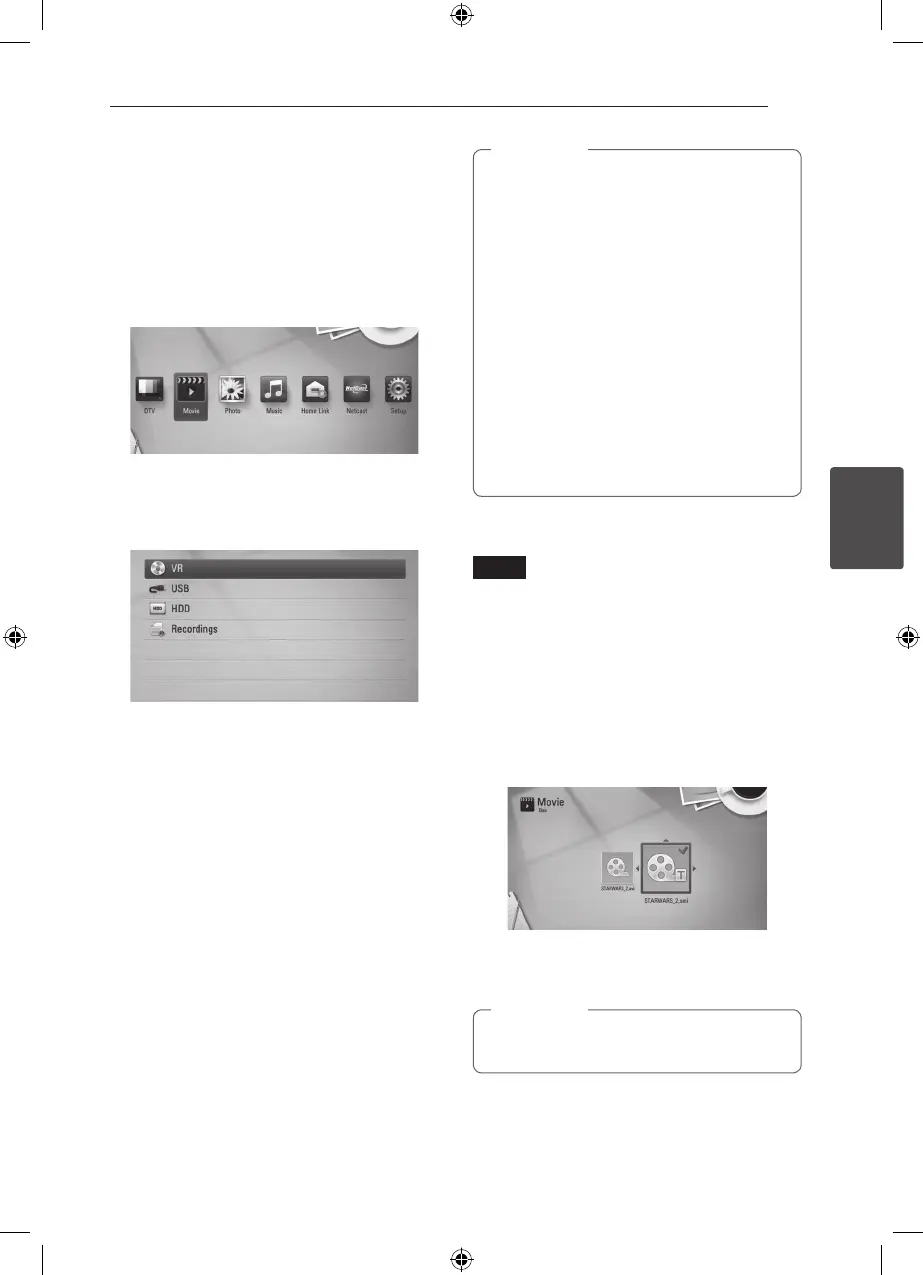
2. Select [Movie] using
A/D
, and press ENTER
(
b
).
3. Select [Disc], [USB] or [HDD] option using
W/
S
, and press ENTER (
b
).
This step is needed only when a disc or a USB
device is connected on this unit.
While navigating [Movie], [Photo] or [Music]
menu, press green (G) colored button to change
the device. (DISC, USB, HDD or Recordings)
4. Select a le using
W/S/A/D
, and press
d
(PLAY) or ENTER (
b
) to play the le.
y
The le requirements are described on page
10.
y
You can use various playback functions.
Refer to pages 45-55.
y
Unnalized DVD VR format discs may not be
played in this player.
y
Some DVD-VR discs are made with CPRM
data by DVD RECORDER. This unit cannot
support these kinds of discs.
What is CPRM?
CPRM is a copy protection system (with
scramble system) only allowing the
recording of ‘copy once’ broadcast programs.
CPRM stands for Content Protection for
Recordable Media.
,
Note
Selecting a subtitle file
MOVIE
If a movie le name and the subtitle le name are
the same, subtitle le is played automatically when
playing the movie le.
If the subtitle le name is dierent from the movie
le name, you need to select the subtitle le on the
[Movie] menu before playing the movie.
1. Use
W/S/A/D
to select the subtitle le you
wish to play in the [Movie] menu.
2. Press ENTER (
b
).
3. Press ENTER (
b
) again to deselect the subtitle
le. Selected subtitle le will be displayed when
you play the movie le.
If you press
Z
(STOP) during playback, the
subtitle selection is cancelled.
,
Note



 To Next Page