It is possible to see the distance and time to empty increase as you drive. The distance can increase as
you drive at a steady fuel-efficient speed. This causes the fuel economy for the tank to rise; and applying
this higher fuel efficiency to the fuel remaining in the tank can actually result in more remaining distance.
If you drive slower than the average speed of the tank so far, the time to empty can increase.
To maintain accurate To Empty information, you must use the following FILLUP procedure shown under
Filling Up Your Tank to indicate the vehicle tank has been refilled. It is also necessary to fill the tank to
make the TO EMPTY information correct.
Filling Up Your Tank
To maintain accurate information in the Tank Trip
and To Empty computers, you must tell your
ScanGauge that you have added fuel to your
vehicle’s tank. To maintain the most accurate
To Empty information, you should fill that take
to capacity each time you put fuel in the vehicle.
If this is not possible, then you should enter the
amount of fuel you put in the tank.
The Fill Up Function
The FILLUP function allows you to adjust and
enter the fuel level and cost values to help
ScanGauge maintain accurate TO EMPTY and
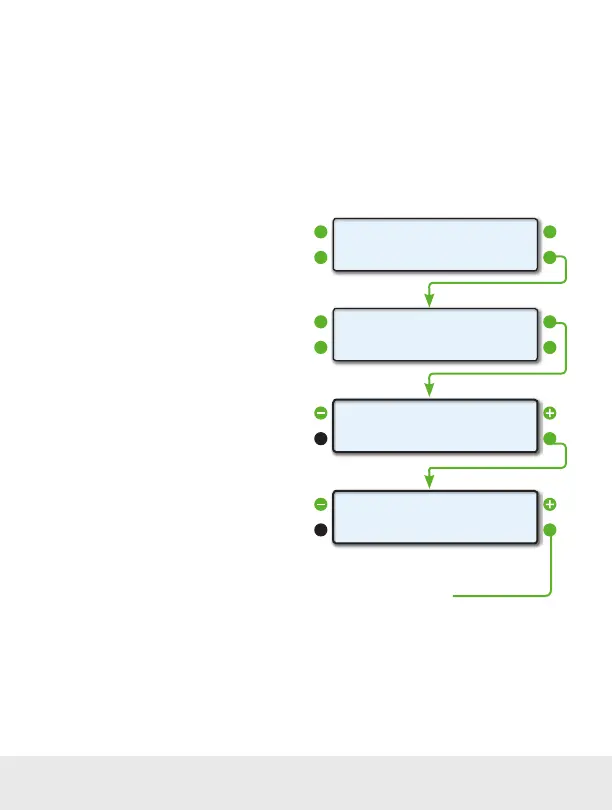
FUEL COST computations. To access the FILLUP
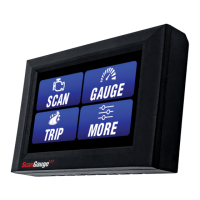
screen from the Home Screen, press the lower
right function button next to MORE. Next, press
the upper right function button next to FILLUP.
Filling the Tank to Capacity
To tell ScanGauge you have filled the tank, use the
upper left and right function button to adjust the
“TANK=” value until it matches the tank capacity.
When you’re done, press the NEXT function
button to continue to the Fuel Cost Screen.
Partially Filling the tank
To tell ScanGauge you have added fuel to the tank, use the upper left and right function button to adjust
the value in the top line until it matches the amount of fuel you actually put in the tank. As you adjust the
bottom value next to “Tank=” will reflect the amount of fuel ScanGauge believes in the tank.
When you’re done, press the NEXT function button to continue to the Fuel Cost Screen
<SCAN
<TRIP
GAUGE>
MORE>
<SETUP
<DISPLAY
MORE>
FILLUP>
0
NEXT>Tank= 85
<-1 +10>
Fuel Cost
<
SAVE>
>$4.10
Push the SAVE button to complete the
FILLUP process and reset the TRIP
parameters related to fuel.
FILLUP Screen
Fuel Cost Screen
34 — www.ScanGauge.com


 To Next Page