Individual 40-55 - 17 -
User guide
General information on menu operation
Some keys of the remote control for operating the TV set you will use
more often than others. The most important keys for navigation will
be explained in general. The numbers in the text refer to the figure
showing the remote control on page 9.
The arrow keys
help you to navigate in the menus and lists of the
TV set and for selecting menu items. They are arranged in the middle
of the remote control in a circle around the OK key
. Later in this
quick guide they will be represented as follows:
3456 Select the desired item.
The OK key
is used to confirm a selection, for calling the highlighted
menu item and for opening the station list. In this quick guide, an
instruction for this key looks like the following:
OK confirm.
Using the numerical keys of your remote control
you enter pro-
gramme channels and teletext pages directly. With key 0 you open
the AV options. In this user guide, entering numbers with numerical
keys is shown as follows:
Entering programme channel directly.
The numerical keys are also used to enter text (see Entry of charac-
ters by remote control on page 19).
The Home view is the central overview page for all of your TV set‘s
operating modes. You reach Home view with the HOME key
.
HOME: Call Home view.
Pressing the BACK key
briefly brings you one level up in the wizard.
Pressing the BACK key longer closes all opened fade-ins. An example
for the BACK key in this quick guide:
BACK: Stop text entry and exit entry box.
If the function for a key is not available, this will be indicated by an
inserted symbol on the right above.
Structure of the Menu screen
Basically, the structure of the different menu screens is similar, de-
pending on the fact if a wizard, rendering media content or a setup
menu are concerned. The structure is explained by means of three
different screens.
The functions of these menu screens are explained more detailed in
the respective chapters.
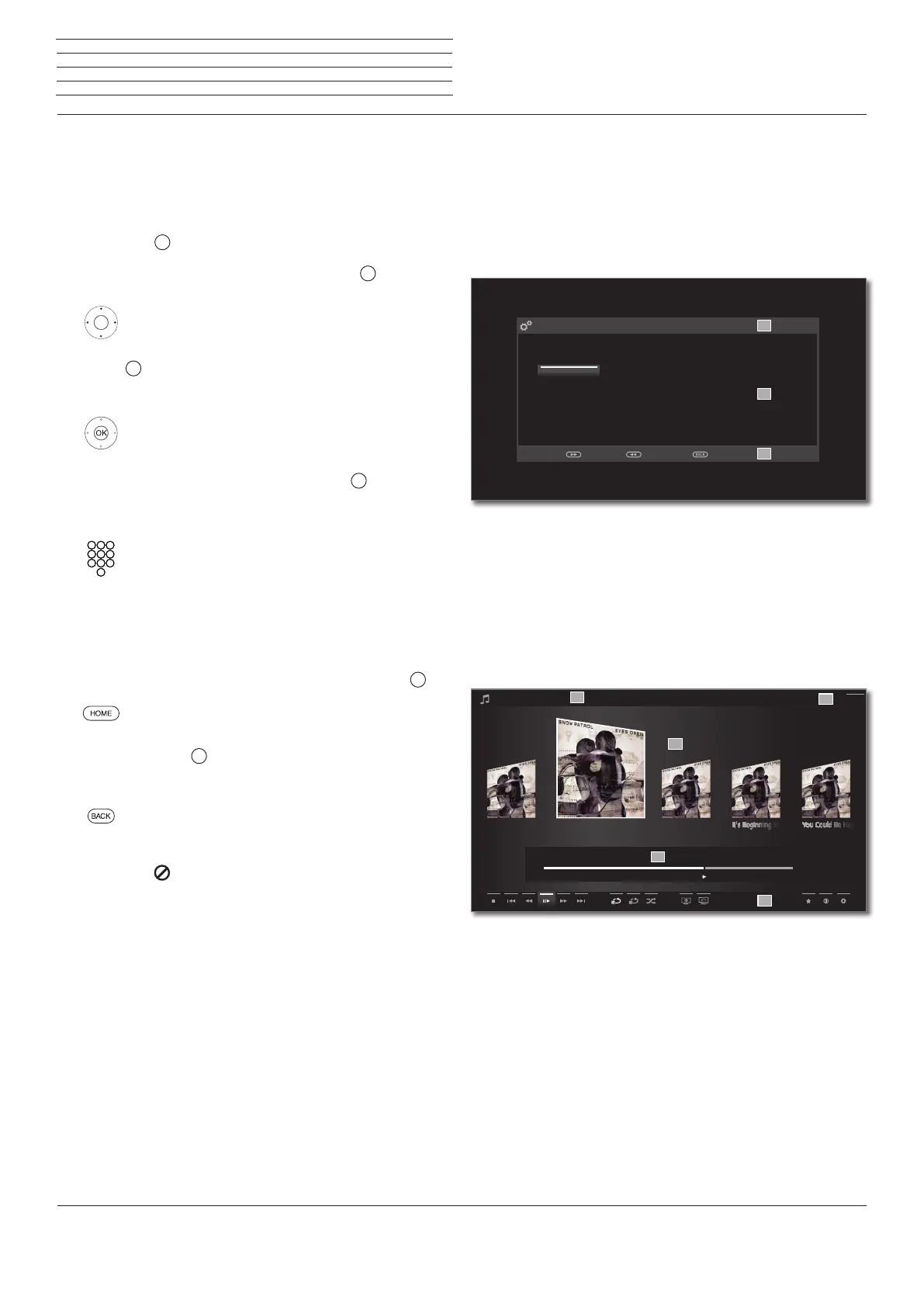
Screen structure: Wizard
(A) Title bar with name of the wizard and the current operating step.
(B) Selected items, whose number can be different according to the
operating step.
(C) Bottom line showing the available operating controls. If required,
instructions and information are inserted.
Screen structure: Rendering of media content (example:
Audio player)
(A) Title bar with selected album / subdirectory.
(B) Menu item Back to exit the menu or to go back to the previous
menu item.
(C) Selection of album or title
(D) Time bar
(E) Bottom line with the different symbols for controlling the playback
function.
A
B
C
Deutsch (de) Ελληνικά (el) Svenska (sv) Čeština (cs)
English (en) Polski (pl) Dansk (da)
Français (fr) Magyar (hu) Português (pt)
Italiano (it) Suomi (fi) Русский (ru)
Español (es) Slovenščina (sl) Norsk (no)
Nederlands (nl) Slovenčina (sk) Türkçe (tr)
INITIAL INSTALLATION - Menu language
Proceed with
Back with Cancel with
Which menu language do you want to use for operation?
Chasing Cars Shut Your EyesHands Open
Snow Patrol / Eyes Open
00:00
02:56
04:27
A
C
B
D
E
Back
n
General information on menu operation








 To Next Page