10
3. Get Ready
3.1 Lidar Connection
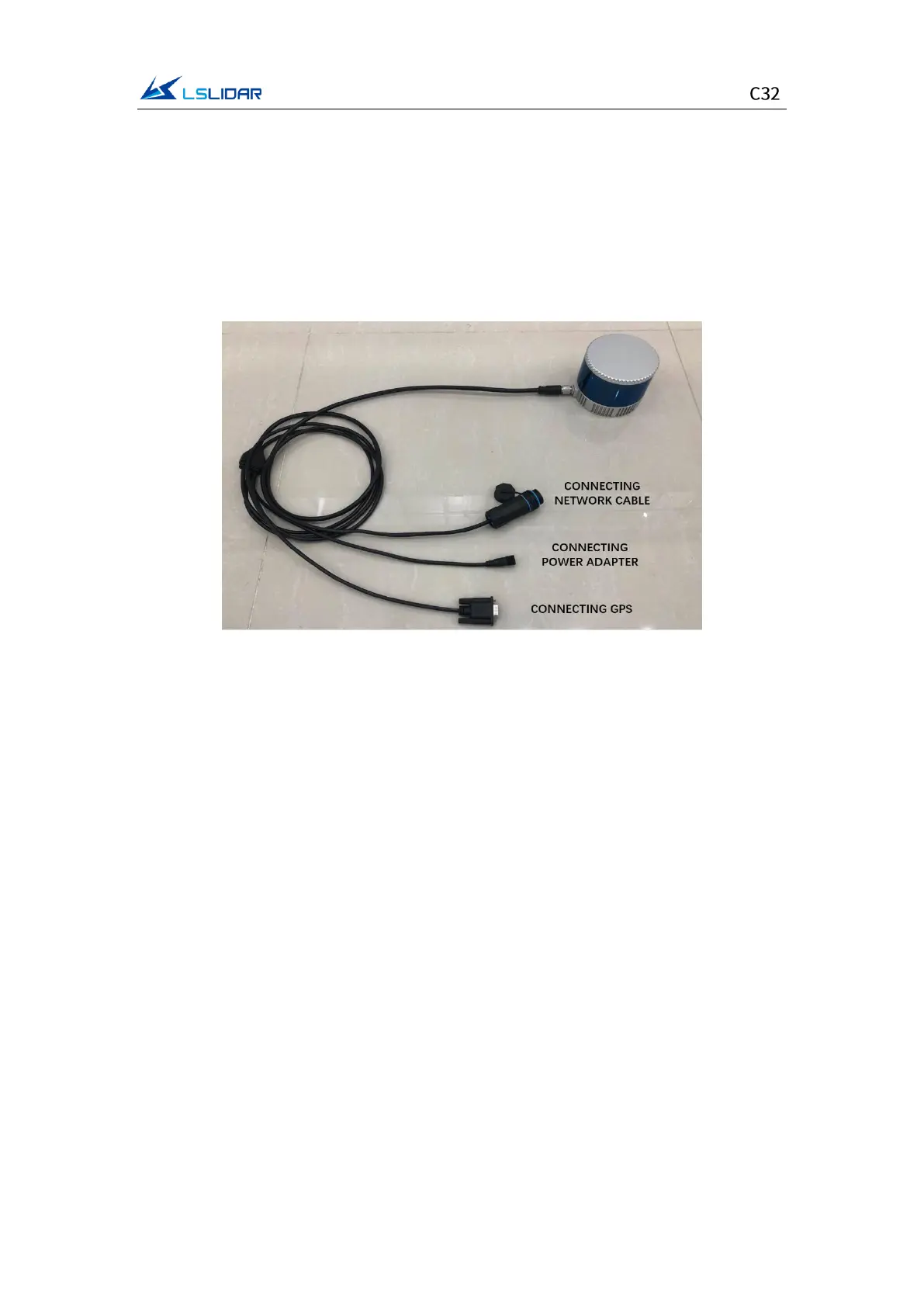
To get ready for the lidar operation, please connect the lidar to the computer as
shown in figure 3.1.
Figure 3.1 Connecting Lidar and Computer
Note: Under any circumstances, it is forbidden to plug and unplug the aviation
terminal with power on. When plugging and unplugging the GPS module from
the GPS port of the interface box, or connecting or disconnecting the signal from
the GPS pin of the cable, please make sure that the lidar is powered off.
3.2 Software Preparation
This lidar can be operated under both Windows operating system and Linux
operating system. Software needed is as follows:
Wireshark: to capture the ARP (Address Resolution Protocol) packets.
Note: Wireshark is a third-party software, and you may need to download it by
yourself. LeiShen Intelligent bears no responsibility for any copyright and
commercial disputes caused by users’ use of the software.
To view the point cloud data generated by the lidar, you can either use the
Windows Client or the ROS Drive Program.
Windows Client (optional): a host computer software to view point cloud images
under Windows operating system, which is also referred to as “point cloud
display software”. Simple functions like parameter configuration, lidar test and


 To Next Page