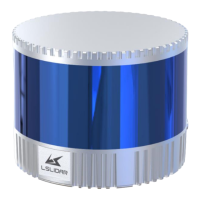
The C32 lidar is compatible with GPS interfaces of multiple data formats. The
GPRMC data format only needs to meet the following two requirements: the
data after the first comma separator is hour, minute and second information; the
data after the ninth comma separator is date information. The following two
formats can be used normally:
1) $GPRMC, 072242, A, 3027.3680, N, 11423.6975, E, 000.0, 316.7, 160617,
004.1, W*67;
2) $GPRMC, 065829.00, A, 3121.86377, N, 12114.68162, E, 0.027, , 160617, , ,
A*74.
6.2 External Synchronization
In external synchronization, the lidar receives the PPS signal input by other
external devices and times it in microseconds, and the timing value is output as
the timestamp of the data packet. At this time, there is no UTC time reference.
If UTC time is required, it must be written in the configuration package,
otherwise the UTC time output information of the device package is invalid.
The PPS level of the external synchronization signal is 3.3 V ~ 5 V, and the lidar
receives the rising edge trigger, and the PPS high pulse width is required to be
more than 1 ms.
6.3 gPTP Synchronization
Generalized Precise Time Protocol (gPTP) is derived from Precise Time Protocol
(PTP) and is used to synchronize the time of individual devices within a local
area network with high precision.
This series of lidar supports gPTP timing synchronization. Before synchronizing
the lidar via gPTP, the time source needs to be set to “PTP” in the lidar's point
cloud display software.
The steps are as follows: open the point cloud display software, click on
“parameter” to bring up the parameter modification window, change “Source
Selection” to “PTP” as shown in the figure below.


 To Next Page