18
4.1.6 Note
Notice about the lidar setting and usage:
1) It is not possible to use Windows Client to receive data in two processes
(open twice at the same time) on the same computer. The port occupancy of
the PC is generally exclusive, so the other software that uses the same
process or the same port number cannot work normally after a process is
bound to a specified port number. When the Windows Client detects that
the port is occupied, it will prompt that the communication network port
configuration has failed, and automatically close the software. You need to
close the software process that occupied the port, and reopen the Client to
use it normally.
2) At the same time, since Qt is adopted in the low-level software development,
please create English paths when naming files and path folders.
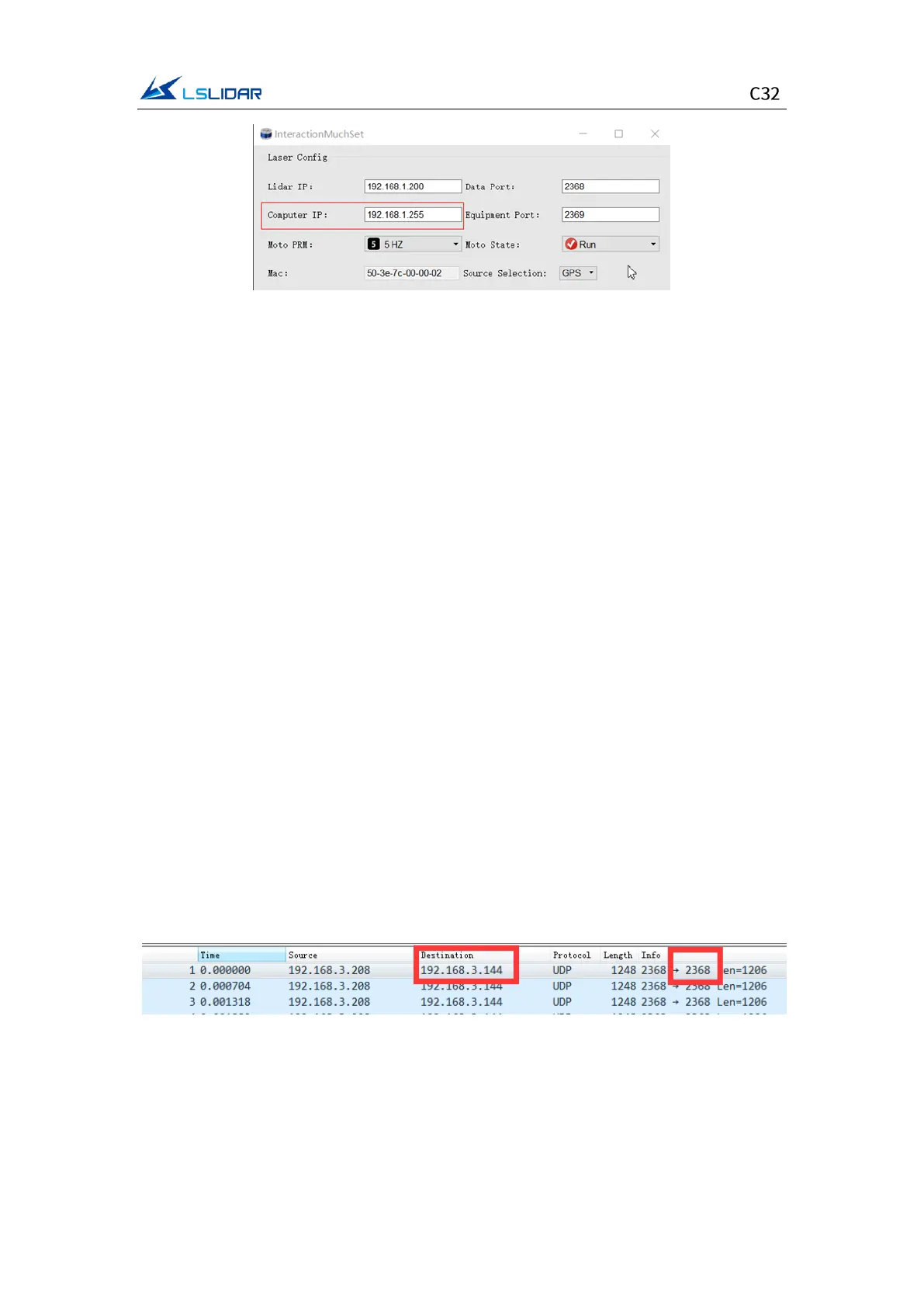
3) Since the port number of the C32 lidar can be modified through user
configuration, and the lidar sends data to the host computer through the
preset destination IP and port. Therefore, when the local laptop or desktop
computer and other devices are receiving data, their IP address should be the
same as the destination IP, and the port bound to the local host computer
program needs to be the same as the destination port number, as shown in
the figure below (these are the data packet parameters captured and
analyzed by Wireshark software). The data in the red boxes indicate the
destination IP and port number of the lidar.
Figure 4.3 Data Packet Parameters Captured by Wireshark Software
Please set the host computer IP according to the following steps:
Step 1. In the Control Panel -> All Control Panel Items -> Network Connections,
click the “Ethernet” icon.
Step 2. Click “Properties” in the pop-up status box, and click “TCP/IPv4 protocol”


 To Next Page