15
Operating the Luxor
®
ZD/ZDC
Assigning Light Fixtures into Groups
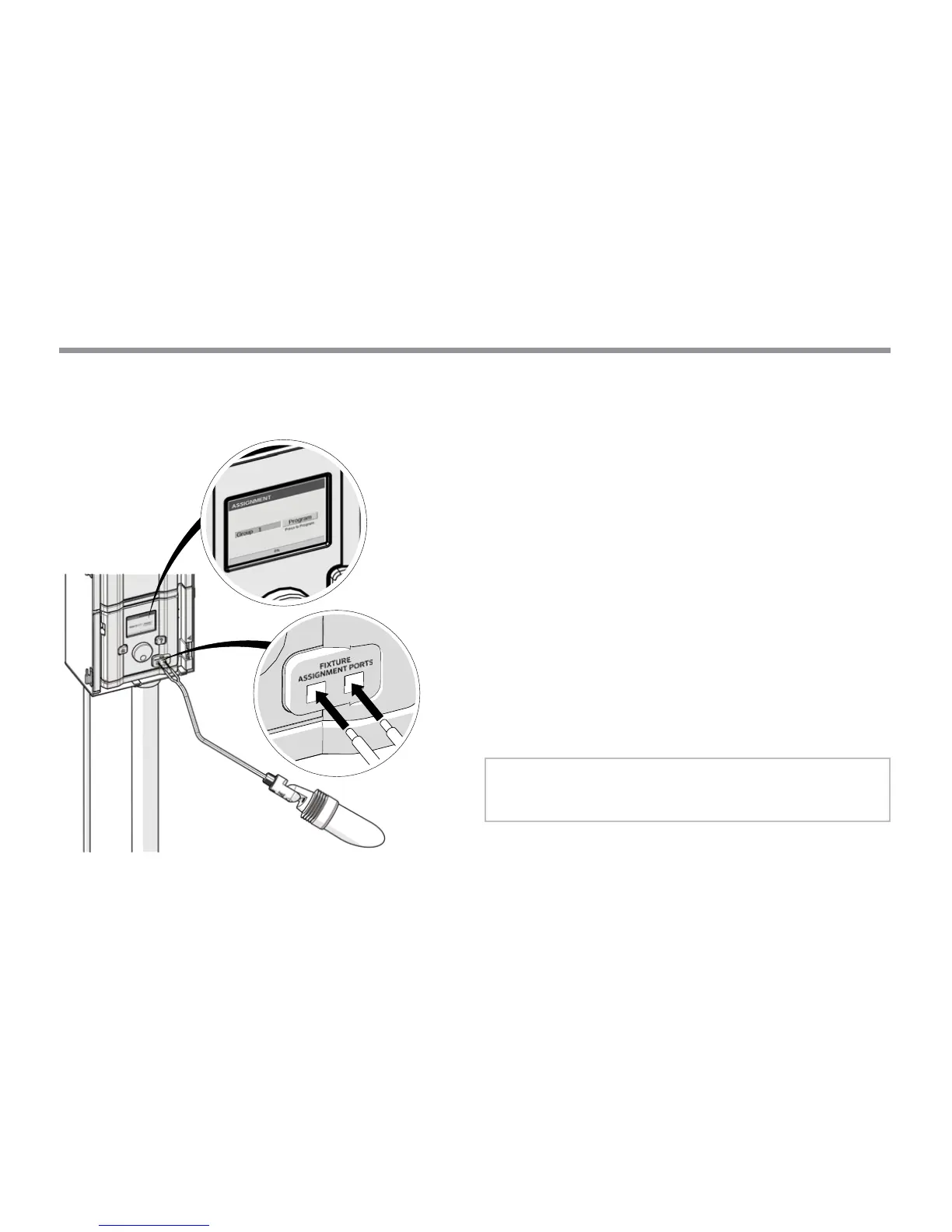
Figure 7: Fixture Assignment Wire Diagram
The lighting assignment screen is automatically displayed when
an FX LED xture or device containing FX Zoning, Dimming, or
Color technology is connected into the assignment ports of the
facepack. This mode can also be forced by navigating to SETUP
and selecting ASSIGN.
• Enter this mode by placing two separate wires from a single
FX LED xture or device containing FX Zoning, Dimming, or Color
technology into each of the assignment ports on the front of the
facepack. The wires must maintain contact inside the assignment
ports during the entire process.
• Navigate to PROGRAM and press the scroll wheel to initiate
assignment. When complete, the screen will show “Assignment
Successful” or “Assignment Failed.” If failed, reposition wires and
try again. If the problem persists, the board or device may either
be defective or not programmable.
• The assigned group number is stored in the device and not in
the facepack. Thus, power loss or other errors within the Luxor
controller will not aect the xture assignment. If a device (LED
board, lamp, CUBE, etc.) is replaced, the new device must be
programmed to the desired group number.
NOTE: Only one xture can be addressed at a time.
Attempting to address more than one xture at a
time can result in assignment failures.


 To Next Page