33
NOTE: Clearing the database does not erase
xture group assignments. See page 14 for
more information.
Care and Maintenance
Database Reset
From the HOME screen, push both the HOME button and the
? (“HELP”) button simultaneously to bring up the DIAGNOSTICS
screen (Figure 12).
Wait two seconds and press the center scroll wheel to enter the
rmware load screen (Figure 13).
Press the ? (“HELP”) button.
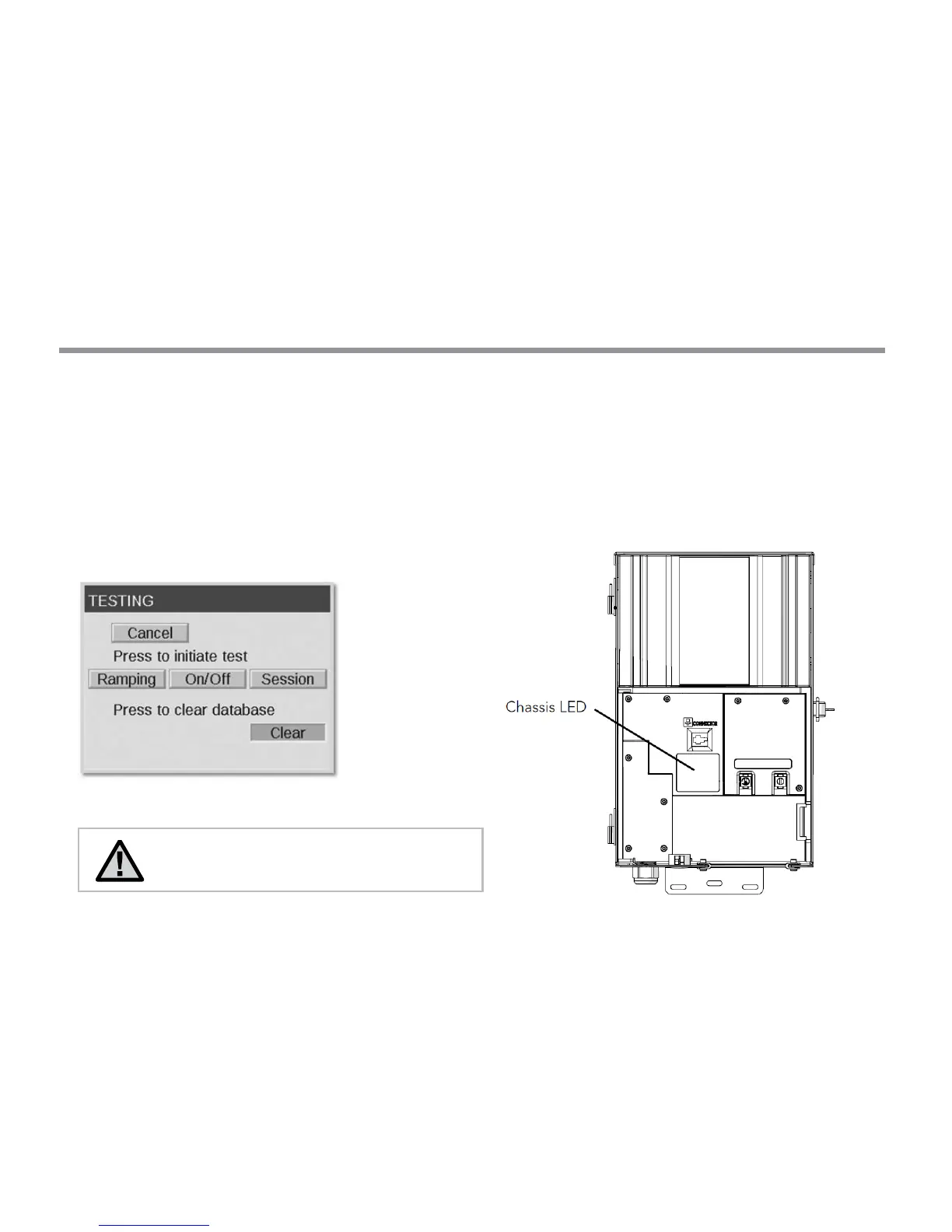
Navigate to the CLEAR option and press the scroll wheel
(Figure 17).
Figure 18: Engineering Testing Screenshot
Chassis Indicator Lights
An indicator light displays the communication status of the chassis
to the facepack. The following colors indicate the accompanying
status:
• BLINKING GREEN: Communication established
• AMBER: Communication error/facepack unplugged
• RED: Short or Overload detected on the system
Figure 21: Chassis Indicator Lights


 To Next Page