18
Operating the Luxor
®
ZD/ZDC
Color
The Luxor ZDC system adds color to existing zoning and dimming
options. A color system requires that a ZDC LED board is installed
into each desired FX LED xture. It also requires replacing the existing
Luxor ZD facepack with a Luxor ZDC facepack. Standard and ZD
enabled FX xtures will zone and zone/dim (respectively) on a ZDC
facepack, but color is achieved only through the use of specic ZDC
LED boards. The ZDC screen layout is similar to that of the standard
ZD, with a few additional features.
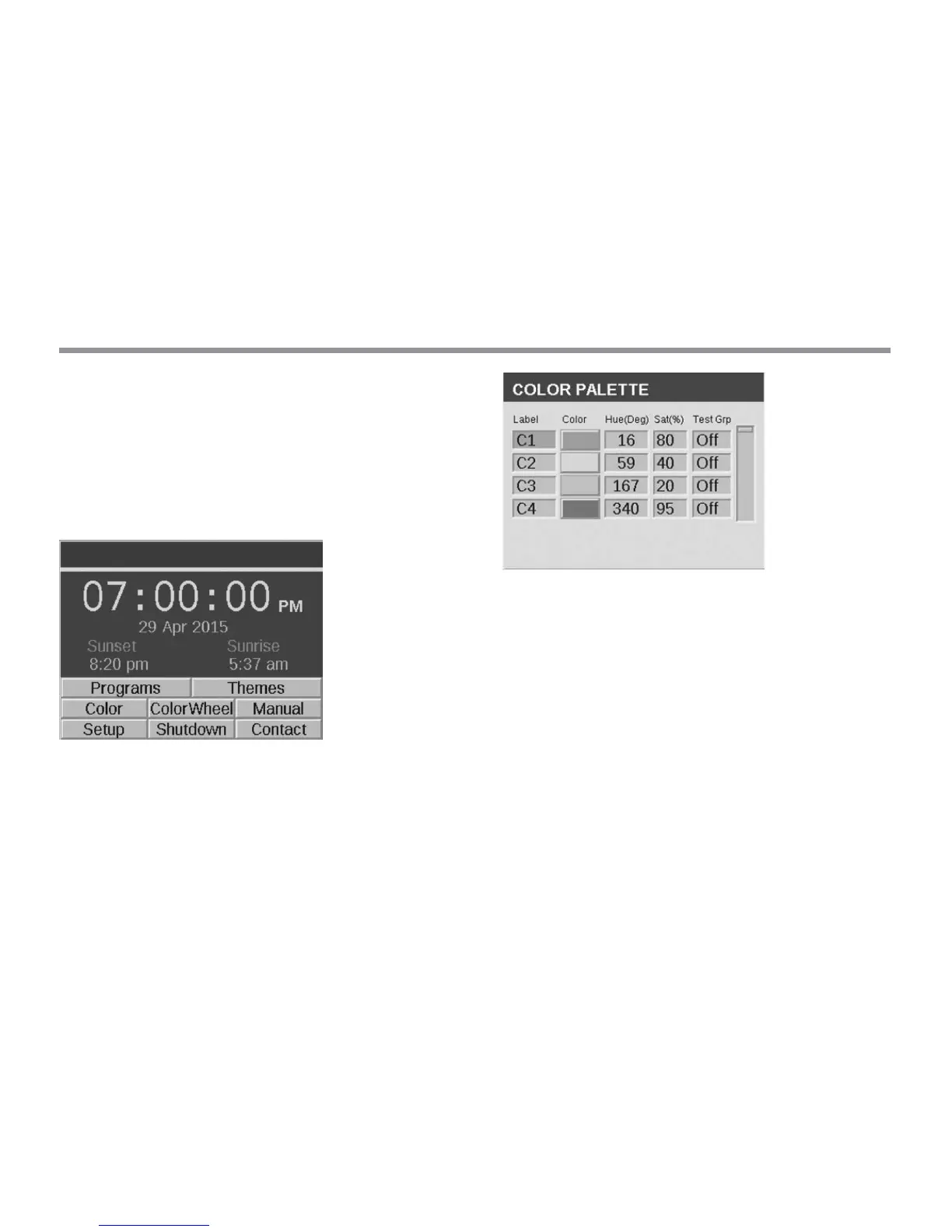
Color Palette
Colors are selected on the Color Palette screen. The Luxor can
store up to 250 preset colors, labeled numerically as seen in Fig. 10.
Each color requires hue and saturation values. Hue is the primary
attribute of a color. The selected value is found on the standard color
wheel and is represented by numeric values between 0 and 359.
Saturation is the percentage of hue seen with white light lling in
the remainder (e.g. 80% saturation is 80% of the selected hue and
20% of white light).
Figure 11: Color Palette Screenshot
• Access the color palette by selecting the COLOR function from
the HOME screen.
• Only four colors are displayed at a time. Turn the scroll wheel
clockwise to access the remaining 246 color labels.
• Use the scroll wheel to highlight the desired color label (e.g. C1).
Adjust the Hue/Saturation settings using one of two methods:
1. Color Swatch: Scroll one click to the right to highlight the color
swatch and press the scroll wheel to open the Color Selection
screen. Adjust the hue (top) and/or saturation (bottom) by
selecting the appropriate chart, scrolling le or right until the
desired setting is located, and pressing the scroll wheel again
to nalize the setting.
2. Hue/Sat Values: Scroll to highlight the hue or saturation
numeric values. Press the scroll wheel to select, then scroll to
select the desired values. Press scroll wheel again to nalize
the setting.


 To Next Page