4.2 User Input
The NANO
3
user interface consists of many dialogues, which have different input controls.
They are designed to make input of names, parameters, etc., as easy as possible. Input
controls can be summarised as:
Text editor
Spin controls (Selection control)
Checkboxes
Slider control
Line width control
Color selection
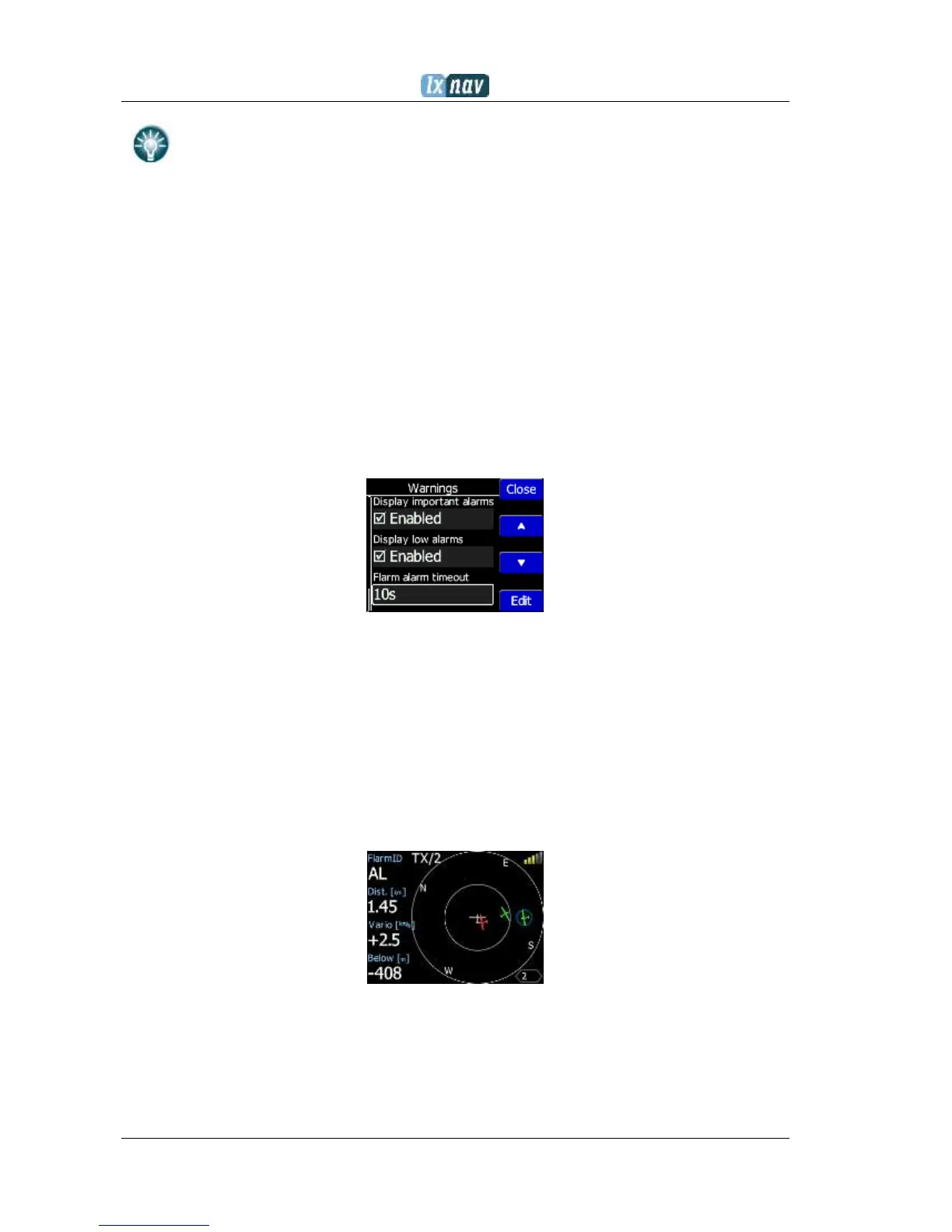
To move the function from one control to another, use up or down buttons. By pressing the
Edit button access to the control that is displayed is possible.
4.2.1 Buttons on Nano3
Buttons have dynamically set functions. When you press a button, on the button side, will
appear a blue labels, with the action assigned to that button in that context.
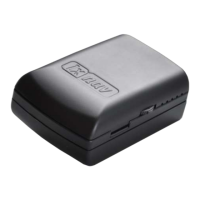
On main screen, top button always performs the function of switching between pages. Short
press will cycle in one direction between pages, long press will cycle in the opposite direction
between pages. A number of pages look similar initially as the cycling between them simply
change the zoom level. The screen will momentary will be updated to reflect the new zoom
level. The number in a zoom level icon shows us the outer circle radius (2km – depends on
distance units setting). Inner circle is half of that distance.
Middle buttons help with target selection by cycling through available targets. Lower button
has EDIT function, where we can edit/view the currently selected target.


 To Next Page